Approve agent messages to send at a set time
Why this exists
A good follow-up lands on the right morning, not when you happen to open Sasha. So most messages the CRM Agent drafts come with a proposed day and time; some wait on the shelf with none until you give them one. You read a message and approve it once. Sasha sends it at that time, exactly as you approved it. If anything about it is no longer right when the time comes, Sasha does not send it. It holds the message and tells you why, in plain words.
Sasha sends only what a named person approved, in the exact form they approved, at the time they approved, and only while that person may still send. The agent has no tool that sends or approves. No tool or app call that Sasha offers a model can record an approval: an approval is recorded only when a person presses the button.
An example
On Monday 16 November, Priya at Northwind Advisory opens the CRM Agent. The Schedule tab says 5 messages need her approval. Each one already has a day and time, the next working day at the usual time in the agent's brief. Priya presses Review the 5.

She reads three of them with Read it, ticks them, and leaves the other two for later. Sasha lists when each one will go and from which address. She ticks I have read each message I am approving and presses Approve and schedule 3.

On Tuesday, Tom Fairley replies to an earlier email before his booked message goes. Sasha does not send it. The Schedule tab now leads with it: A message was held, and the reason, Tom replied on Tue.
How to do it
- Open the agent under Agents that work for me, then the Schedule tab. Anything that needs you first is at the top.
- To approve several at once, press Review. Each message shows its day and time, which you can change. Press Read it to read the whole message. Tick the ones to approve.
- Tick I have read each message I am approving, then press Approve and schedule. Sasha shows It's booked with what goes when, and offers Undo.
- To deal with one message, press Open on it. You see the To line, the subject and the words, and you can change them. Pick a day and a time, then press Approve and schedule.
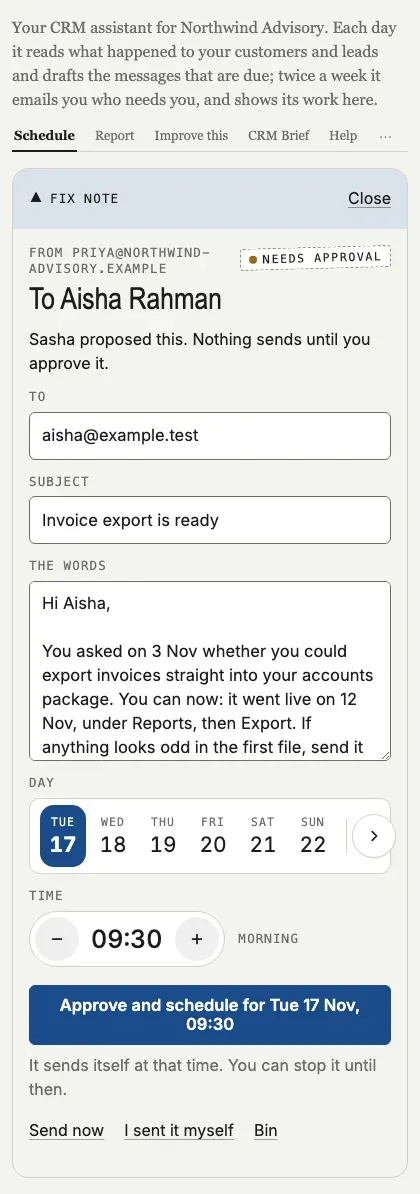
A time must be at least five minutes ahead. Every time is shown in the agent's time zone, whatever your computer says.
What each state means
- Scheduled (blue, solid edge): approved. It sends itself at its time. You can still change it, stop it or bin it.
- Needs approval (dashed edge, a small dot): Sasha proposed a day. Nothing sends until you approve it.
- Draft (dotted edge, on the shelf): no day yet. Press Schedule this.
- Held: Sasha did not send it, and says why. For example: they replied, they are on the never-write list, the sending address changed, the person who approved it can no longer send, the agent was paused or switched off, the mail service did not take it, or Sasha no longer thinks it is needed. Approve it again for a new time, press Send now, or Bin it.
- Changed after approval: someone changed it after it was approved, so it will not send. Read it, then approve it again.
- Missed: it was due more than two hours ago and did not go. Pick a new time, send it now, or bin it.
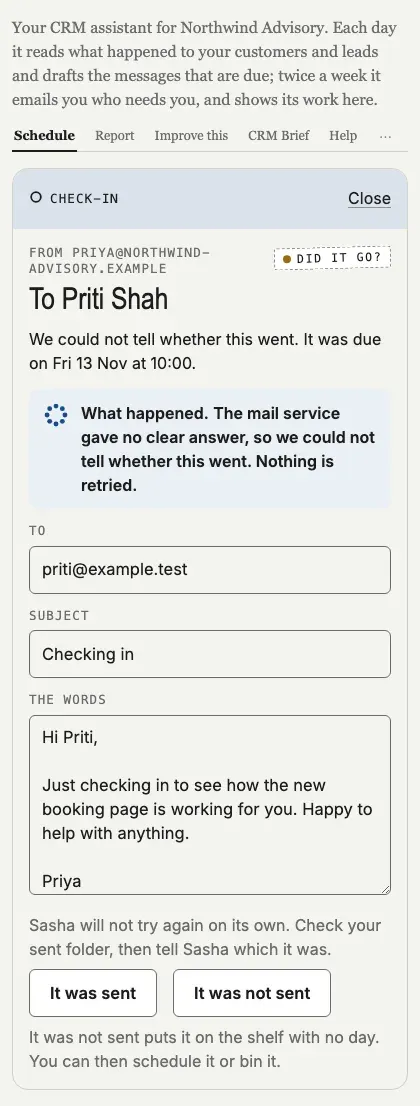
- Did it go?: the mail service gave no clear answer, so Sasha could not tell whether it went. Check your sent folder. Press It was sent, or It was not sent to put it back on the shelf with no day.
- Sent (grey): it went. The Work log says who approved it and when.

The buttons on a message
- Stop takes a scheduled message off the schedule. It goes back on the shelf, unsent.
- Send now sends it at once, after one question.
- I sent it myself tells the agent you sent it from your own email.
- Bin removes it. You can get it back for 30 days.
Approving from chat
In the Sasha window, ask Sasha, for example "schedule the check-ins for tomorrow morning". Sasha shows the messages with Read it for each one and the tick I have read each message I am approving. Nothing is booked until you tick it and press the button. A message too long to show whole in the chat is not approved there: Sasha points you to the Schedule tab, so you never approve words you have not seen.
The twice-weekly report email starts with any message that needs you again, so you hear about it even if you do not open Sasha: one that was held or missed, one the mail service refused, one that changed after it was approved, and one Sasha could not tell went.
Who can do this
- Admin: everything on this page.
- Staff: everything on this page.
- Member: cannot sign in to the Sasha web interface, so does not see the Schedule tab.
For everything each role can do, see Who can do what in Sasha.
What Sasha will never do
- Send a message nobody approved.
- Send words that changed after they were approved.
- Send more than two hours late.
- Try a send again on its own.
Limits today
- The Schedule tab is on the CRM Agent. Other agents do not schedule messages yet.
- The reply address is read from the brief when the message goes. If an admin changes it after you approve, replies go to the new address.
More detail
- Reading, changing and binning drafts: Approve, change or bin what an agent drafted.
- What an agent is and what it does: Let an agent do a regular job for you.
Questions
Can Sasha send a message that nobody approved?
No. Sasha sends only what a named person approved, in the exact form they approved, at the time they approved, and only while that person may still send.
What if I change a message after I approve it?
It will not send. It shows Changed after approval until you approve it again, so the words that go are always words a person approved.
What happens if Sasha was down at the time a message was due?
If it is less than two hours late, it still goes. Later than that, Sasha holds it as Missed, and you choose a new time, send it now, or bin it.
Does Sasha try again if a send fails?
No. Sasha never tries again on its own. If it cannot tell whether a message went, it shows Did it go? and asks you.
Can I approve messages from chat?
Yes, in the Sasha window, if you are an admin or a staff user. Ask Sasha to schedule them. The chat shows each message with Read it and the tick I have read each message I am approving. A long message is approved on the Schedule tab, where you can read it whole.
Who can approve a message?
Admins and staff users. If the person who approved a message can no longer send by the time it is due, Sasha holds it.
Where do replies go?
To the reply address in the agent's brief at the moment the message goes. Your approval covers who it goes to, the subject, the words, the time and the address it is sent from.