Let Sasha read files that live in OneDrive, SharePoint or Google Drive without uploading them
Settings → Shared Drives signs Sasha into one business OneDrive, SharePoint library or Google Drive, so people can browse those files in Sasha without uploading them.
- Where
- Settings → Shared Drives (the avatar menu, then Settings). The provider's sign-in page sends you back to the same tab.
- Who
- Only admins can set up connections. Sasha has no setting that gives this right to staff. Admin and staff accounts browse the connected drives.
- Needs
- An app registration at Microsoft (client ID, secret value, directory ID) or an OAuth client at Google, with the redirect address from the connection card. SharePoint also needs the library's Drive ID.
What this screen is for
Shared Drives connects Sasha to a business cloud drive. People then browse the drive's files in Sasha, and Sasha reads each file from the drive when it is needed. Nothing is uploaded or copied in.
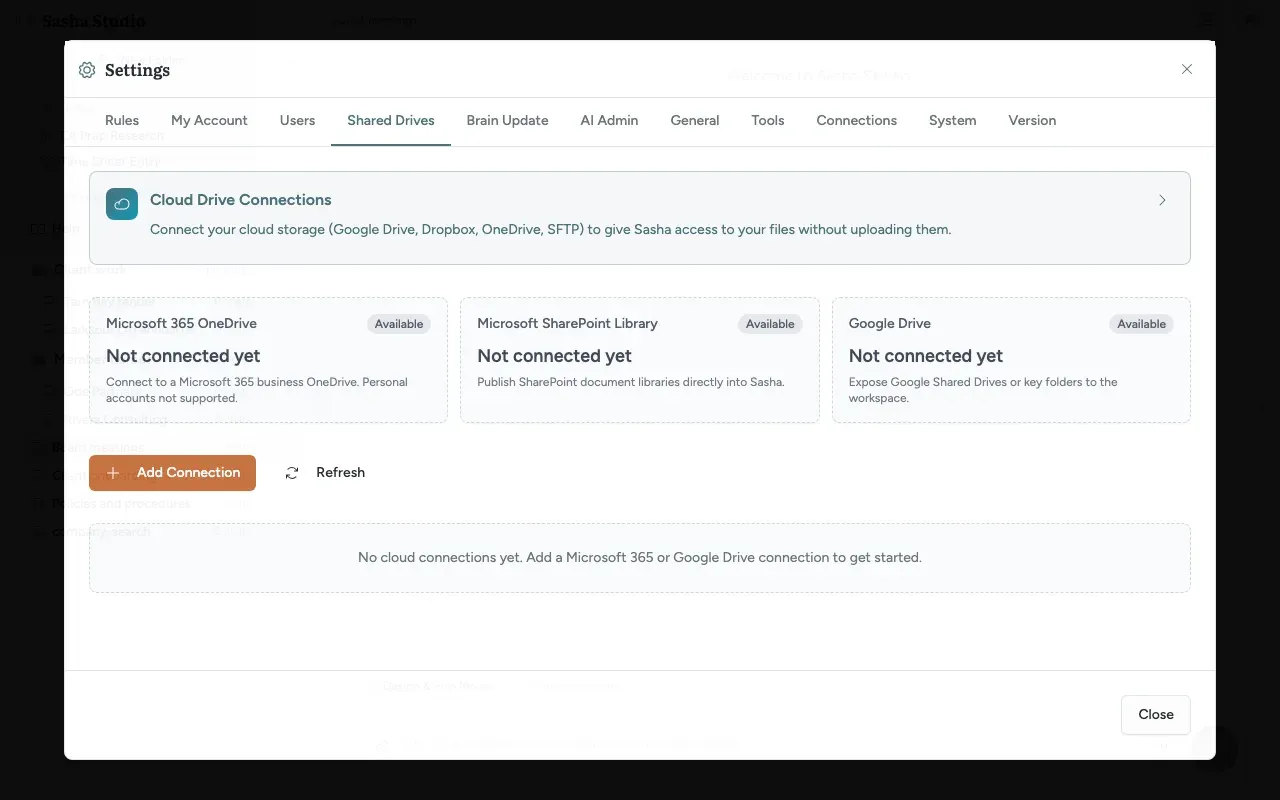
The Cloud Drive Connections banner explains the screen; its arrow opens more detail. Below it, three provider cards show the state of each type: Microsoft 365 OneDrive, Microsoft SharePoint Library and Google Drive. Each card shows Available, Connected or Action needed, with "Not connected yet", "2 drives connected" or "1 drives awaiting sign-in".
Add a connection
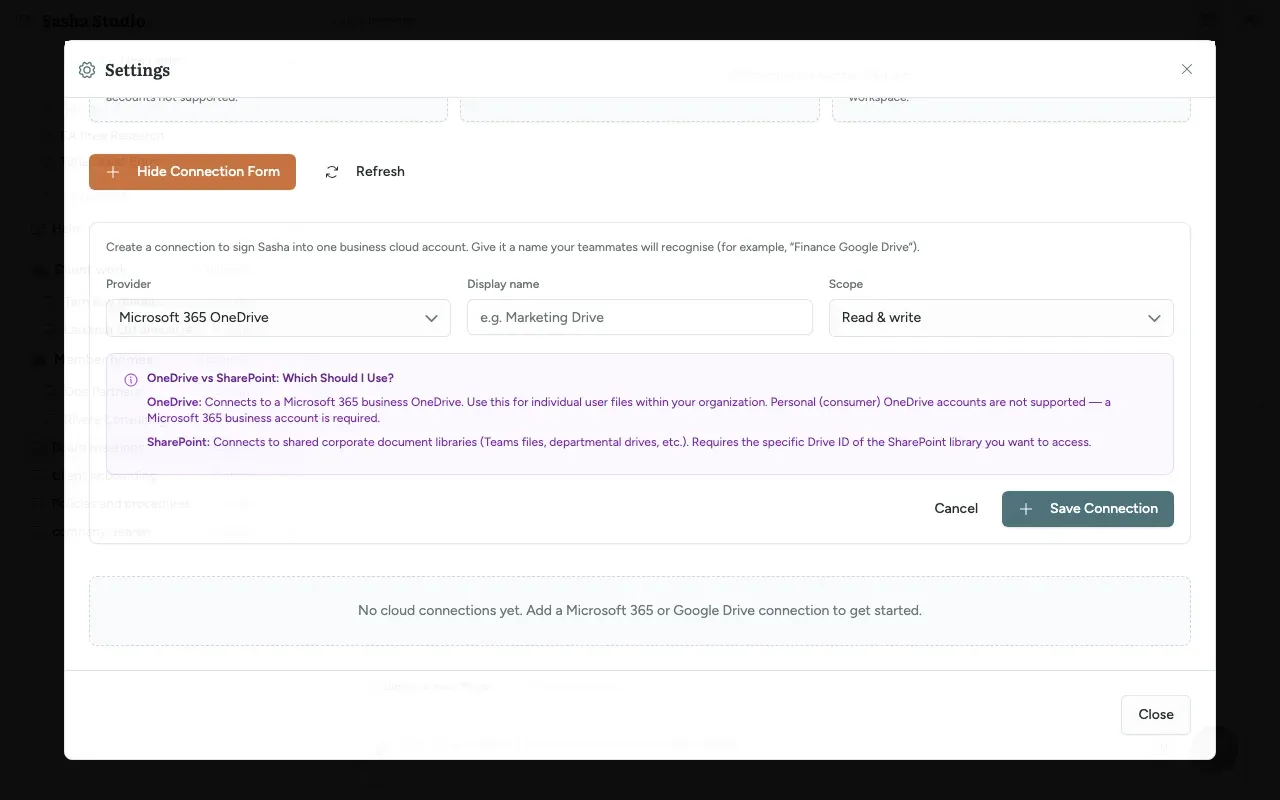
- Click Add Connection. The button changes to Hide Connection Form.
- Choose the Provider.
- Type a Display name that your team will recognise, for example "Finance Google Drive".
- Choose the Scope: Read & write (the default) or Read-only. See "Scope" below.
- For Microsoft SharePoint Library, fill in Drive ID *. Site ID and Root folder ID are optional. The form explains three ways to find the Drive ID and lists the Microsoft permissions the app needs.
- Click Save Connection. The connection appears below with Needs authorization.
Sign Sasha in
Each connection card has the fields for the app you registered at the provider:
| Field | What to enter |
|---|---|
| Client ID | The application (client) ID |
| Client secret (Value, not Secret ID) | The secret's value. After a save, the box shows "Stored" |
Tenant / Directory ID |
Microsoft only: your directory ID |
| Redirect URI | Shown by Sasha. Click Copy and add it to the app registration |
- Add the Redirect URI to your app registration at Microsoft or Google.
- Fill in the client fields on the card and click Connect.
- Sign in at Microsoft or Google with the business account and approve.
- The provider sends you back to this tab. A message says, for example, "Microsoft 365 authorized successfully." The card then shows Connected, "Account:" with the signed-in account, "Last refresh:" and "Access expires:".
If the provider does not give Sasha a long-term sign-in, Sasha shows "Provider did not return a refresh token. Ensure consent is granted." Approve the consent screen in full and try again.
Scope
| Scope | Microsoft | |
|---|---|---|
| Read-only | Sasha asks only for read permissions | Sasha asks for full access to the drive |
| Read & write | Sasha asks for read and write permissions | Sasha asks for full access to the drive |
The banner recommends Read-only. The form starts at Read & write, so choose Read-only yourself if you want it.
The other buttons
- Refresh cache on a card: Sasha forgets its stored listings for that connection. The next browse asks the drive again.
- Refresh at the top: reloads the list of connections.
- Save library (SharePoint only): saves new library identifiers.
- Reconnect: repeats the sign-in. You must type the client secret again.
- Remove: asks "Remove this connection? Any cached listings will be cleared." and then deletes the connection and its stored sign-in.
How it is kept safe
- The client secret and the provider's sign-in are stored encrypted on your Sasha server. The secret never returns to the browser. If whoever runs your Sasha has not set an encryption key, Sasha uses a built-in key that gives little protection.
- Sasha checks each return from the provider with a one-time value. A mismatch shows "State validation failed. Please try again."
- Sasha renews the drive's access by itself when it is about to expire, and checks the connections every 5 minutes.
- Sasha records file actions on the drives.
Limits to know
- Today, Cancel on the new connection form hides the form but causes an error in the page, and does not clear what you typed. Use Hide Connection Form instead.
- The display name and the client credentials belong to the provider type, not to one connection. A second Google Drive connection renames the first, and a new client secret on one OneDrive connection changes it for every OneDrive connection.
- Reconnect clears the working sign-in before you reach the provider. If you stop part way, the drive stays disconnected until you finish a sign-in.
- For Google, Read-only does not stop changes. Sasha does not check the scope before an upload, a new folder, a move or a delete, on any provider.
- Remove does not cancel Sasha's access at Microsoft or Google.
- The banner names Dropbox and SFTP, and "Real-Time Sync". Only OneDrive, SharePoint and Google Drive are offered, and Sasha reads live with a short cache, it does not sync.
- The Redirect URI is built from the address the browser used. If your Sasha sits behind a proxy that changes the address, check that the URI shows your public address before you register it.
- Browsing the drives needs the cloud-drives:use capability (admin and staff). Whether the server checks it depends on how your Sasha is set up. Ask whoever runs your Sasha.
Questions
Are the files copied into Sasha?
No. Sasha reads them from the drive when someone opens a folder or a file. Folder listings are kept for 15 seconds and search results for 10 seconds, then Sasha asks the drive again.
Which accounts can I connect?
A Microsoft 365 business OneDrive, a SharePoint document library, or a Google Drive. Personal (consumer) OneDrive accounts are not supported.
OneDrive or SharePoint?
Choose OneDrive for the files of one business user. Choose SharePoint Library for a shared library, such as the files of a Teams team or a department. SharePoint needs the Drive ID of the library.
Does Read-only stop changes?
For Microsoft, yes in practice. Sasha asks Microsoft only for read permissions, so Microsoft refuses changes. For Google, no. Sasha asks Google for full access to the drive whatever you choose, and Sasha does not block uploads, moves or deletes on a Read-only connection.
Connect fails with AADSTS50011 or redirect_uri_mismatch. Why?
The redirect address registered at Microsoft or Google does not match the one on the connection card exactly. Click Copy next to Redirect URI on the card, paste it into the app registration, and try again.
Where do people see the drives?
In the file tree, in a group named Shared Drives.
Can Claude search the drives in a chat?
Only if an admin also sets up the Drive MCP card in Settings → Tools. A connection on this tab alone gives people the files in the file tree.
Does Remove cancel Sasha's access at Microsoft or Google?
No. Remove deletes the connection, its stored sign-in and its cached listings in Sasha only. Also remove the app's access in your Microsoft or Google admin settings.
Why does a staff account see a "Missing required capability" message on this tab?
Setting up drives needs the cloud-drives:manage capability. Only admins hold it. Sasha has no setting that gives this right to staff.