Read and change a skill or workflow in the editor, and make a new workflow with the wizard
The editor shows a skill or workflow as a diagram next to its text, with inspectors to change steps and settings. Gates and approvals are not enforced at run time.
- Where
- Menu → Workflows → Edit, or Menu → Skills and click a skill. The editor opens next to the chat. Menu → Workflows → + starts the new workflow wizard.
- Who
- Admin and staff accounts. Both can open, change and save skills and workflows.
- Needs
- Nothing to set up. To run what you build, an admin must set up an AI provider.
What it is
The editor shows one skill or workflow in two ways at once: a diagram (the canvas) and the text of its file. You open inspectors from the diagram to change fields, then click Save.
The editor is a way to read and change a skill's file. It is not a workflow engine. When a skill runs, Sasha gives Claude the whole file as instructions (Find a skill, run it now, put it on a schedule, or let another system run it). The steps, gates and rules in the file guide Claude, but Sasha does not enforce them.
Open the editor
- Menu → Workflows → Edit on a workflow card.
- Menu → Skills, then click a skill in the Skill Library.
On a computer, the editor opens as a panel next to the chat. You can drag its edge to change the width, or click the expand button for full screen. On a phone, it fills the screen.
The toolbar
| Control | What it does |
|---|---|
| Canvas | Shows only the diagram |
| Split | Shows the diagram and the text side by side |
| Dependencies | Workflows only. Adds lines that show which steps use the results of other steps |
| Errors | Workflows only. Adds the error paths: what each step does when it fails |
| Unsaved changes / Save | Shows that you changed something, and saves the file |
| Expand / Close | Full screen, and close the editor |
There is no Code view, no Run button and no schedule control in the editor.
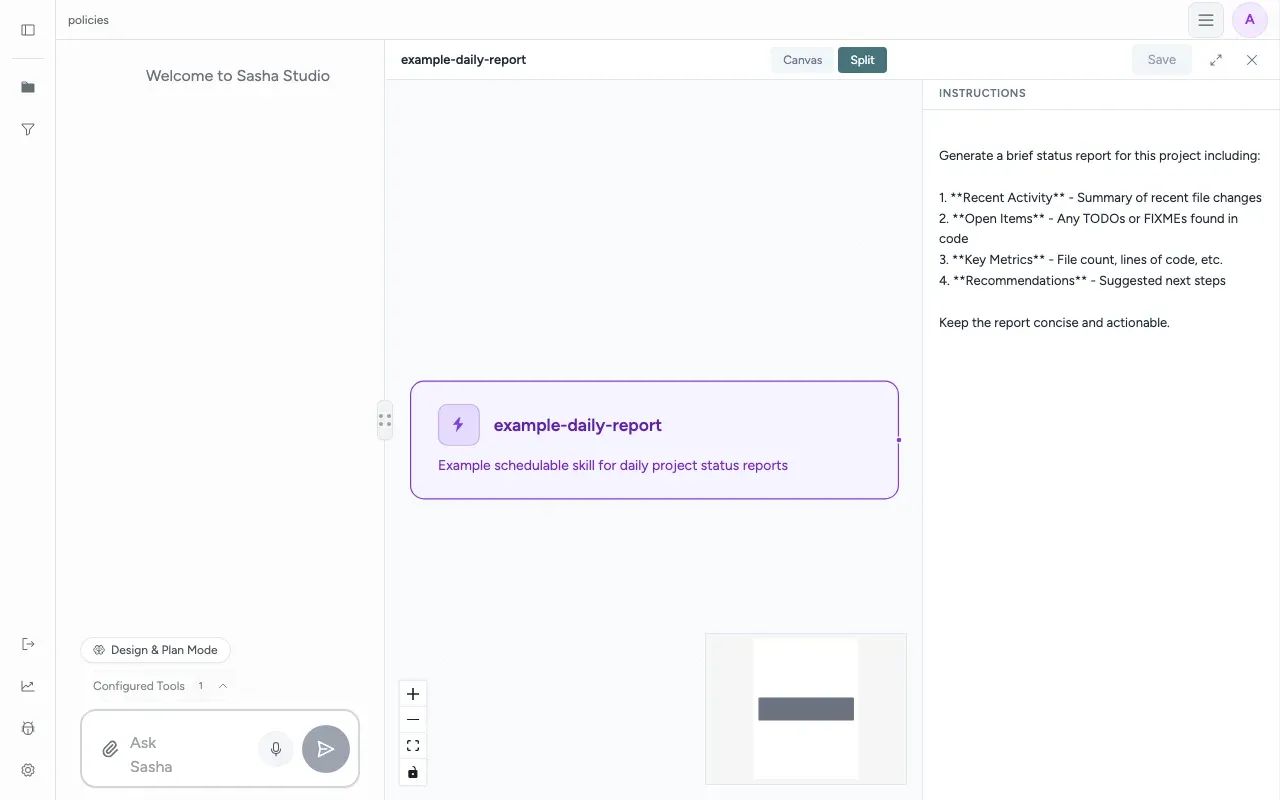
A plain skill
A plain skill shows as one box on the canvas. In Split view, the right side has an Instructions box, where you edit the skill's text (Write skill instructions here... when it is empty).
Click the box on the canvas to open the skill inspector:
| Section | Fields |
|---|---|
| Identity | Name, Title, Description, Category, Icon, Order |
| Invocation | User invocable, Disable model invocation, Argument hint |
| Execution | Allowed tools, Context, Agent type (Default, Explore, Plan, General Purpose), Model |
| Supporting Files | Other files in the skill's folder |
A workflow
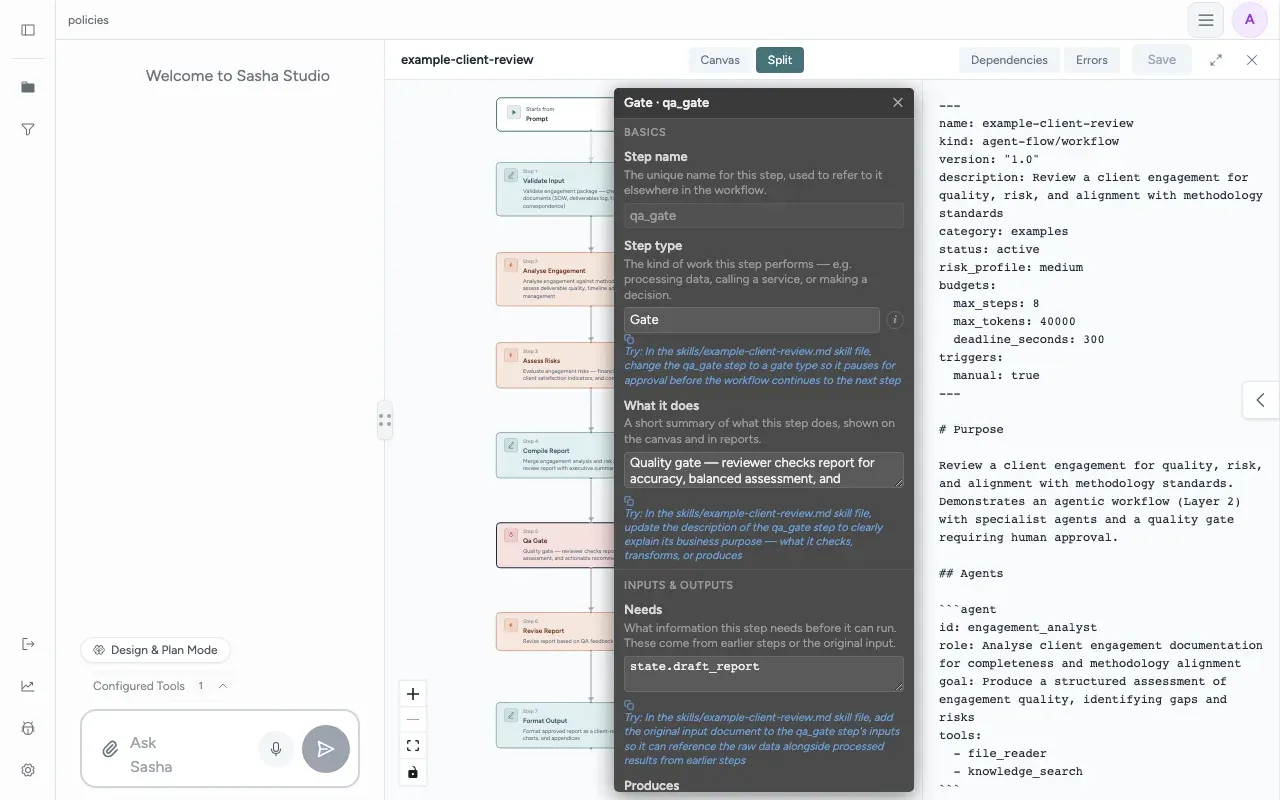
A workflow shows as a chain: Starts from (how it starts), then each step, then the files it makes. In Split view, the right side shows the file as read-only text.
Click a step to open the step inspector. Its sections are:
| Section | Fields |
|---|---|
| Basics | Step name (read-only), Step type, What it does |
| Inputs & Outputs | Needs, Produces, Output files, Audit output |
| Rules | Run condition, If it fails (none, stop, skip, fallback, retry, with Max attempts and Backoff (ms) for retry), Stop condition |
| AI Behaviour | Gate method, Expected result, Specialist, Worker group, Linked Skill |
| Code | Language, Dependencies, Script |
| Tracking | Success label, Failure label |
The step types are Transform, Skill, Tool, Decision, Gate, Parallel, Subagent Bundle and End. Specialist names an agent that this workflow defines in its own file. It is not a specialist from Menu → Agents (Understand what specialists and guides are, and what they do in a chat today). Linked Skill points to another skill, with a link to open it in the editor.
"Try:" hints
Under many fields, a Try: line suggests a change in plain words. Click it, and Sasha puts the text in the main chat's message box ("Added "Workflow hint" to the message box"). Edit it if you want, and send it. Claude then changes the skill's file. Close and open the editor again to see the change before you save anything else.
Gates and approvals
A Gate step is meant to stop the workflow until a reviewer approves the work. Its Gate method offers Critic agent (an AI reviewer) or Auto approve.
Today, gates and approvals are not enforced when a workflow runs. Sasha has no code that reads steps, gates or approval settings during a run. It gives Claude the whole file as text. Claude can do a review because the text asks for one, but nothing makes the run wait, and nobody is asked to approve. A run from a schedule or from another system has no person to ask in any case.
There is also no option for a human reviewer in Gate method, although some Try: hints suggest "require human review". If a person must approve a result, have the workflow save a draft, and let a person review the draft before anyone uses it.
Make a new workflow with the wizard
- Open Menu → Workflows and click + (New Workflow).
- What does this workflow do? Describe the purpose in one sentence. Click Next.
- Can parts of this work happen at the same time? Choose "Yes, some tasks can run in parallel" or "No, each step depends on the previous one". Click Next.
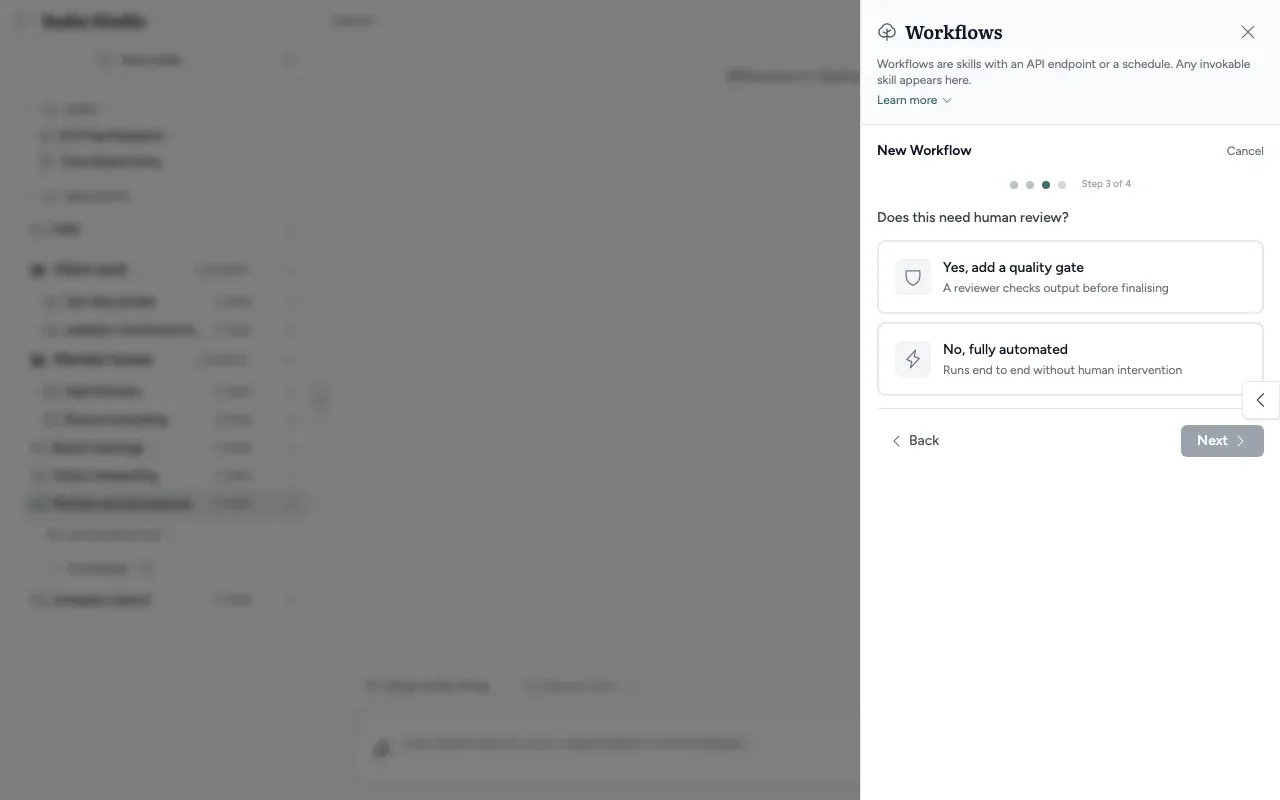
- Does this need human review? Choose "Yes, add a quality gate" or "No, fully automated". Click Next.
- Review & Create: check the summary, type the Workflow Name, and click Create Workflow.
Sasha makes the workflow with the status draft and opens it in the editor. "Yes, add a quality gate" adds a Gate step with a reviewer agent. Like every gate, it is not enforced at run time.
Save
Click Save to write your changes to the skill's file. Sasha replaces the whole file. The editor has no undo after a save, so keep a copy of a skill before a large change.
Limits to know
- Today, gates and approvals are not enforced at run time. A run never waits for a reviewer.
- Today, Save clears "Unsaved changes" even when the save failed. Reopen the skill to check.
- The editor does not reload when the file changes. If you changed the skill through a chat or a Try: hint, close and reopen the editor before you save, or you overwrite those changes.
- The editor has no Run button, no schedule control and no last-run status. Use Menu → Workflows and Menu → Tasks (Find a skill, run it now, put it on a schedule, or let another system run it).
- You cannot drag, add or connect steps on the canvas.
- For a workflow, the text pane is read-only.
- The Model field in the skill inspector writes a setting in a different place. On AWS Bedrock, a short model name there makes the skill fail. Ask in a chat to set the model under the skill's execution settings instead.
- Starts from on the canvas says "Prompt" for a skill whose schedule was set in Workflows, and the Workflows card says "Manual" for the same skill. Neither shows a schedule set from the panel, or that a skill category allows API runs.
- When the wizard cannot create a workflow (for example, the name is taken), it shows no message.
- Try: hints name the file as
skills/<name>.md. The real file isSKILL.mdin a folder named after the skill.
Questions
What is the difference between a skill and a workflow?
A workflow is a skill whose file marks it as a workflow and lists its steps, agents and groups of steps. A plain skill is one block of instructions. The editor shows a plain skill as one box and a workflow as a chain of steps.
Does a Gate step really stop for approval?
No. Today, nothing in Sasha stops a run at a Gate step or waits for a person. When a workflow runs, Sasha gives Claude the whole workflow text as instructions. Claude reads the gate as a request to check its work, and then it continues.
Can I drag steps or draw connections on the canvas?
No. The canvas shows the workflow but you cannot move or connect steps. Change steps in the step inspector, or ask Sasha in a chat.
How do I run a workflow from the editor?
You cannot. The editor has no Run button. Close it and use Run in Menu → Workflows.
I changed a skill in chat, but the editor still shows the old version. What do I do?
Close the editor and open it again before you save. The editor does not reload when the file changes, so Save would write the old version over your chat changes.
Why can I not type in the text pane for a workflow?
For a workflow, Split view shows the file as read-only text. Change it with the inspectors or through a chat. For a plain skill, the Instructions box can be edited.
Where do I set the model for a skill?
Set it in the skill's file under the execution settings, through a chat. Today, the Model field in the skill inspector writes the model to a different place. On AWS Bedrock, a short model name there makes the skill fail.
What do the step colours mean?
Transform is teal, Skill is orange, Tool is green, Decision is amber, Gate is red, Parallel and Subagent Bundle are blue-grey, and End is grey.
Did my change save?
Not always. Today, Save clears "Unsaved changes" even when the server refused the save. Close the editor and open the skill again to check.
Does the wizard check that the name is free?
No. If a skill with that name exists, the wizard does not make the workflow and shows no message. Use a new name.