Choose and understand the connectors that put your files and pages in Sasha's file tree
OneDrive, SharePoint, Google Drive, Notion and GitHub synced folders side by side - where each shows in Sasha, how fresh it is, what read-only means and how Claude reaches it.
- Where
- Settings → Shared Drives (the avatar menu, then Settings) for all five. The files show in the file tree.
- Who
- Admins set up these connectors. Staff cannot, unless whoever runs your Sasha grants them the cloud-drives:manage capability. Admins and staff browse the drives and Notion. A synced folder is visible to the people who can see its project.
- Needs
- For each connector, an account at the other service and the details that service gives you. Each setup page lists them.
What this page is for
Some connectors put the files of another service into Sasha's file tree. People then open those files in Sasha, and Sasha uses them in chat. This page calls them file connectors. There are five:
- Microsoft 365 OneDrive: the files of one business OneDrive.
- Microsoft SharePoint Library: one shared document library, for example the files of a Teams team.
- Google Drive: the drive of one Google account.
- Notion: the Notion pages that you share with Sasha.
- GitHub synced folder: one folder of one GitHub repository, copied into a project.
You set up all five on the same screen, Settings → Shared Drives. Each has a tile at the top of the screen. A tile shows Available, Connected or Action needed.
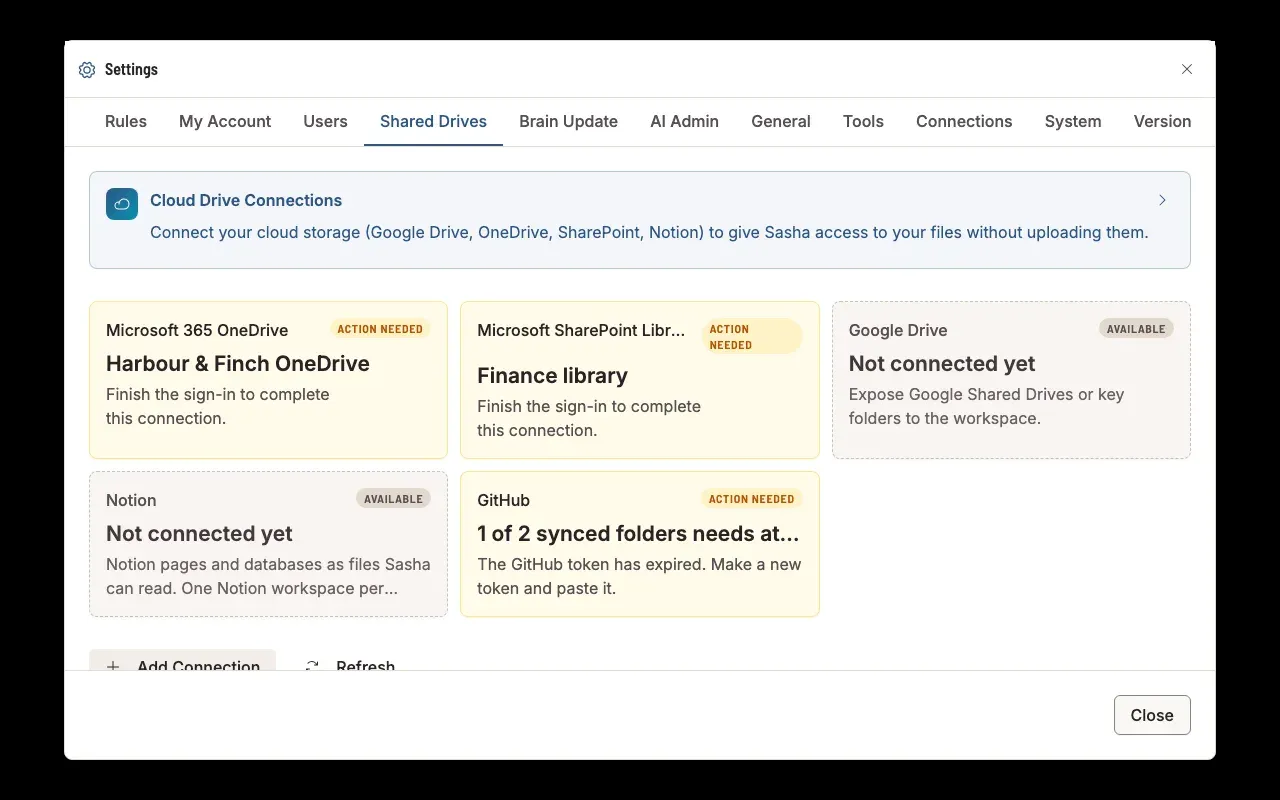
Other connections in Sasha are not file connectors. The cards in Settings → Tools (MCP servers, Stripe, HireBest and others) give Sasha's AI tools, not files. Settings → Connections lets Claude reach Sasha. Neither adds anything to the file tree.
The five side by side
| OneDrive | SharePoint library | Google Drive | Notion | GitHub synced folder | |
|---|---|---|---|---|---|
| Where it shows | The Shared Drives group at the top of the file tree. One folder for each connection | Same as OneDrive | Same as OneDrive | The Shared Drives group, in a folder named after the connection ("Notion" if you do not type a name) | Inside a project, as a grey folder with a GitHub mark |
| How you connect | An app registration at Microsoft, then a sign-in | The same, plus the library's Drive ID | An OAuth client at Google, then a sign-in | An API token from a Notion connection | A read-only GitHub token |
| How many | Several connections | Several connections | Several connections | One for each Sasha | Several folders |
| How Sasha reads | Live from the drive. A folder listing is kept for 15 seconds, a search for 10 seconds | Same as OneDrive | Same as OneDrive | Live from Notion. A page or listing is kept for 5 minutes, or 15 minutes with live updates on | A copy in Sasha. Refreshed once a day, or when you click Check now |
| What Read-only means | Microsoft refuses changes | Microsoft refuses changes | Nothing. Google gives full access | Sasha refuses changes | Always read-only |
| Changes from Sasha | Upload, move, rename, delete | Same as OneDrive | Same as OneDrive | Change a page or add a page, from chat. Nothing else | None |
| Health shown | The card: Connected or Needs authorization, Last refresh, Access expires, Last error | Same as OneDrive | Same as OneDrive | The card: workspace, pages visible, Check now | The card: Last synced, commit, token expiry, error. The folder: "Updated" with a date |
| Claude in Studio chat | Through the Drive MCP card | Through the Drive MCP card | Through the Drive MCP card | Built-in Notion tools | Like any project file |
| Remove | Remove deletes the connection in Sasha only | Same as OneDrive | Same as OneDrive | Disconnect deletes the token and the index in Sasha only | Delete removes the folder from the project. GitHub does not change |
Admins set up all five. The permission behind it is the cloud-drives:manage capability. Staff do not hold it unless whoever runs your Sasha grants it.
OneDrive, SharePoint and Google Drive
These three work the same way. Sasha signs in to the drive as one business account. Then Sasha reads the drive each time someone opens a folder or a file. Nothing is copied into Sasha.
Set up. First register Sasha as an app at the provider: see Set up the Microsoft side so Sasha can sign in to OneDrive or a SharePoint library or Set up the Google side so Sasha can sign in to your Google Drive. Then add the connection and sign in on Settings → Shared Drives: see Let Sasha read files that live in OneDrive, SharePoint or Google Drive without uploading them.
In the file tree. A connected drive is a folder in the Shared Drives group, named with the connection's display name. A connection that waits for a sign-in does not show in the tree. Open a folder to list it. Sasha asks the drive and keeps the listing for 15 seconds. A search in a drive is kept for 10 seconds. Refresh cache on the connection card makes Sasha ask the drive again at the next open.
Freshness. A change in the drive shows in Sasha at the next open of the folder, at the latest 15 seconds later. The banner on the screen says "Real-Time Sync", but Sasha does not sync. It reads live.
Read-only and writes. The Scope decides the permissions that Sasha asks for at sign-in.
- Microsoft: Read-only asks only for read permissions, so Microsoft refuses every change.
- Google: Sasha asks for full access to the drive whatever you choose.
- Sasha itself does not check the scope before an upload, a move, a rename or a delete, on any of the three.
Sign-in and health. Sasha renews the drive's access by itself when the access is about to expire, for example when Sasha starts. If a renewal fails, the card shows Last error. If a folder cannot be listed, the file tree shows "Failed to load cloud directory", without the reason. The card shows a failed sign-in only. For other reasons, check that the connected account can open the folder at the provider.
In chat. Studio chat reaches these drives only through the Drive MCP (Shared Drives) card in Settings → Tools. An admin opens the card and clicks Register. Claude can then list folders, search for files by name, download a file to read it, and see a file's details and the drive's space. It cannot upload or change a file. Every call uses the one account that the connection signed in with.
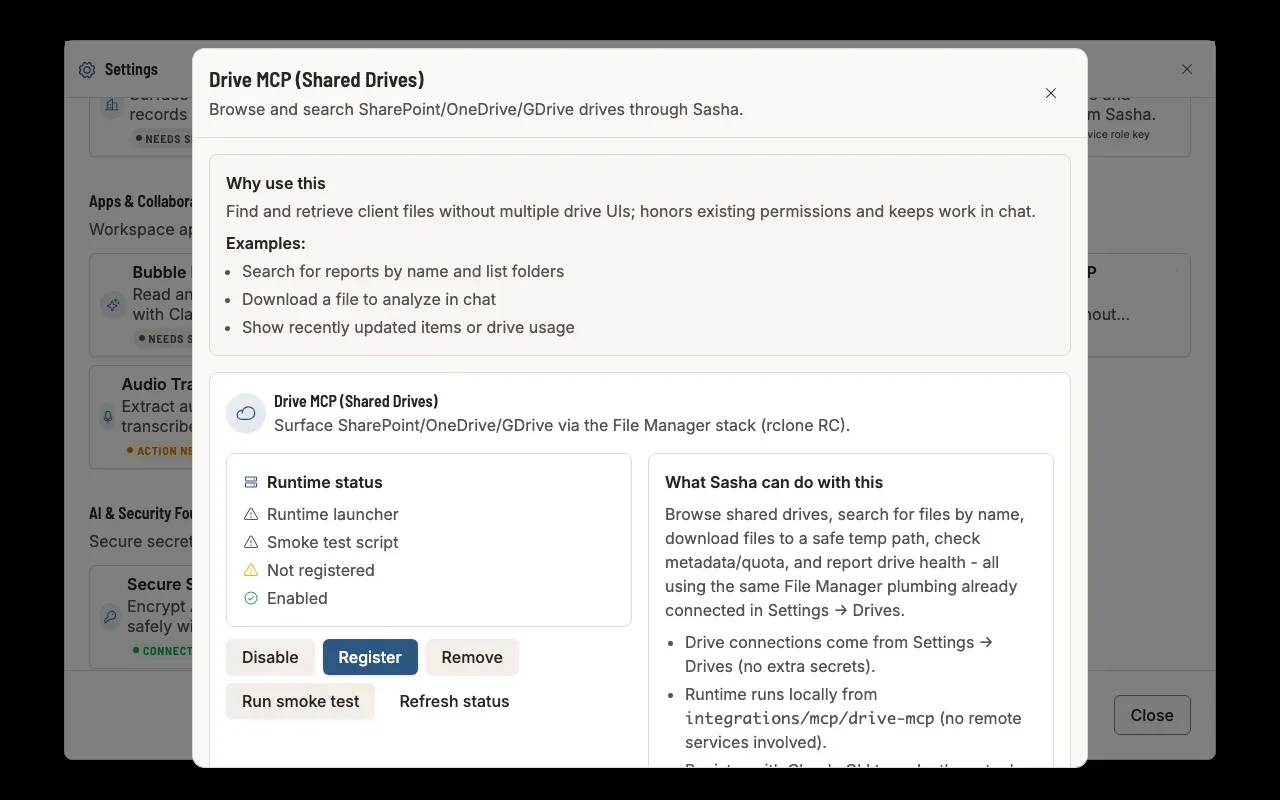
Remove. Remove on the card deletes the connection, its stored sign-in and its cached listings in Sasha. It does not cancel Sasha's access at Microsoft or Google. Remove the app there too.
Notion
Notion pages show as files. A page without sub-pages is a file, Title.md. A page with sub-pages is a folder, with the page's own text in a file named _index.md. A Notion database is a folder of its rows.
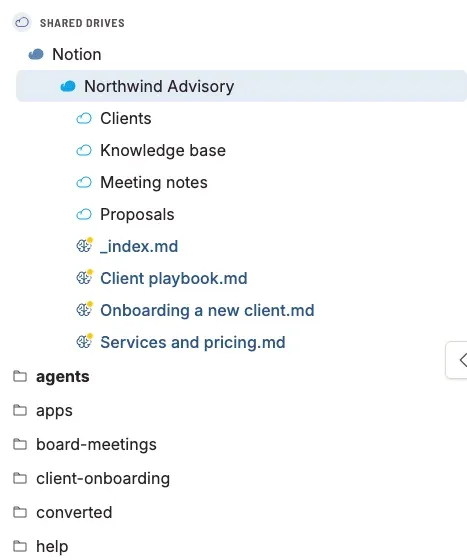
Set up. Make a connection in Notion, choose the pages it can see, and paste its API token in Sasha. See Connect Notion so Sasha can read and work with your Notion pages. Sasha allows one Notion connection.
Freshness. Sasha keeps a page or a listing for 5 minutes, then asks Notion again. Check now on the Notion card, or on an open page, asks at once. With live updates from Notion on, Notion tells Sasha about changes, and Sasha keeps pages for 15 minutes.
Read-only and writes. The Access that you choose is enforced by Sasha.
- Read only: people and Sasha can read pages.
- Read and write: Sasha can also change a page or add a page when someone asks in chat. A large change shows a preview and waits for the person's OK.
- Upload, new folder, move and delete do not exist for Notion, on either setting.
Who sees it. Admins and staff. Sasha refuses Notion to members, whatever their other permissions.
In chat. While Notion is connected, every Studio chat of an admin or staff member gets Notion tools: list, read, search, change a page and add a page. A scheduled skill gets them too, as the admin who connected Notion. Claude connected to Sasha from outside does not get these tools.
Disconnect. Disconnect on the Notion card deletes the token and what Sasha knows about the pages. Nothing in Notion changes.
GitHub synced folder
A synced folder is different from the other four: it is a copy. Sasha copies one folder of one repository into a project, and refreshes the copy once a day. People read the copy like any other folder in the project.
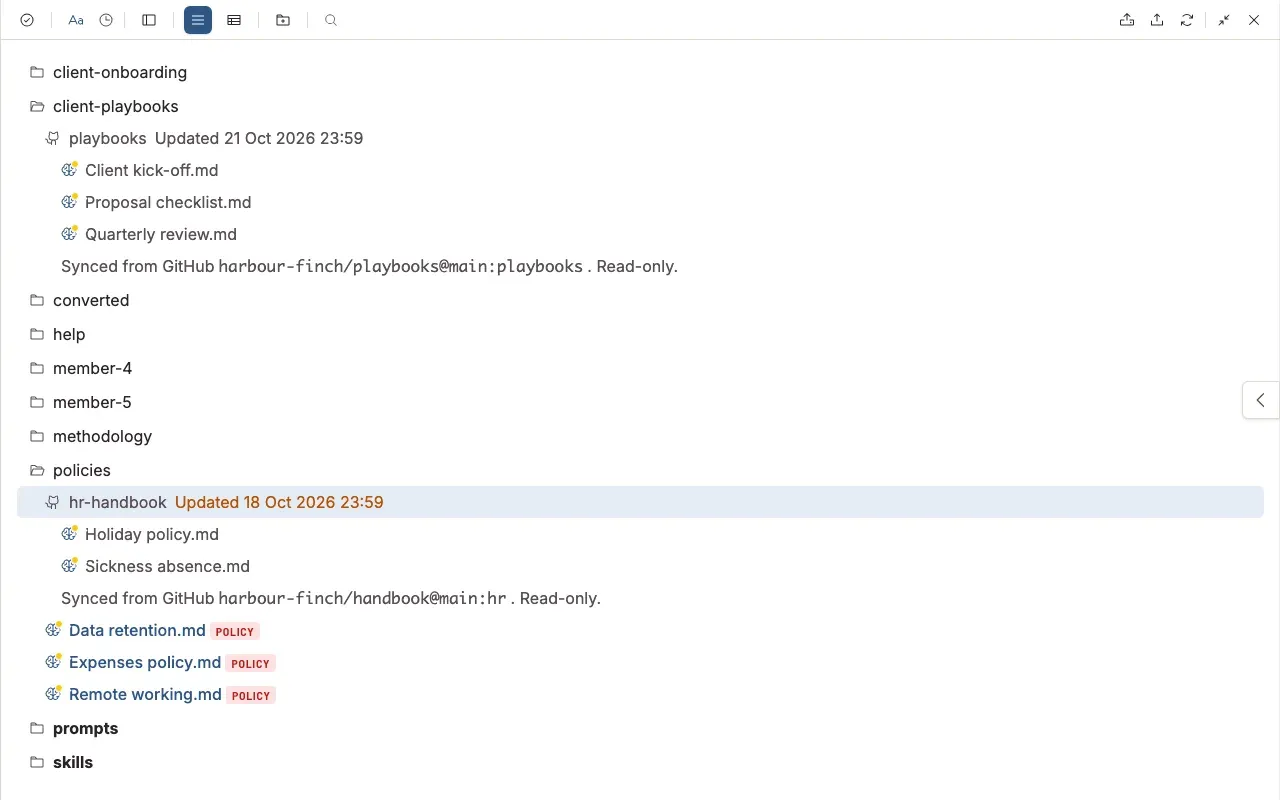
Set up. Make a read-only token on GitHub and add a card in Settings → Shared Drives. See Copy a folder from a GitHub repository into a project, read-only, and keep it up to date.
Freshness. Sasha refreshes every folder once a day at 03:00 by the server's clock. Check now on the card refreshes at once. An admin can also ask Sasha in chat to refresh a folder. The folder shows "Updated" with the time of the last good copy. That line turns to a warning colour when the copy is more than two days old.
Read-only and writes. Always read-only. Nobody can edit, rename, move or delete a file in it, and Sasha saves its own files next to it, not inside it. Sasha never writes to GitHub.
Who sees it. The people who can see the project.
In chat. The files are ordinary project files. Search, chat and Claude find them as they find any other document in the project.
Delete. Delete on the card removes the folder from the project. The rest of the project stays. Nothing changes on GitHub.
What happens when something fails
| Connector | What you see | Where to look |
|---|---|---|
| OneDrive, SharePoint, Google Drive | "Failed to load cloud directory" in the file tree | Last error on the connection card. If it shows an error, click Reconnect. If not, check the account's access at the provider |
| Notion | A notice that no pages are shared, or a page that does not open | The Notion card. See "If the Notion folder is empty" in Connect Notion so Sasha can read and work with your Notion pages |
| GitHub synced folder | The card shows the error, and the folder keeps the last good copy | The card. See "When a refresh fails" in Copy a folder from a GitHub repository into a project, read-only, and keep it up to date |
A failed refresh of a synced folder never removes the copy you have. A failed drive listing never changes anything in the drive.
Questions
Which connectors show my files in Sasha?
Five. Microsoft 365 OneDrive, a Microsoft SharePoint library, Google Drive, Notion and a GitHub synced folder. Settings → Shared Drives has one tile for each. No other connector puts files in the file tree.
Does Sasha copy the files?
Only for GitHub. Sasha reads OneDrive, SharePoint, Google Drive and Notion from the service when someone opens a folder or a file, and keeps the answer for a short time. A GitHub synced folder is a copy in a project that Sasha refreshes once a day.
Which connector can Sasha write to?
OneDrive, SharePoint and Google Drive accept uploads, moves, renames and deletes from the file tree. Notion accepts changes to pages and new pages when you ask Sasha in chat, on a Read and write connection. A GitHub synced folder never accepts a change, and Sasha never writes to GitHub.
Does Read-only stop all changes?
Not on every connector. For Microsoft, Microsoft refuses changes because Sasha asks only for read permissions. For Google, Sasha asks for full access whatever you choose. For Notion, Sasha refuses changes itself. A GitHub synced folder is always read-only.
Can Claude use these files in a chat?
Yes, in different ways. Studio chat reads Notion with built-in tools. It reads OneDrive, SharePoint and Google Drive only after an admin registers the Drive MCP card in Settings → Tools. A synced folder is ordinary project files, so chat, search and Claude find them like any document.
Why does a drive folder say "Failed to load cloud directory"?
Sasha could not list that folder at the provider. The message does not give the reason. Open the connection card in Settings → Shared Drives. If it shows Last error, the sign-in failed, so click Reconnect. If it shows no error, check that the connected account can open the folder at the provider.