Copy a folder from a GitHub repository into a project, read-only, and keep it up to date
The GitHub synced folders section of Settings → Shared Drives - the form, the card, the grey folder in the project, the daily refresh, and what to do when a refresh fails.
- Where
- Settings → Shared Drives (the avatar menu, then Settings), section GitHub synced folders. The folder shows in its project in the file tree.
- Who
- Only admins add, check, change and delete synced folders. The people who can see the project can read the folder.
- Needs
- A fine-grained GitHub token that can read one repository (Contents read-only). Your Sasha must have an encryption key, or the tile says "Not available yet".
What this screen is for
A GitHub synced folder puts the documents that your team writes in GitHub into a Sasha project. Examples are policies, playbooks, product specs and runbooks. GitHub stays the one place where people write them. Sasha copies them and keeps the copy up to date.
- Sasha copies one folder of one repository into one project.
- The copy is read-only in Sasha.
- Sasha refreshes the copy once a day. It copies only what changed.
- Sasha never changes anything on GitHub.
For the steps on GitHub, with a full walk-through of the token, see the help article Sync a folder from GitHub into a project. To compare a synced folder with the drives and Notion, see Choose and understand the connectors that put your files and pages in Sasha's file tree.
The GitHub tile
Settings → Shared Drives has a GitHub tile next to the drive tiles. Click it to go to the GitHub synced folders section below. If there is no synced folder yet, the click also opens the form. The tile shows:
| Tile | Meaning |
|---|---|
| Available, "Not connected yet" | No synced folder yet |
| Connected | Every folder synced in the last two days, with no error and no token that expires soon |
| Action needed, for example "1 of 2 synced folders needs attention" | A folder failed, is more than two days old, or has a token that expires within 7 days. The line below says why |
| Action needed, "Not available yet" | Your Sasha cannot store a GitHub token. Whoever runs your Sasha must set an encryption key |
Add a synced folder
- Make a fine-grained token on GitHub. It must read one repository, with Contents: Read-only and an expiry date. See Sync a folder from GitHub into a project for each step. How to set this up at the top of the form gives the same steps.
- In GitHub synced folders, click Add synced folder.
- Paste the GitHub token.
- Type the Repository (owner/repo), for example
harbour-finch/handbook. - Type the Branch, or leave it blank to use the repository's default branch.
- Type the Path in the repository, for example
board/minutes. This is the part of the GitHub address after the branch. - Check the Folder name in the project. Sasha fills in the last part of the path. You can change it.
- Choose the Project, or choose New project and type its name.
- Click Test. Sasha checks the token and the path, and tells you what it found, for example "43 files in
playbooksonmain". - Click Save. Save stays off until Test passes.
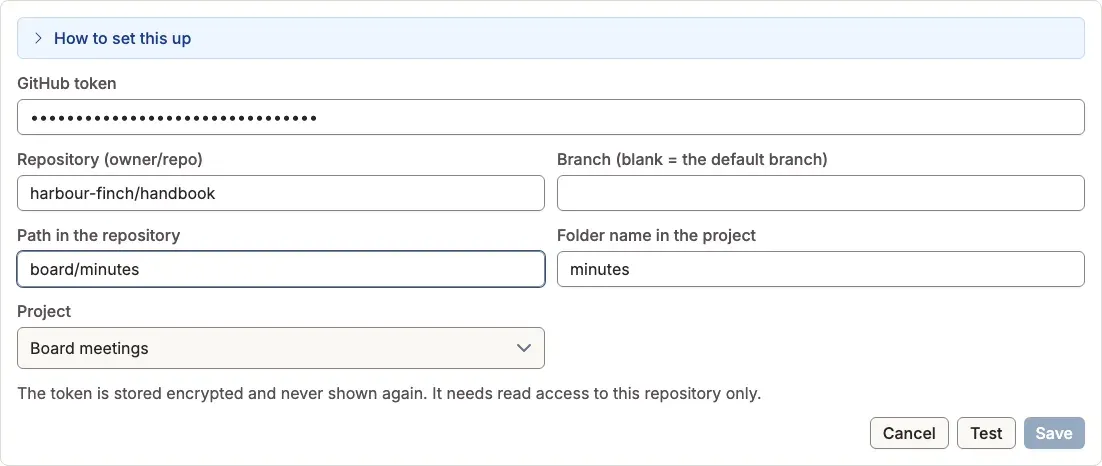
The first copy takes a few seconds. The folder name must be new in the project. If the project already has a file or folder with that name, Sasha refuses the card.
Sasha stores the token encrypted and never shows it again. Do not paste a token in chat or in an email.
The card
Each synced folder has a card in the section.
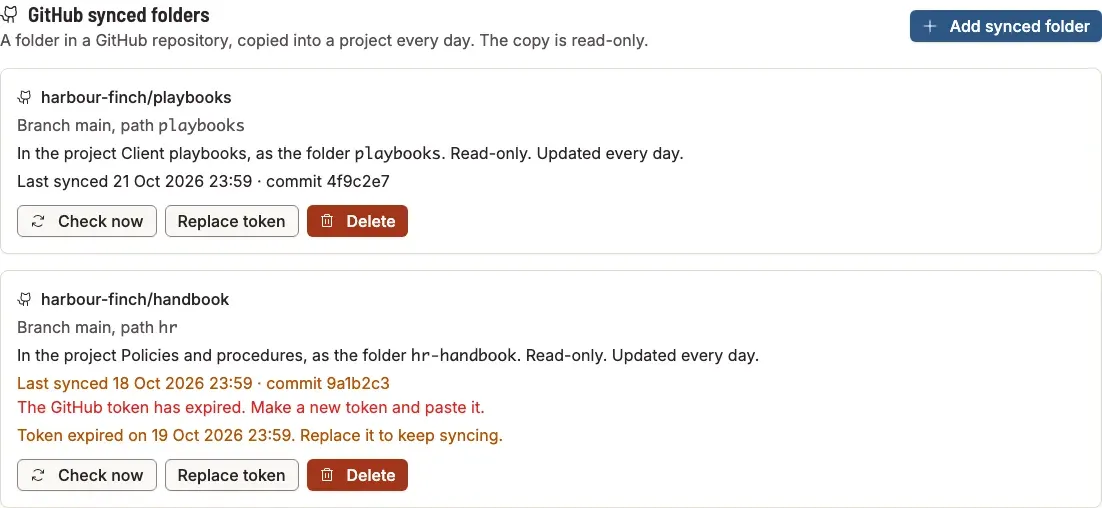
| Line on the card | Meaning |
|---|---|
owner/repo |
The repository |
| "Branch main, path playbooks" | The branch and the path that Sasha copies |
| "In the project ..., as the folder ..." | Where the copy is in Sasha |
| "Last synced ... · commit ..." | The time of the last good copy, and the first seven characters of the GitHub commit that Sasha copied. In a warning colour when the copy is more than two days old |
| A line in red | The error from the last refresh, in plain words |
| "Token expires in 5 days" or "Token expired on ..." | Shows from 7 days before the token expires |
The buttons:
- Check now: refresh at once. If nothing changed on GitHub, Sasha records the check and copies nothing.
- Replace token: paste a new token and click Save token. If other synced folders used the same old token, Sasha asks if it should use the new token for them too. Click OK only if the new token can read those repositories as well.
- Delete: asks first, then removes the folder and its files from the project. Nothing changes on GitHub.
The folder in the project
In the file tree, the synced folder is grey and has a GitHub mark. Next to its name, "Updated" gives the time of the last good copy. The line is in a warning colour when the copy is more than two days old. Below the files, a line says where the files come from, for example "Synced from GitHub harbour-finch/playbooks@main:playbooks. Read-only."
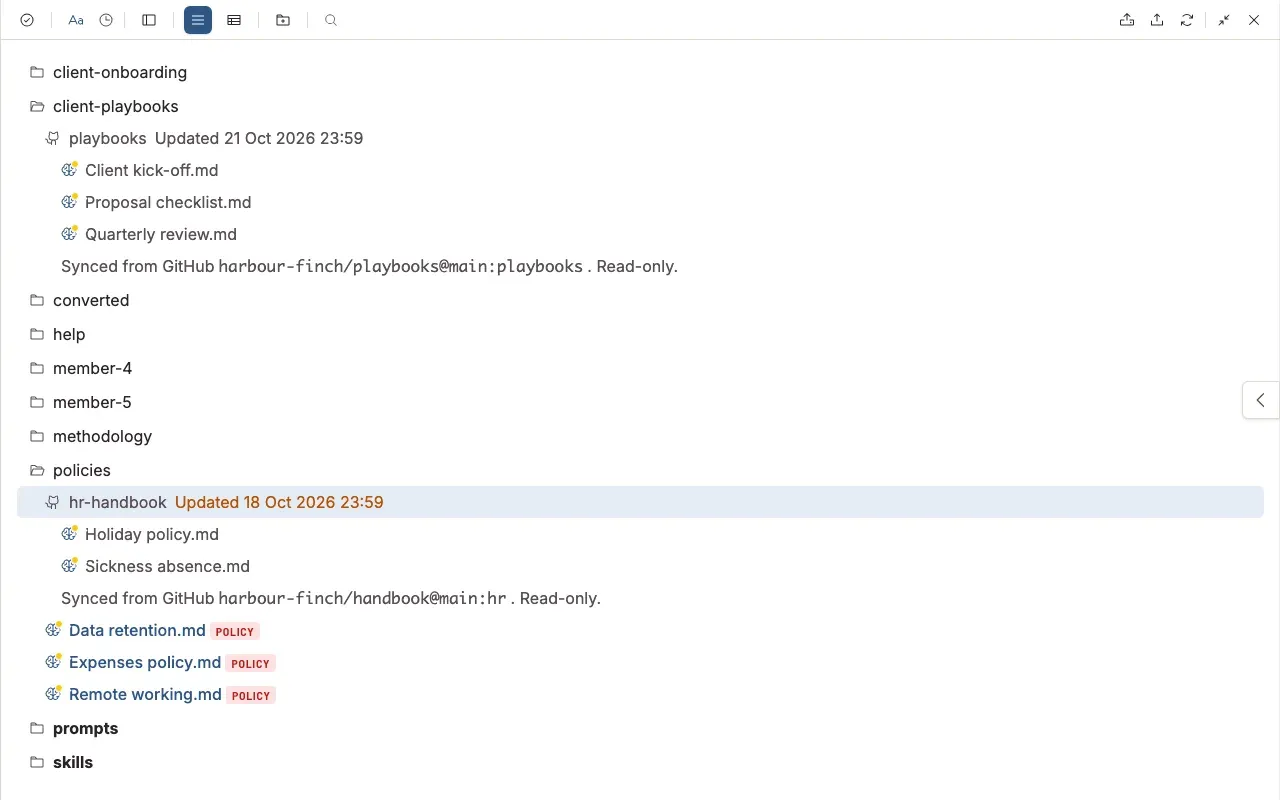
Click a file to open it in the document panel, as for any file.
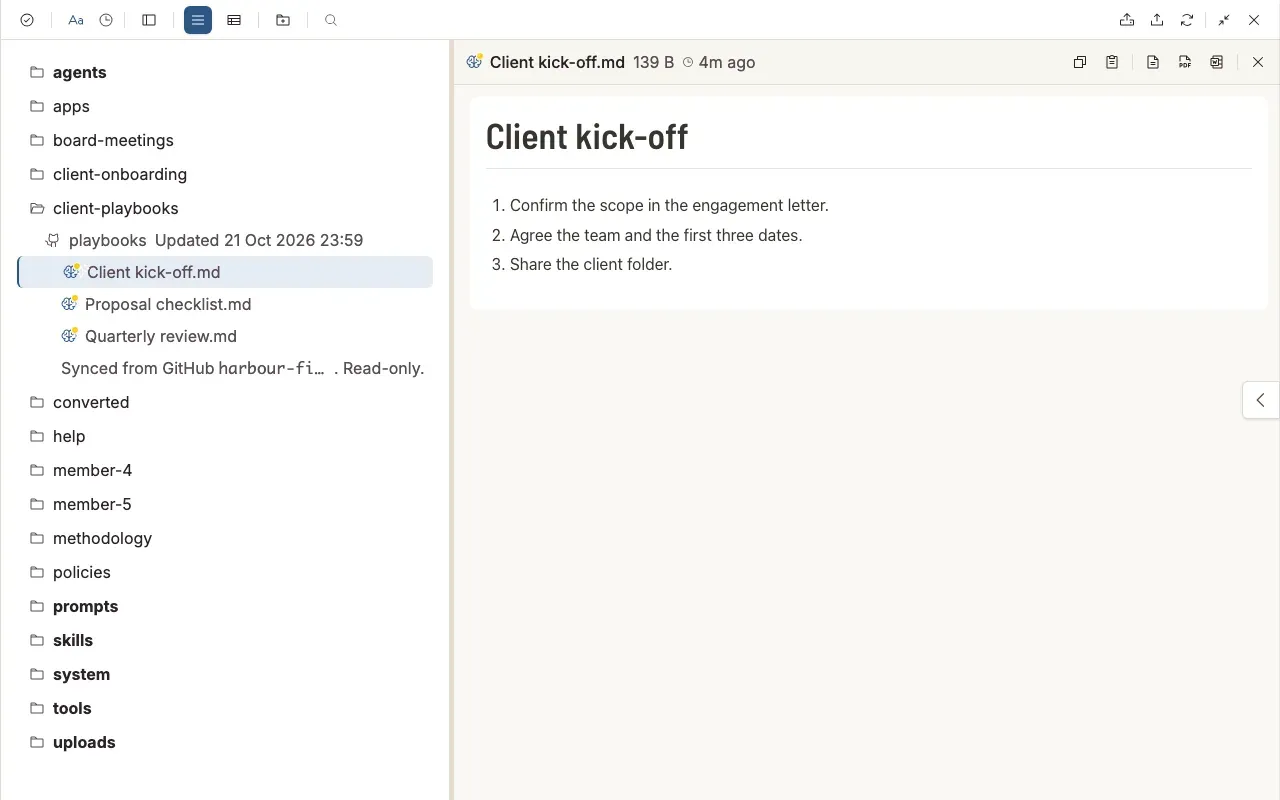
The folder has no edit, upload, rename or delete controls. The rest of the project is normal. People chat in it and add files next to the synced folder. When Sasha writes a file for the project, it saves it next to the synced folder, not inside it.
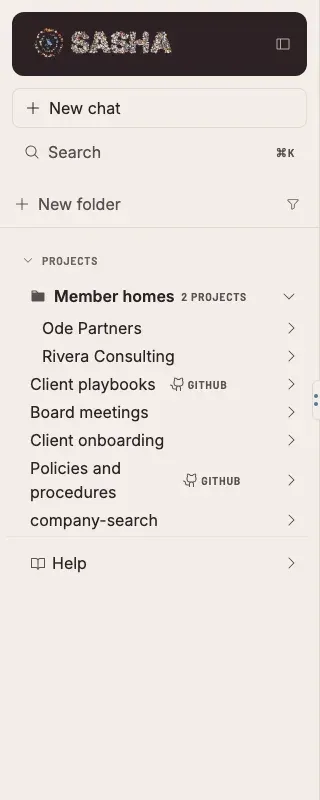
In the side menu, a project with a synced folder carries a small GitHub tag.
How it reaches chat and Claude
The files are ordinary files of the project. Search, Studio chat and Claude find them as they find any other document in that project. People who cannot see the project cannot see the folder.
An admin can ask Sasha in chat to refresh a folder now, for example "Refresh the playbooks folder". Sasha does a Check now and says the commit, the time of the last good copy and any error. Chat cannot add a synced folder or set a token.
When a refresh fails
A failed refresh never removes the copy you have. The folder keeps the last good copy, and the card shows the reason.
| What the card says | What it means | What to do |
|---|---|---|
| "GitHub refused the token..." or "The GitHub token has expired..." | The token expired, was revoked, or was never approved by the organisation | Make a new token and click Replace token |
| "GitHub cannot find the repository, or the token cannot see it" | The name is wrong, or the token does not list this repository | Check the name on GitHub and the token's repositories |
| "The branch ... does not exist" | The branch name is wrong | Check the branch on GitHub |
| "The GitHub folder is larger than Sasha allows..." | The folder has more than 20,000 files or more than 200 MB | Choose a smaller path |
| "GitHub did not answer in time..." | GitHub was slow or could not be reached | Click Check now later |
Limits to know
- A synced folder is read-only. To change a file, change it on GitHub.
- A synced folder holds at most 20,000 files and 200 MB.
- Sasha refreshes once a day, not when GitHub changes. Use Check now for a change you need at once.
- The form needs a path. You cannot copy a whole repository from the form.
- You cannot delete, move or rename a folder that contains a synced folder, for example the project, from the file tree. Delete the project or the card instead. Deleting the project also deletes its synced folders.
- Sasha copies the files only, not the history. To let Sasha read a repository's commits and releases, add GitHub's own MCP server in Settings → Tools. See Give Sasha's AI more tools, such as web research, analytics or your own MCP servers, and control which tools it may use.
Questions
Is the synced folder live?
No. It is a copy. Sasha refreshes it once a day, at 03:00 by the server's clock, plus a wait of up to an hour. Click Check now on the card to refresh at once.
Can people edit the files in Sasha?
No. The folder is read-only. Nobody can edit, rename, move or delete a file in it. Edit the file on GitHub, and Sasha copies the change at the next refresh.
Can I copy a whole repository?
Not from the form. The Test button stays off until you type a path in the repository. Choose the top folder that holds your documents.
What happens to the folder when the token expires?
The folder keeps the last good copy, and people can still read it. The card shows the error, and the folder's "Updated" line turns to a warning colour after two days. Make a new token and click Replace token.
Can I ask Sasha in chat to refresh a folder?
Yes, if you are an admin. For example, "Refresh the playbooks folder in Client playbooks". Chat cannot add a synced folder or set a token, because a token typed in chat stays in the chat record.
Does Delete change anything on GitHub?
No. Delete removes the folder and its files from the project. The repository does not change.