Check that your Sasha is healthy, and run or pause scheduled jobs
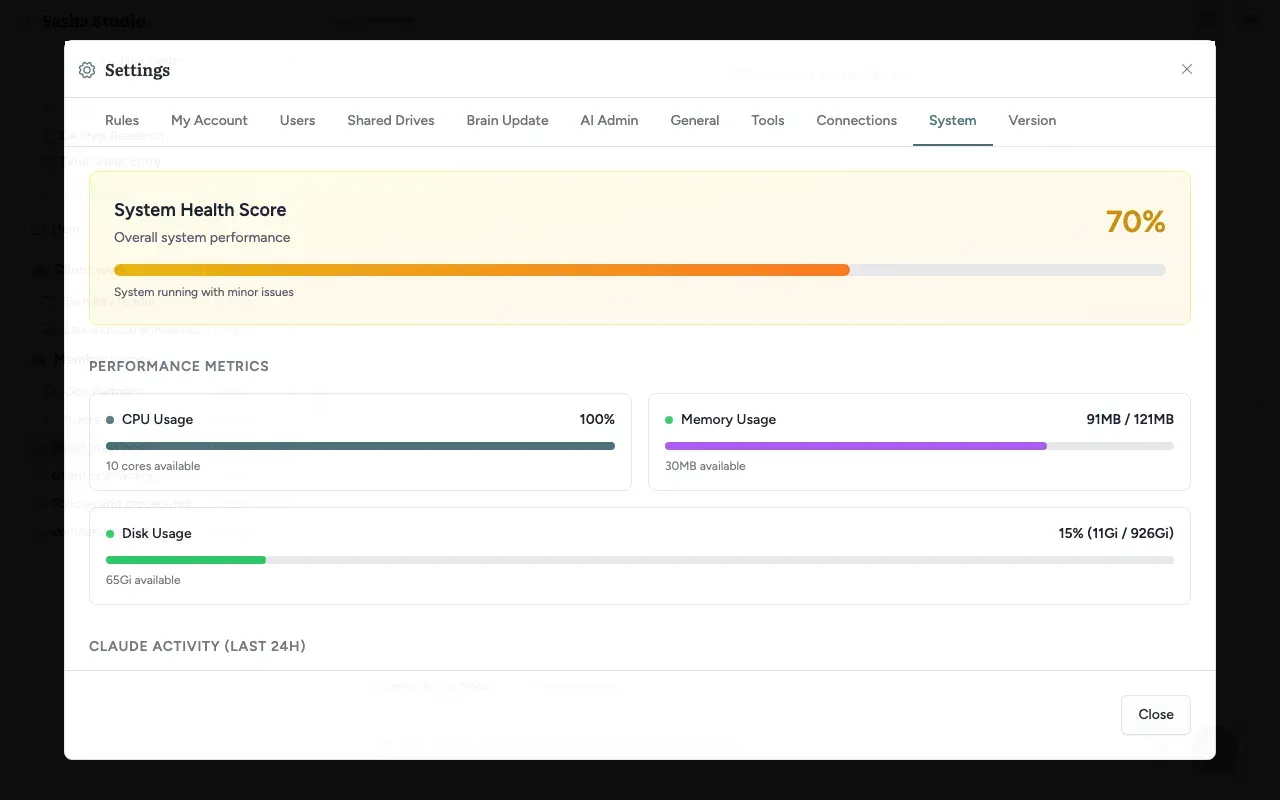
Settings → System shows a health score, CPU, memory and disk use, chat activity and service state, and lets you pause or run scheduled jobs.
- Where
- Settings → System
- Who
- Every account that can open Settings sees the tab. Scheduled jobs show for accounts with schedules:manage (admin and staff); analytics refresh times show for accounts with usage:read-team (admins, and staff who are given it).
- Needs
- Nothing. The screen refreshes itself every 5 minutes.
What this screen shows
Settings → System shows, from top to bottom:
| Section | What it tells you |
|---|---|
| System Health Score | One number from 0 to 100, with a colour and a sentence. |
| Performance Metrics | CPU Usage (with the number of cores), Memory Usage (red dot above 80%) and Disk Usage (yellow above 70%, red with a "Low disk space" warning above 85%). |
| Claude Activity (Last 24h) | The number of chat sessions and an hourly chart from "24h ago" to "Now". |
| Service Status | AI Providers (whether a key is set for Anthropic, AWS Bedrock and the subscription), Local Database (number of users; Healthy or Unhealthy) and WebSocket (live browser connections). |
| Database Storage | Total database size and the size of each group, such as Conversations, AI Usage, Quality Signals and User Activity. |
| Scheduled Jobs | Each job, who made it, the skill it runs, its schedule, where it sends results, its last and next run, and any error. |
| Analytics Status | When usage statistics were last refreshed. |
The screen refreshes every 5 minutes. Refresh health data now at the bottom refreshes at once.
Work with scheduled jobs
Each job shows Runs: @ , or (on demand) for a job without a schedule.
- The green switch turns a scheduled job on or off.
- The play button ("Run this task now") runs the job at once. Sasha shows "Running …" and then "… completed successfully".
- The refresh button reloads the list.
To make, change or remove a job, ask in a chat. The box Managing Scheduled Jobs lists example requests.
Read the score
| Score | Colour | Message |
|---|---|---|
| 90–100 | Green | System running optimally |
| 70–89 | Yellow | System running with minor issues |
| 0–69 | Red | System needs attention |
If the screen shows Health Check Failed, it could not reach the health check. Reload the page; if it stays, tell the people who run your Sasha.
Limits to know
- The AI provider check shows only that a key is set, not that it works.
- The screen has no restart or repair action.
- What each account sees depends on its role: people without the matching permission see empty Scheduled Jobs or Analytics Status sections.
Questions
What does the health score mean?
It starts at 100 and loses points for problems - 20 if Sasha reports itself degraded, 30 if the database check fails, 20 if no AI provider key is set, and 10 or 20 if memory use is above 75% or 90%. 90 or more is "System running optimally", 70 to 89 "System running with minor issues", under 70 "System needs attention".
AI Providers says Available. Does that mean the AI works?
Not quite. It means a key is set. It does not test that the key works. Use Test Connection or Get available models in Settings → AI Admin for that.
Disk Usage shows Low disk space. What do I do?
Above 85% the bar turns red and shows a "Low disk space" warning. Tell the people who run your Sasha before the disk is full, because Sasha needs free space to save documents and chats.
How do I stop a scheduled job?
Under Scheduled Jobs, use the green switch on the job (its tooltip says "Schedule On", "click to disable"). The job stays, and you can switch it on again.
How do I make or change a scheduled job?
Ask in a chat, for example "List all scheduled jobs" or "Create a job that runs the weekly summary skill every Monday at 8". This screen only switches jobs on and off and runs them.
Can I restart or repair Sasha here?
No. The screen only shows the state of Sasha, and runs or switches scheduled jobs. Restarts and repairs are done by the people who run your Sasha.