Bring the latest shared prompts, guides, skills and specialists into your Sasha
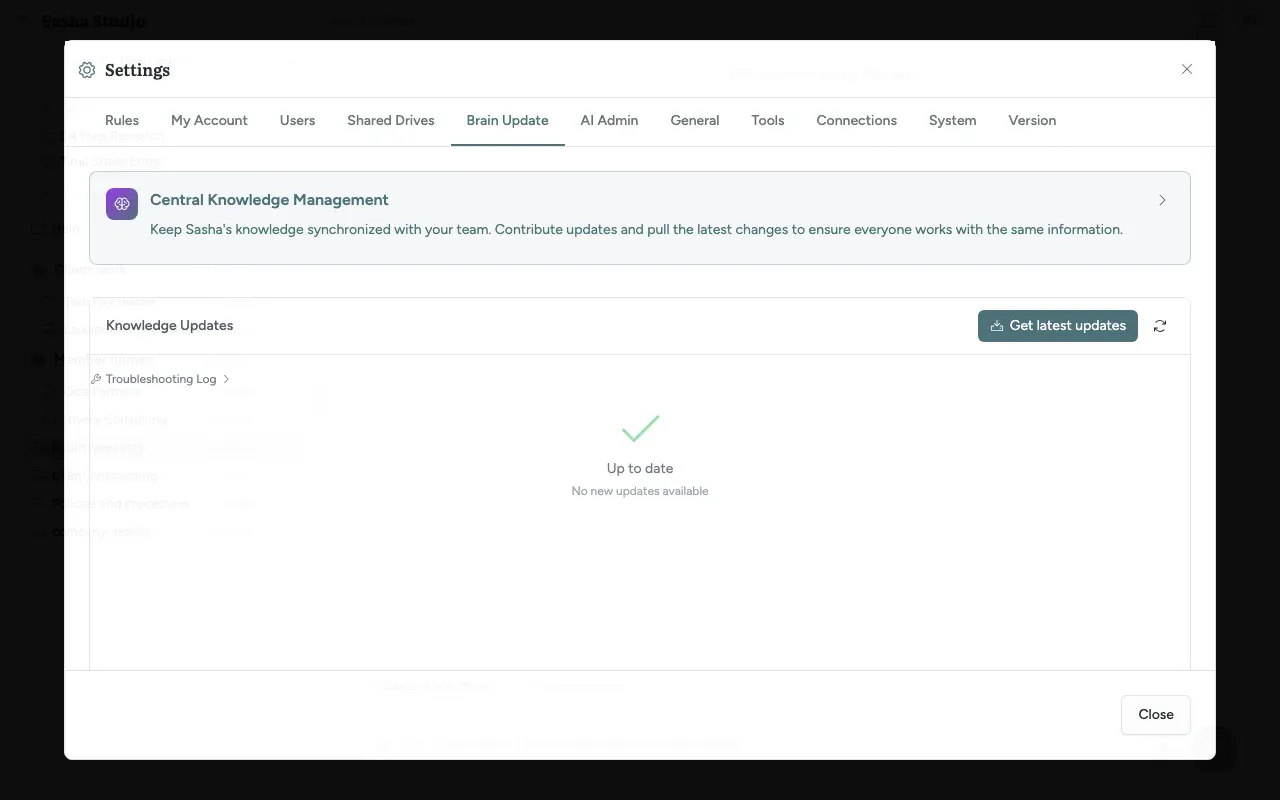
Settings → Brain Update brings the latest shared prompts, guides, skills, agents and system documents from a central repository into your Sasha.
- Where
- Settings → Brain Update
- Who
- Admins only. Other accounts do not see the tab, and the server refuses an update from them. An update changes this Sasha for everyone.
- Needs
- A central repository and access to it. The people who run your Sasha set both. If no repository is set, the screen reports that everything is up to date.
What this screen is for
Your Sasha keeps some content that is the same for a whole organisation: prompts, guides, skills, specialists, agents and system documents. Brain Update brings the newest version of that content from a central repository into this Sasha, so everyone works from the same source.
Bring in updates
- Open Settings → Brain Update. Under Knowledge Updates, the button reads Get latest updates, or Get latest updates (N) when N updates are waiting.
- Click it. Sasha shows Getting latest updates….
- When it is done, Sasha shows "Latest updates received. N file(s) changed." or "Already up to date.". Last Update then shows the update's short code, its description and up to three changed files.
N Recent Change(s) lists earlier updates with their date and author. Show more loads older ones.
What is and is not changed
| Changed by an update | Never changed by an update |
|---|---|
| prompts, guides, skills, system, tools, specialists, agents | Projects and their documents |
| Project rules (they are in system) | Members' homes |
| Uploads, converted files, shared drives | |
| Chats |
When an update cannot finish
If a file was changed both here and in the central repository, Sasha stops and shows Some files need your choice to finish updating. For each file:
- Keep mine keeps this Sasha's version.
- Use theirs takes the central version.
Then click Finish update. Troubleshooting Log lists each step Sasha took; give it to your Sasha support if an update fails.
If the screen shows "Authentication required", the repository is private and Sasha has no access to it. Ask the people who run your Sasha.
Limits to know
- The screen only brings updates in. Saving changes to the central repository, file status labels and rolling back are described in the screen's help but are not available in this version.
- Only admins can bring in an update. If you have several admins, agree who does it.
- An update can replace Project rules. Check Settings → Rules afterwards.
Questions
What does Get latest updates change?
Only these shared folders - prompts, guides, skills, system, tools, specialists and agents. It does not touch your projects, members' homes, uploads or chats.
Where do the updates come from?
From the central repository that is set up for your Sasha. The people who run your Sasha (Context is Everything, or your own technical team) choose it. Ask them before you rely on it, so you know whose content you bring in.
Does it send my documents anywhere?
No. Today the screen only brings updates in. The help on the screen also mentions Save to Server, file status labels and version history; those parts are not available in this version.
Who can press the button?
Only an admin. An update changes skills, guides and system documents for every person in your Sasha at once, so agree which admin does it.
What if an update and a local change disagree?
Sasha stops and lists the files under "Some files need your choice to finish updating." For each file choose Keep mine or Use theirs, then click Finish update.
Can an update change my Project rules?
Yes. Project rules live in the system folder, so an update can replace them. See rules.