Find a skill, run it now, put it on a schedule, or let another system run it
The Skill Library lists every skill. Tasks shows scheduled and on-demand runs, Workflows runs and schedules skills, and another system can start a skill by API key.
- Where
- Open a project, then Menu → Skills (Skill Library), Menu → Tasks, or Menu → Workflows.
- Who
- Admin and staff accounts. Both can run, build and schedule skills. Members cannot run skills.
- Needs
- An AI provider set up by an admin. A run from another system also needs an API key from My Account, and the skill must allow API runs.
What it is
A skill is a packaged set of instructions that Sasha can run the same way every time. A workflow is a skill with several steps. For what skills are and who can use them, read Do the same task the same way each time with a skill first. This page explains the three screens where you find, run and schedule skills.
| Screen | Open it from | Use it to |
|---|---|---|
| Skill Library | Menu → Skills | Find a skill, star it, and open it in the editor |
| Tasks | Menu → Tasks | See every scheduled and on-demand task, switch a schedule on or off, and run a task now |
| Workflows | Menu → Workflows | Run a workflow, give it a schedule, edit it, delete it, or make a new one |
The Menu button is in the top bar after you open a project.
How a run works
When a skill runs from Run, from a schedule or from another system, Sasha starts Claude with no chat window. Claude gets the whole skill text as its instructions. By default, it works with no permission prompts, and it can reach all of your Sasha's knowledge, not only one project. Nobody can answer a question during the run.
So a skill can change documents anywhere in your knowledge. Know what a skill does before you run or schedule it. Any staff account can write a skill, and every skill runs with these rights.
Skill Library
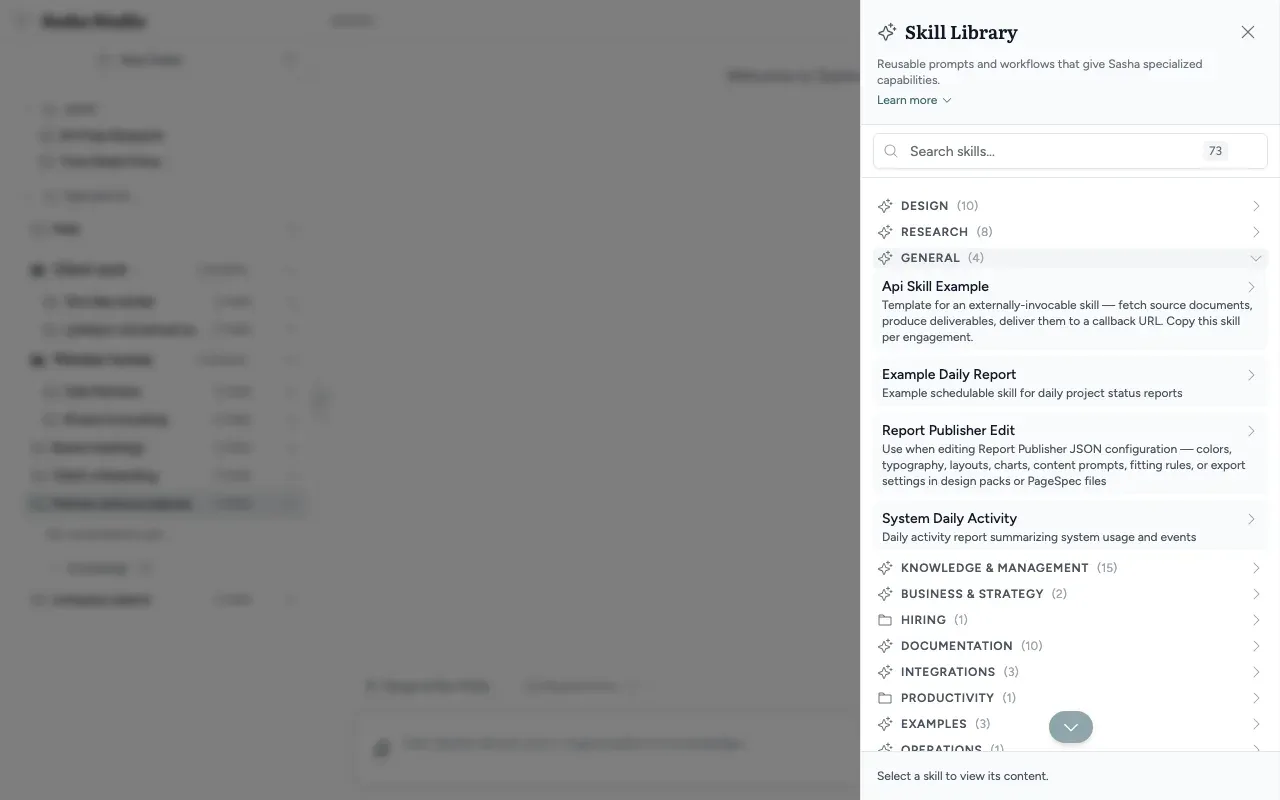
The Skill Library lists every skill in groups (categories), with a STARRED group for skills you starred. The search box shows how many skills match.
- Click a category to open it. Click a skill to open it in the editor (Read and change a skill or workflow in the editor, and make a new workflow with the wizard).
- Star and Unstar pin a skill to the STARRED group.
- View/Edit skill content opens the skill's file.
The Skill Library has no Run button. To run a skill, use Tasks or Workflows, or ask Sasha in a chat.
Tasks
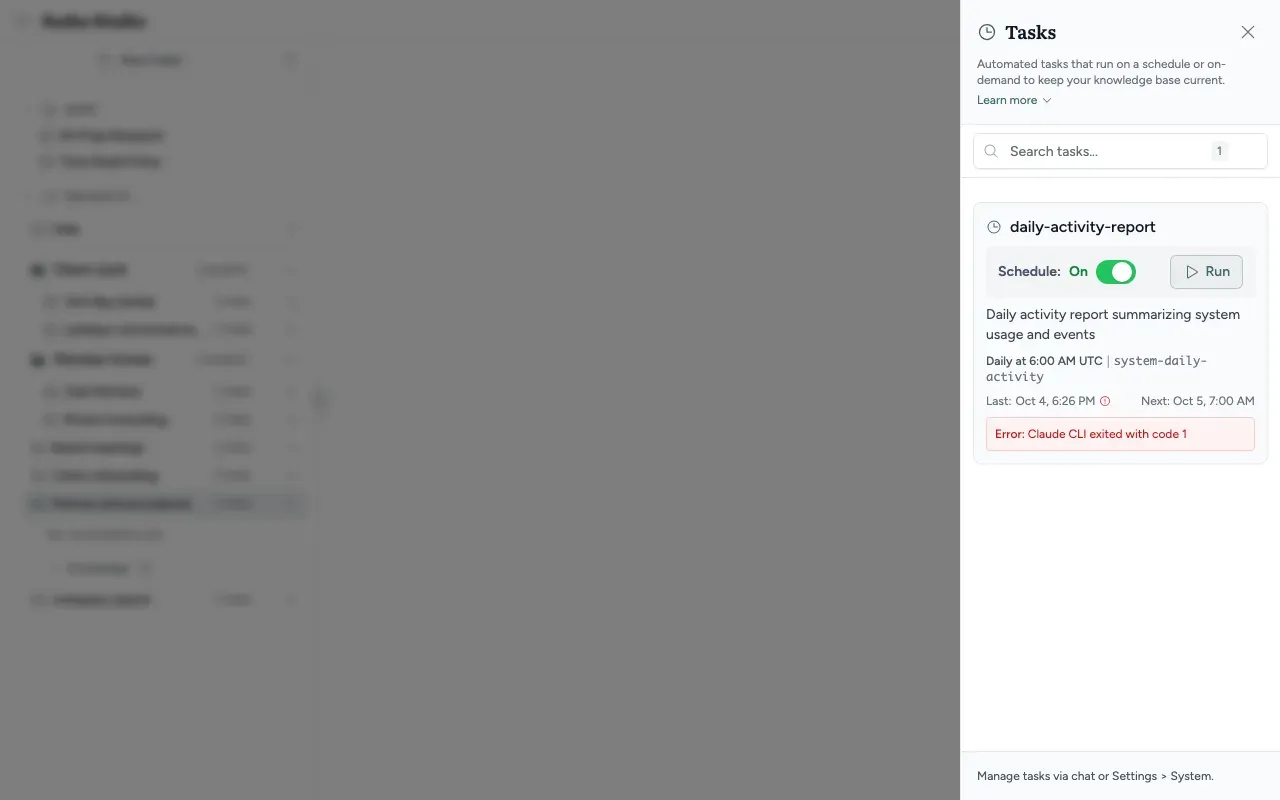
Tasks shows every task that Sasha knows: scheduled ones and on-demand ones. Each card shows:
- The task name, and either On Demand or a Schedule switch (On or Off).
- Run (tooltip "Run now") to start the task at once.
- The description, the schedule in words (for example "Daily at 6:00 AM UTC") and the skill it runs.
- Last: and Next: run times, Created by with the person who made it, and Error: when the last run failed.
You cannot make, change or delete a task here. The footer says "Manage tasks via chat or Settings > System." To make a schedule, use Workflows. An admin can pause all scheduled jobs in Settings → System (Check that your Sasha is healthy, and run or pause scheduled jobs).
Workflows: run and schedule
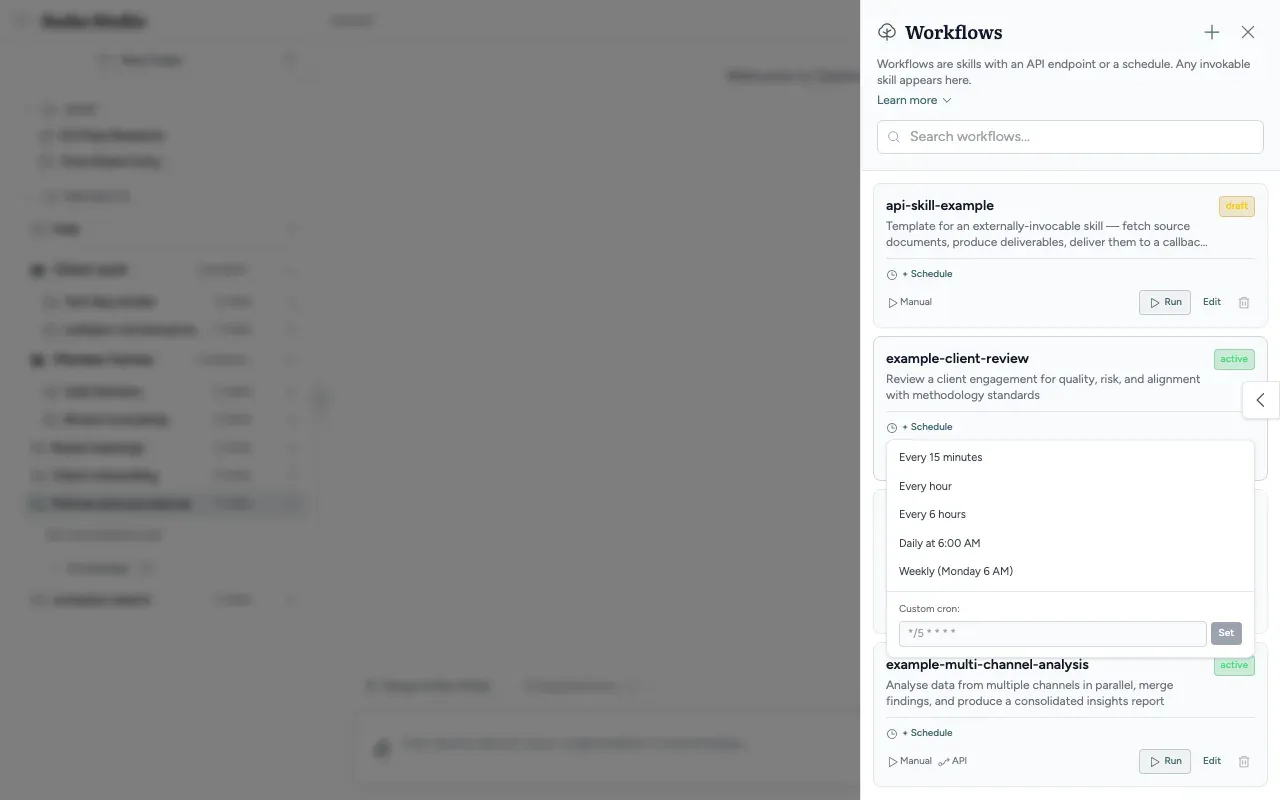
The Workflows panel says Workflows are skills with an API endpoint or a schedule. Any invokable skill appears here. It lists multi-step workflow skills and skills that declare how they can be started. Each card shows a status badge (draft or active) and how the skill can start: Manual (by hand), API (by another system) and Schedule (a schedule in the skill's own settings).
| Control | What it does |
|---|---|
| + Schedule | Opens the schedule list (see below) |
| Run | Runs the skill now. The button waits until the run ends |
| Edit | Opens the skill in the editor |
| Bin (Delete workflow) | Deletes the skill after you click Confirm |
| + (New Workflow) | Starts the new workflow wizard (Read and change a skill or workflow in the editor, and make a new workflow with the wizard) |
Give a skill a schedule
- Click + Schedule on the card.
- Choose a preset: Every 15 minutes, Every hour, Every 6 hours, Daily at 6:00 AM or Weekly (Monday 6 AM).
- Or type your own schedule expression in the box under the presets (labelled
Custom cron:, for example0 9 * * 1-5), and click Set.
All schedule times are UTC. You cannot choose a time zone. The schedule is for your whole Sasha, not only for you.
Where results go
- Run record. Sasha keeps the status, a summary, the output file name and the token count of every run. Tasks shows the last result. An admin sees more in Settings → System.
- Files. The skill's instructions decide where files go. A skill can also ask Sasha to save its output in a scheduled-outputs folder in the project it runs in. If the skill says nothing, Sasha tells Claude to save files in a folder named after the skill in your knowledge.
Runs from another system
Another system (a script, an automation service, another application) can start a skill over the internet.
- Allow API runs on the skill. The skill's settings must say that API runs are allowed (
triggers: { api: true }). Skills in the categoryshowcaseare allowed by default. Cards in Workflows show API only for skills whose settings saytriggers: { api: true }, not for showcase skills. - Get an API key. An admin or staff account makes one in Settings → My Account → API Tokens (Understand exactly what each role can do, what keys and system accounts can reach, and what Sasha records). Keep the key secret.
- Start the run. The system sends
POST /api/v1/skills/<skill name>/runwith the key in theX-API-Keyheader. The body can holdparams(an object with the inputs) and anidempotencyKey(so a repeated request does not start a second run). Sasha answers at once with a run number (executionId) and the statusrunning. - Get the result. The system asks
GET /api/v1/skills/<skill name>/executions/<executionId>with the same key, until the status changes. Only the same key can read the result.
Answers you can get: "Skill not found" (no such skill, or the skill is switched off) and "Skill is not API-enabled" (the skill does not allow API runs).
Claude can also run skills for you after you connect Claude to Sasha (What Claude can do with Sasha).
Limits to know
- Today, Run looks successful even when the run fails or times out. The button waits until the end, and an error appears only in the browser's developer console. Check Last: and Error: in Tasks.
- Today, the time limit written in a skill is not used for runs from Run or from a schedule. They stop after 5 minutes (a schedule from Workflows) or 10 minutes (the task that Run makes). Runs from another system use the skill's own limit, or 10 minutes.
- None (remove schedule), which the schedule list offers when a skill already has a schedule, does not delete the schedule. It switches it off and keeps it.
- Deleting a workflow keeps its schedule. Later runs fail with "Skill not found".
- Pressing Enter in the Skill Library search box breaks the panel. Type and wait for the list to filter.
- The schedule in words can be wrong for ranges. A schedule for Monday to Friday at 9:00 shows as "Weekly on Monday".
- Schedules are in UTC, but Next: in Tasks shows the time in your computer's time zone. The two can differ by an hour or more.
- Tasks shows "No tasks configured" when it cannot load the list, for example when the server refuses. The Schedule switch can fail with no message.
- Run in Workflows can make a task for a skill that does not exist.
- The System badge in the Skill Library does not appear today, because Sasha reads skills only from your organisation's skills folder.
- Every run gets the instruction to ask you questions, but nobody can answer during a run. Write skills that do not need answers.
Questions
Why is there a daily-activity-report task that I did not make?
Sasha makes it when it starts. It runs the system-daily-activity skill every day at 06:00 UTC.
Why did a task run right after Sasha restarted?
When Sasha starts, it checks for a scheduled run that it missed while it was stopped, and runs it once.
I clicked Run and nothing seems to happen. Why?
The button keeps spinning until the whole run ends, which can take 5 to 10 minutes. Today, the screen shows no error if the run fails. Look at the task's Last and Error lines in Tasks, or ask an admin to check Settings → System.
How do I put a skill on a schedule?
Open Menu → Workflows, click + Schedule on the skill, and choose a preset or type your own schedule expression in the box under the presets. All times are UTC.
Why is my skill not in the Workflows list?
Workflows lists only multi-step workflow skills and skills that declare how they can be started (for example by API or by hand). A plain skill shows only in the Skill Library, and it has no Run button in Studio today.
How do I let another system run a skill?
The skill must allow API runs, and the other system needs an API key. The other system sends a request to start the skill and gets back a run number, then asks for the result with that number. See "Runs from another system" below.
Where do a run's results go?
Sasha stores the status and a summary of each run. Files go where the skill's instructions say, or to a scheduled-outputs folder if the skill asks for one. Without other instructions, a run saves its files in a folder named after the skill in your knowledge.
Why did my skill stop after 5 or 10 minutes?
A run from Run or from a schedule uses the schedule's time limit. It is 5 minutes for a schedule made in Workflows and 10 minutes for the one that Run makes. Today, the time limit written in the skill itself is not used for these runs.
Who can run or schedule skills?
Admin and staff accounts. Every schedule is shared by the whole Sasha, so a schedule that one person sets runs for everyone.
Can a skill email its results?
Only if the skill's own instructions send an email. A "Sends to" line in Settings → System is a label, and Sasha does not send an email for it.