Give Sasha's AI more tools, such as web research, analytics or your own MCP servers, and control which tools it may use
Settings → Tools lists the tools Sasha's AI can use, adds your own MCP servers (with keys or with a sign-in, such as Bernard) and sets which tools a chat may use.
- Where
- Settings → Tools (the avatar menu, then Settings). The MCP Servers card is in the first group, MCP Connections.
- Who
- Admin and staff accounts can open the tab. Only admins see the buttons for servers that sign in, and the server always refuses those changes without the connectors:manage capability. For other servers and cards, your Sasha may let staff make changes today. Ask whoever runs your Sasha.
- Needs
- For a named card, that service's own key or account. For a custom server, its address or command. For a server that signs in, your Sasha provider must switch the feature on.
What this screen is for
Sasha answers with Claude. Tools decides which extra tools Claude can use in chats and skills: ready-made cards for named services, your own MCP servers, and rules for which tools a chat may use. MCP (Model Context Protocol) is a standard way to give an AI tools.
At the top, the Tools & Permissions Configuration banner opens with its arrow to explain the screen. Below it the cards are in groups, and each card shows a status, such as "Needs setup" or "Action needed", and a short note.
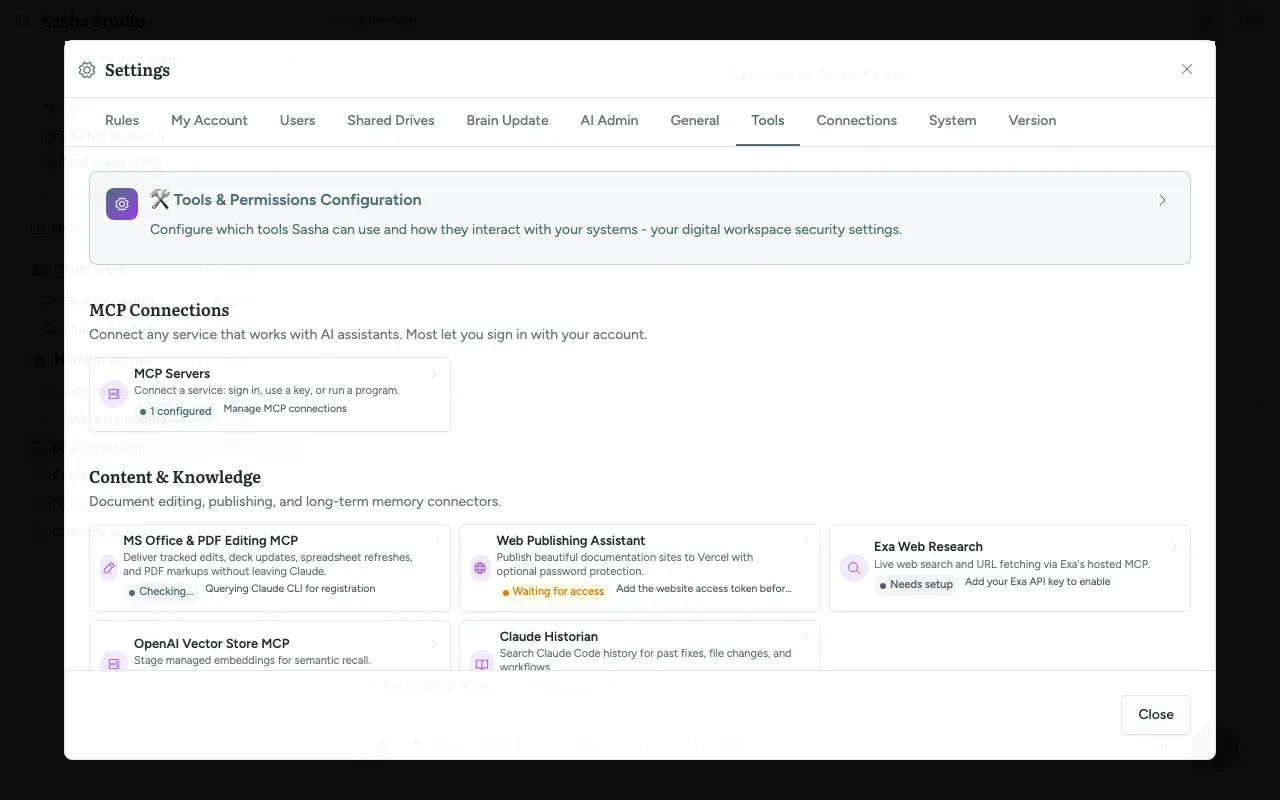
The card groups
| Group | Cards |
|---|---|
| MCP Connections | MCP Servers |
| Content & Knowledge | MS Office & PDF Editing MCP, Web Publishing Assistant, Exa Web Research, OpenAI Vector Store MCP, Claude Historian |
| Growth & Communications | Google Analytics Insights, Google Search Console Insights, Postmark MCP |
| Operations & Finance | AWS CloudWatch Observability, AWS Cost Intelligence, Stripe Billing Workspace, Companies House MCP, Quickbase Workspace Automation |
| Apps & Collaboration | Bubble MCP, tl;dv Meeting Intelligence MCP, Audio Transcription, Drive MCP (Shared Drives) |
| AI & Security Foundation | Second Opinion MCP, Secure Secret Vault |
The Operations & Finance and Apps & Collaboration groups also have cards for some specific customer systems.
Click a card to open it. Most cards start with a "Why use this" box and examples, then ask for that service's key or account details.
When Claude uses a tool, it sends the data in that call to the outside service. For example, a web research tool sends your search words to the research service. Secure Secret Vault, Drive MCP and Audio Transcription work for admins only.
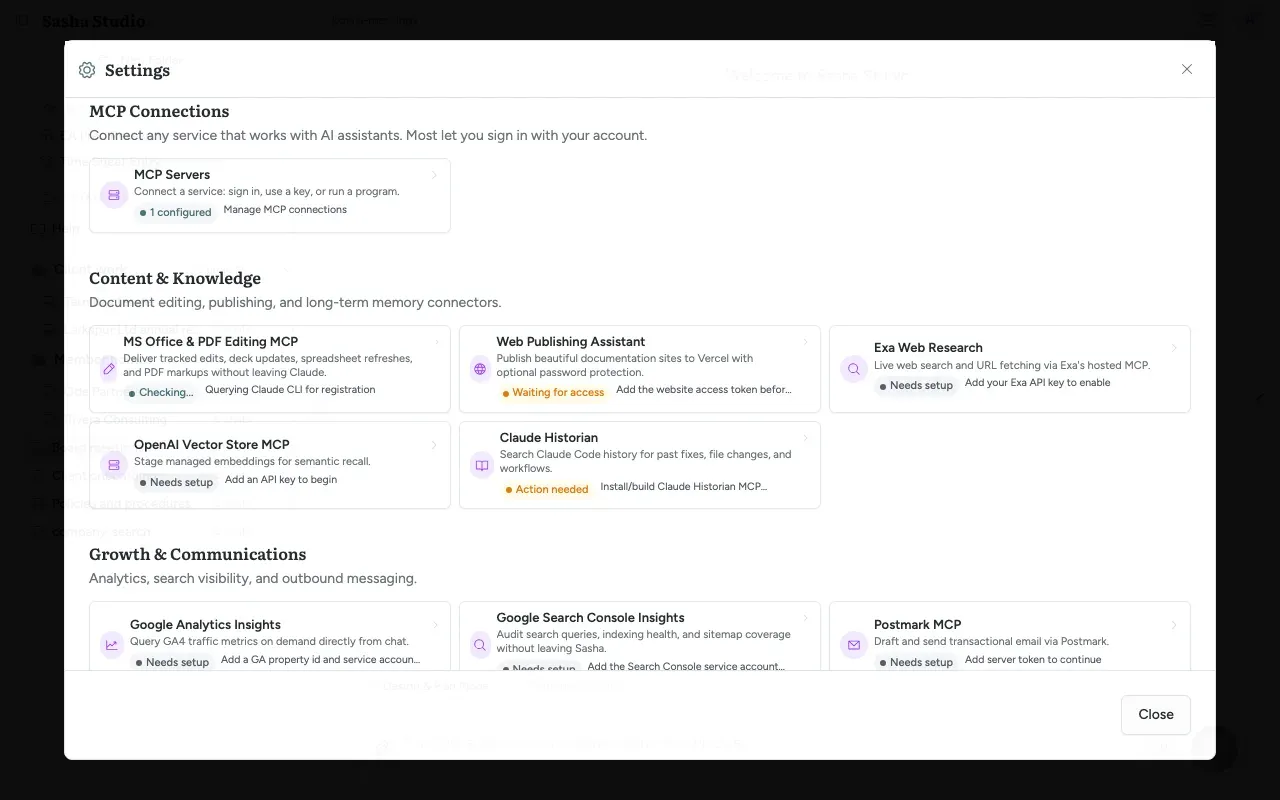
MCP Servers
The MCP Connections group is first on the tab, because most services you add connect there. Click the MCP Servers card. The dialog lists your servers and has an Add MCP Server button. An empty list says "No MCP servers configured".
Each server in the list shows its name, its type, a badge that always reads "user", the command or address, and Discovered Capabilities (the tools, resources and prompts the server offers). Each row has four buttons: test the connection, discover the tools, edit, and delete (the bin icon).
Choose how the service connects
Click Add MCP Server. The form has three tabs. Each tab is a different way for Sasha to connect to the service. The form opens on Sign in, because most services use it.
| Tab | Use it when | What you type |
|---|---|---|
| Sign in (marked "Most common") | The service asks you to sign in with your account, or to "connect your account". Example: Bernard. | A name and the address. You then sign in on the service's own page. |
| Use a key | The service gives you a web address and a key or token to copy. It may call it an API key. | A name, the address and the key. |
| Run a program | A developer gives you a command that runs on your Sasha server. This is for technical teams. | A name, the command and its settings. |
Not sure? Open How do I know which one to use? under the tabs. It gives the same advice. If you try Sign in and the service does not offer a sign-in, the form says so and tells you to ask the service for a key.
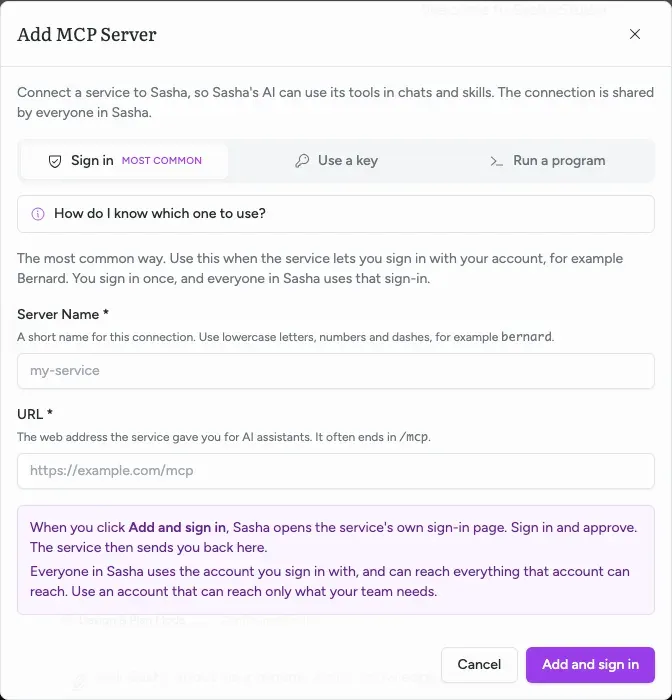
The Server Name * is a short name for the connection: 2–40 lower-case letters, digits or dashes, starting with a letter, for example bernard.
Sign in (for example Bernard)
You sign in to the service once, and everyone in Sasha uses that sign-in.
- Click Add MCP Server. The Sign in tab is open.
- Type the Server Name *.
- Type the URL *: the address the service gives for AI assistants. It often ends in
/mcp. It must start withhttps://and be reachable from the internet. - Click Add and sign in. Sasha checks the address and sends you to the service's own sign-in page.
- Sign in and approve. The service sends you back to Tools, and a message shows the result, for example "Signed in. The server is ready to use."
Everyone in Sasha can reach everything the account you sign in with can reach. Use an account that can reach only what your team needs.
A server that signs in shows "HTTP", its host and "sign-in", with one of these states:
| State | Meaning | Button |
|---|---|---|
| "Signed in. Everyone in Sasha can use it." | Ready | Disconnect |
| "Not signed in yet." | The sign-in did not finish | Connect |
| "Needs an admin to sign in again." | The service refused Sasha's sign-in | Sign in again |
Test asks the server for its tools and shows how many it offers, for example "12 tools available." The bin icon removes the server after you confirm.
Use a key
- Click Add MCP Server, then the Use a key tab.
- Type the Server Name * and the URL *.
- Put the key in Headers (KEY=value, one per line). The service's instructions give the name to use, for example
Authorization=Bearer your-key. - Tick The service says it uses SSE only if the service's instructions say SSE. SSE is an older connection type.
- Optional: More settings has Environment Variables (KEY=value, one per line).
- Optional: click Test Configuration to try the settings before you save.
- Click Add Server.
Run a program
- Click Add MCP Server, then the Run a program tab.
- Type the Server Name * and the Command *: the program to start on your Sasha server.
- If needed, fill in Arguments (one per line).
- Put keys and other settings in Environment Variables (KEY=value, one per line), not in Arguments. Sasha hides environment values after you save, but shows arguments in full.
- Optional: click Test Configuration, then click Add Server.
If a save fails, the form stays open and shows the reason in red above the buttons.
Edit a server
The pencil button opens Edit MCP Server on the tab that matches the server. You can move a server between Use a key and Run a program. You cannot move it to Sign in: that tab is grey when you edit. Saved values in Headers and Environment Variables stay masked, and Sasha keeps them unless you type new ones. Click Update Server to save.
Permissions & Tool Rules
Advanced Permissions, at the bottom of the tab, opens Permissions & Tool Rules:
- Skip permission prompts (use with caution): Claude uses tools without asking first. It is on when you have saved nothing.
- Allowed Tools and Disallowed Tools: lists of tool names or patterns. Quick add common tools: adds frequent ones.
- Save Tool Permissions and Reset Defaults.
These settings are kept in your browser, not on the server. Your chats in this browser send them with each message. They do not apply to other people, to other browsers, or to scheduled skills.
How the secrets are kept
- Keys in Headers and Environment Variables never return to the browser in readable form. On the server they are kept in the configuration of the AI tool, not encrypted.
- Sign-ins for servers that sign in are stored encrypted on your Sasha server. They never reach the browser. A chat or skill gets only a short-lived pass, valid for two hours, that lets it use the server through Sasha.
- Sasha records who added, disconnected and removed each server that signs in.
Limits to know
- Today, every person who can open Settings sees the same buttons. Whether the server accepts a change from staff depends on how your Sasha is set up: for key-based servers and the named cards, your Sasha may let staff make changes today. When it refuses, the person sees an error such as "Missing required capability: connectors:manage". Ask whoever runs your Sasha which case applies.
- Only an account with the admin role sees the buttons for servers that sign in.
- The card count ("1 configured", "No servers yet") counts only key-based and command servers, not servers that sign in. The list can say "No MCP servers configured" above a server that signs in.
- The badge "user" on each server does not mean one person. Every server is shared by the whole Sasha.
- Arguments and addresses are shown unmasked.
- There is no button to rename, switch off or switch on a server that signs in. Renaming a key-based server in Edit adds a new entry and leaves the old one in the list; delete the old one.
- Disconnect and Remove cannot make the service cancel Sasha's access. Remove Sasha in the service's own settings too.
- The Drive MCP card says drive connections come from "Settings → Drives". The tab is Shared Drives (Let Sasha read files that live in OneDrive, SharePoint or Google Drive without uploading them). The card also says people see only what they can reach; in fact every call uses the one connected account.
- Advanced Permissions are kept per browser, although the banner calls them "your digital workspace security settings".
Questions
Does a tool I add apply to everyone?
Yes. A custom server is one setting for the whole Sasha, not for one person. Every chat and every skill run can use it. A server that signs in says "Signed in. Everyone in Sasha can use it." after the sign-in.
What is an MCP server?
MCP (Model Context Protocol) is a standard way to give an AI assistant tools. An MCP server is a program or web address that offers tools, for example "search our CRM". When you add one here, Claude can use its tools in chats and skills.
How do I know which tab to use?
Most services use Sign in. Look at what the service told you to do. If it asks you to sign in or to connect your account, use Sign in. If it gives you a key or token to copy, use Use a key. If a developer gives you a command to run, use Run a program. If you are not sure, try Sign in first. If the service does not offer a sign-in, Sasha tells you.
How do I add Bernard?
Open MCP Servers and click Add MCP Server. Stay on the Sign in tab. Type a name such as bernard and the address https://mcp.bernardmoves.com/mcp, then click Add and sign in. Sign in to Bernard and approve. One Bernard sign-in reaches every site that Bernard login owns.
Why can I not click the Sign in tab?
The tab is grey in two cases. You are editing a server that already exists, and you cannot change a key-based server into one that signs in. Or your Sasha provider has not switched the feature on, and the form says "Servers that need a sign-in are not switched on for this Sasha. Ask your Sasha provider."
Do scheduled skills get servers that sign in?
Yes. A scheduled skill uses the sign-in of the admin who connected the server. If that admin's account is deactivated, scheduled skills stop getting these servers. Sign in again with an active admin.
Disconnect or Remove?
Disconnect keeps the server in the list and deletes Sasha's sign-in. Remove deletes the server. Both ask the service to cancel Sasha's access, but Sasha cannot be sure the service does it. Also remove Sasha in the service's own account settings.
What does "Needs an admin to sign in again" mean?
The service no longer accepts Sasha's sign-in, or the key that protects the sign-ins on your Sasha has changed. An admin clicks Sign in again.
Can I see a saved API key?
No. Values in Headers and Environment Variables come back masked, and Sasha keeps them when you save an edit. Values typed in Arguments are shown in full in the list, so do not put a key there.
Which names can I not use?
The names sasha, sasha-apps and hirebest are reserved. A name already used by another custom server or by a server that signs in is also refused.
Are Allowed Tools and Disallowed Tools shared with my team?
No. Save Tool Permissions stores them in your browser only. Another person, or you on another computer, starts from the defaults.