Turn your knowledge into slide decks, documents and websites that people outside Sasha can read
Three ways to publish from Sasha. Report Publisher makes decks and documents from chat, the Web Publishing Assistant puts a folder online, and Bernard edits a website.
- Where
- Report Publisher and Bernard work from a chat. The Web Publishing Assistant is in Settings → Tools.
- Who
- Admin and staff accounts, because all three start from a chat or from Settings. Only an admin can connect Bernard. Members cannot use them from the Sasha web interface.
- Needs
- For websites, a Vercel account and access token (Web Publishing Assistant) or a Bernard site that an admin has connected. For Google Slides, Google credentials set up on the server.
What it is
Sasha holds your knowledge. Publishing puts some of it in front of people who do not use Sasha: a client, a board or the public. There are three ways:
| Way | Makes | Starts from | Goes live |
|---|---|---|---|
| Report Publisher | Slide decks and documents: PPTX, PDF, HTML, Google Slides | A chat | It does not. You share the files |
| Web Publishing Assistant | A documentation website from a folder of documents | Settings → Tools, then a chat | At once, on Vercel |
| Bernard | Changes to a website that Bernard runs | A chat | When the site owner approves the draft |
Report Publisher: decks and documents from a chat
Report Publisher has no screen. You ask in a chat, and Sasha runs it for you.
- In a chat, ask for the deck or document. Say what it is for, which documents to use, and which format you want.
- Sasha writes a page description for each slide (text, charts and tables) and chooses a design pack for the look.
- Sasha makes the files. The default format is PowerPoint (PPTX). You can also ask for PDF, a web page (HTML) or Google Slides.
- Check the result, and ask Sasha for changes in the same chat.
A design pack holds the colours, fonts, layouts and chart styles. Sasha comes with a default design pack. Ask Sasha to change it, or to make one in your organisation's style. Content and look are separate: a new look does not change the content, and new content does not change the look.
Google Slides needs Google credentials on the server. Ask your technical operator if you need it.
Web Publishing Assistant: a website from a folder
A website from the Web Publishing Assistant is public. Anyone with the link can read it. When Sasha publishes from a chat, its instructions warn that the website will be public. Check the address after the first publish.
The Web Publishing Assistant publishes a folder of documents as a website on Vercel, a hosting service. You set it up once in Settings → Tools, on the Web Publishing Assistant card. The card shows the state, for example "Waiting for access" until a Vercel token is saved.
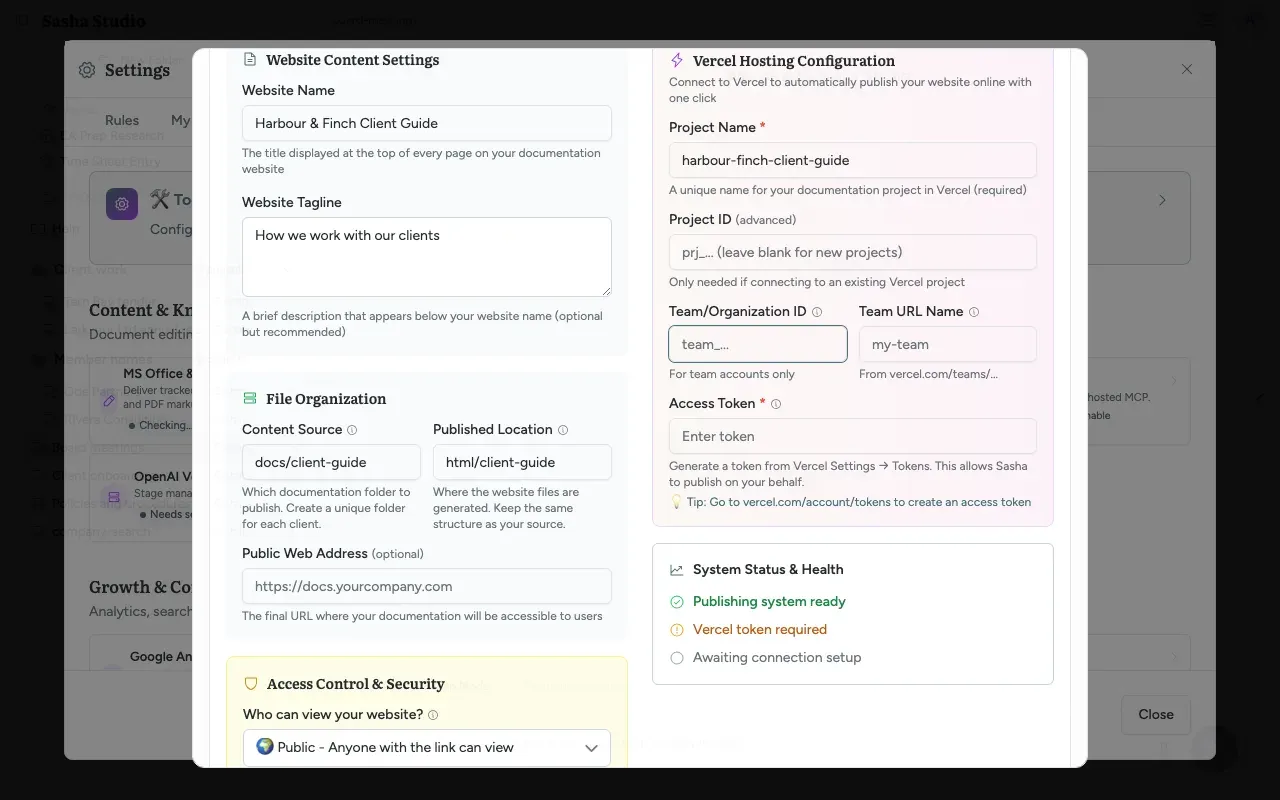
Website Content Settings
- Website Name: the title at the top of every page.
- Website Tagline: a short line under the name.
File Organization
- Content Source: the folder of documents to publish. Use one folder for each website.
- Published Location: where Sasha writes the website files.
- Public Web Address (optional): the final address of the website.
Access Control & Security
- Who can view your website?: Public (anyone with the link can view) or Private (a password is required, through Supabase). Public is the default. Do not rely on Private to protect a website that Sasha publishes from a chat.
- For Private, type the Supabase project URL and the Supabase anon key. You can also choose to hide everything under a
/private/folder until someone signs in.
Vercel Hosting Configuration
- Project Name (required): a unique name for the website in Vercel.
- Project ID,
Team/Organization IDand Team URL Name: only for an existing Vercel project or a team account. - Access Token (required): a token from your Vercel account settings. After you save, the box shows "Saved"; leave it empty to keep the saved token.
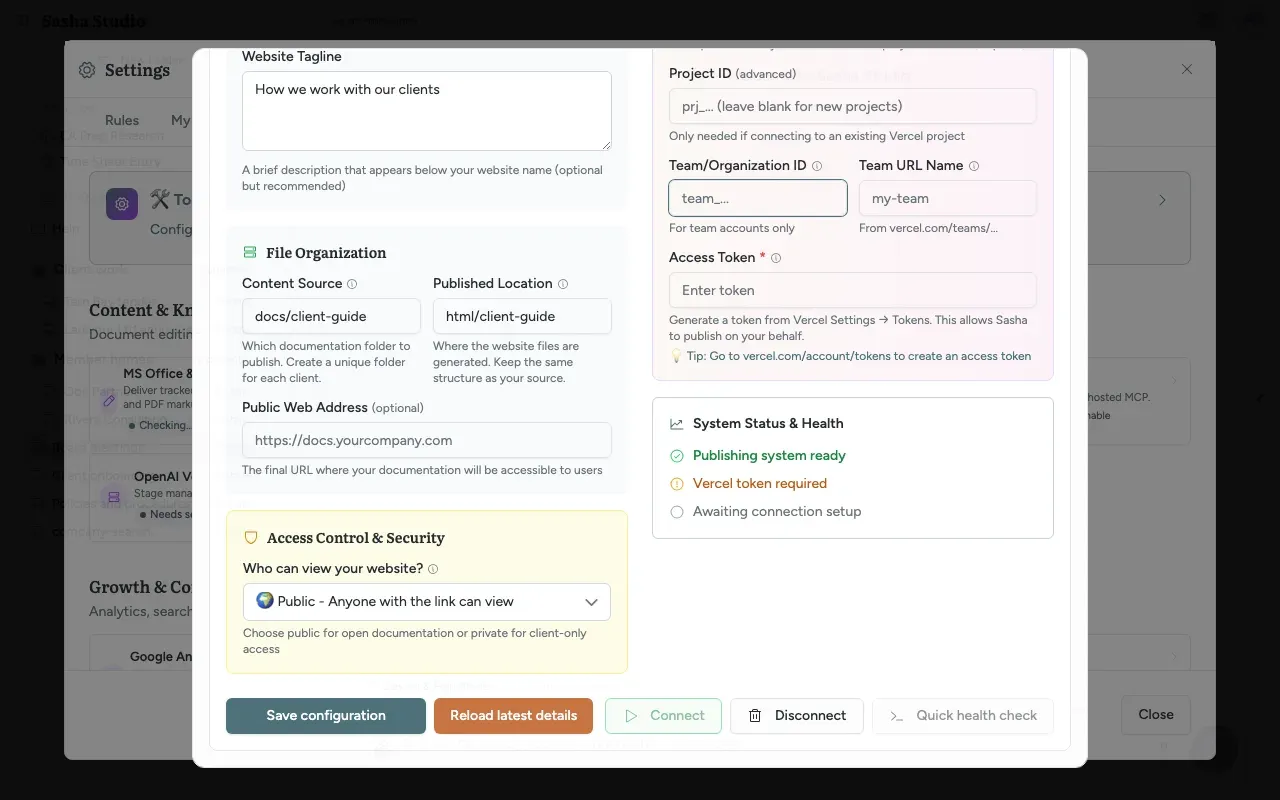
Buttons
| Button | What it does |
|---|---|
| Save configuration | Saves the settings and the token |
| Reload latest details | Reads the settings again |
| Connect | Gives Sasha's chats the publishing tool. Available after a token is saved |
| Disconnect | Takes the publishing tool away from chats |
| Quick health check | Tests the connection. Available after Connect |
System Status & Health shows whether the publishing files are installed, whether a Vercel token is saved and whether the tool is connected.
Publish
- In a chat, ask Sasha to publish the folder as a website.
- Sasha's publishing instructions ask you to type YES, PUBLISH to confirm.
- Sasha builds the website and publishes it on Vercel, then gives you the address.
Bernard: edit a website from your knowledge
Bernard is an AI web developer that runs websites. When Bernard is connected to your Sasha, Sasha's chats can read facts from your knowledge and then change your website through Bernard.
Connect Bernard (admins)
- In Settings → Tools, open MCP Servers (in MCP Connections, the first group) and add Bernard on the Sign in tab. MCP (Model Context Protocol) is a standard way to give an AI tools (Give Sasha's AI more tools, such as web research, analytics or your own MCP servers, and control which tools it may use).
- Click Connect and sign in to Bernard. Sign in again shows when the sign-in has expired.
- Test checks the connection. Disconnect ends the sign-in. The remove button on the server takes the server away; chats and skills stop using it, and you must also remove Sasha's access in your Bernard account.
If Sasha shows "Servers that need a sign-in are not switched on for this Sasha", your Sasha is not set up for this yet. Ask your Sasha provider.
Publish through Bernard
- In a chat, ask Sasha to update a page, for example "Update the team page from our staff list".
- Sasha reads the current facts from your knowledge first. It does not write facts from memory.
- Bernard changes a draft of the website. Nothing is live yet.
- The site owner reviews the draft and approves it. Then it goes live.
Bernard removes new scripts from pages, except approved ones, so a chat cannot add unsafe code to your website.
Limits to know
- Report Publisher has no screen. You can use it only by asking in a chat.
- A website from the Web Publishing Assistant is public by default. When Sasha publishes from a chat, its instructions warn that the website will be public, and Private may not protect it. Check the address after the first publish.
- Whether Report Publisher can make the files on every Sasha is not confirmed. If Sasha does not give you the files, report it with Report Issue.
- Today, staff accounts can open and change the Web Publishing Assistant settings, although the design is that only admins manage them.
- The Vercel token is stored encrypted with the older method described in Know where your organisation's data is kept, who can reach it, what leaves your Sasha and how secrets are protected.
- One Bernard sign-in serves every person and every skill in your Sasha. Bernard sees all changes as coming from one account.
- Members cannot use any of these from the Sasha web interface, because they cannot sign in to it.
Questions
Can Sasha make a slide deck?
Yes. Ask Sasha in a chat. Report Publisher makes PowerPoint (PPTX) by default, and also PDF, a web page (HTML) or Google Slides. Google Slides needs Google credentials that your technical operator sets up on the server.
How do I change the look of a deck?
The look comes from a design pack, which holds the colours, fonts, layouts and chart styles. Sasha comes with a default design pack. Ask Sasha to change the colours or fonts, or ask for your own design pack, and Sasha edits it for you.
How do I turn a folder of documents into a website?
Use the Web Publishing Assistant in Settings → Tools to connect a Vercel account, then ask Sasha in a chat to publish the folder. Sasha's publishing instructions ask you to type YES, PUBLISH before it publishes.
Is a published website public?
With the Web Publishing Assistant, yes by default. Anyone with the link can read it. When Sasha publishes from a chat, its instructions warn that the website will be public, so check the address after the first publish. Do not rely on the Private setting to protect a website that Sasha publishes from a chat. With Bernard, nothing goes live until the site owner approves the draft.
Who can set up the Web Publishing Assistant?
The design is that admins set it up. Today, staff accounts can also open the dialog and save changes.
Does every person need their own Bernard sign-in?
No. An admin signs in to Bernard once for the whole Sasha. Every chat and skill then uses that one sign-in, so every person publishes as the same Bernard account.
Why does Sasha read our documents before it edits the website?
So that the website shows your current facts. Claude is told to read the facts from Sasha first and never to copy knowledge into a website from memory.
Can Sasha publish a website without asking me?
The publishing instructions that Sasha follows ask you to type YES, PUBLISH before Sasha publishes. Bernard changes only a draft, and the site owner approves it before it goes live.