Add, find, preview, download and remove the documents in your Sasha, and know what Sasha does to each file you upload
The Files panel shows every folder and document in your Sasha. See how uploads become Markdown, how previews and downloads work, and why member-home files open isolated.
- Where
- The Menu button in the top bar, then Files (on a phone, the Files tab). A document in a project's Knowledge list also opens here.
- Who
- Admin and staff accounts. Members cannot open the web interface; they read and write their documents from Claude.
- Needs
- An admin or staff account. Some previews (PowerPoint, HEIC and TIFF images) need conversion tools that the standard Sasha server has.
What this screen is for
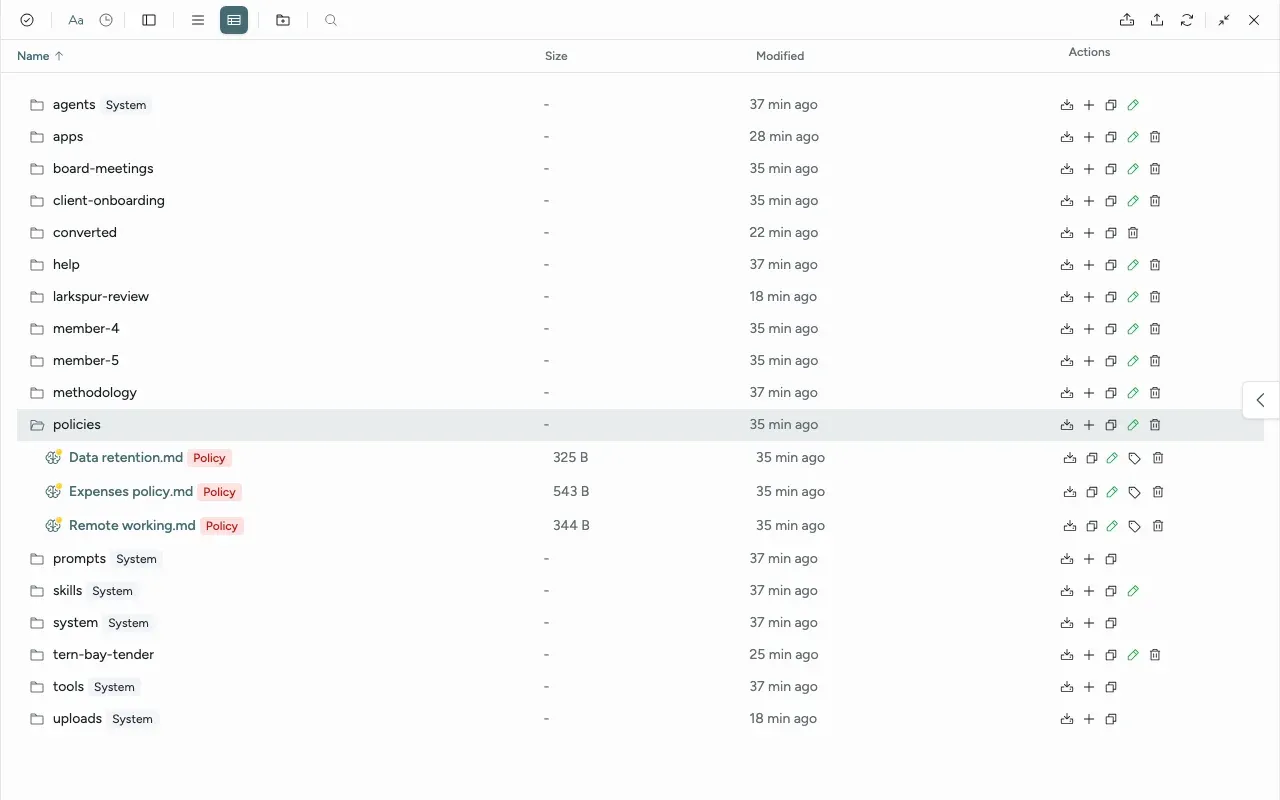
The Files panel shows all the knowledge in your Sasha as folders and files. Each project has a folder here, with the project's folder name (not its label in the side menu). Member homes are folders too, named member- and a number. Admin and staff accounts see every folder.
To open it, click Menu in the top bar, then Files. A link to a document or folder in Sasha also opens the panel, filtered to that place; the header then reads "Knowledge:" and the path.
The toolbar
The buttons have no text. Hover over a button to see its name.
| Button | What it does |
|---|---|
| Bulk select for deletion | Tick several items, then delete them together ("Delete N Items"). |
| Sort by name / Sort by date | Changes the order. Click again to reverse it. |
| Hide file list / Show file list | Gives the whole panel to the preview. |
| Simple view / Detailed view | Detailed view adds the columns Name, Size, Modified and Actions. |
| Create a folder or markdown file | Makes a new folder or Markdown document. |
| Search files | Filters the list by file name. |
| Filter by tags | Shows only files with the tags you choose. |
| Upload files / upload folder | Adds files, or a whole folder with its structure. |
| Refresh files | Reads the list again. Syncing shows while it works. |
| Fullscreen / Close files panel | Makes the panel fill the window, or closes it. |
On a narrow panel, some buttons hide. Use Fullscreen to see them all.
Labels on files and folders
Each file shows a coloured label for its kind, for example Policy, Guide, Uploaded, Converted or Research. A file with no other kind shows Research. Folders that Sasha uses for itself show System: agents, prompts, skills, system, tools, uploads and some others. Leave these folders to Sasha.
Actions on a row
| Action | On | What it does |
|---|---|---|
| Download | File | Saves the file. |
| Download folder as zip | Folder | Saves the folder and everything in it as one zip file. |
| New folder or markdown file | Folder | Makes a folder or document inside this folder. |
| Copy path | Both | Copies the item's location in Sasha. |
| Editable / Read-only | File | Shows whether you can change the file. |
| Edit tags | File | Adds tags (comma-separated) for Filter by tags. |
| Rename folder | Folder | Not offered for Sasha's own folders, or for uploads and converted folders. |
| Delete / Delete folder | Both | Asks you to confirm. A folder lists the files it holds first. |
Upload a document
- Open the folder of the project, or drop the files on the folder's row.
- Click Upload files, or drag files into the panel.
- Wait for "N file(s) converted to Markdown and added to project documents".
For each file, Sasha:
- keeps the original in the
uploadsfolder, underoriginalsand the project's name; - writes a Markdown copy (
.md) in the folder you chose, with a short header that names the original, the date and who uploaded it; - adds
_1,_2and so on to the name if a file with that name exists.
| You upload | The Markdown copy holds |
|---|---|
| Markdown, text, CSV | The text as it is. A CSV stays as comma-separated lines; it does not become a table. |
| The text of the PDF. | |
| Word | The text of the document. |
| Excel | The sheets as text. If the conversion fails, a note says so. |
| PowerPoint | The slide text, or a note that full conversion is not available. |
| A file over the conversion limit | A note: "File is too large for automatic conversion". |
The file picker offers PDF, Word, Excel, PowerPoint, text, Markdown, CSV, JSON and zip files. Sasha and Claude find an uploaded document through its Markdown copy (see Understand how Sasha and Claude find your documents, and why two searches can give different results).
Zip files
Drop one zip file at a time. If files in the zip exist already, the Extract Zip dialog asks: Skip Existing, Keep Both or Overwrite. Answer within 15 minutes, or start again. Sasha refuses the whole zip if it holds more than 5,000 files, and it skips links. The extracted files keep their own format; Sasha makes no Markdown copies.
Preview and edit a document
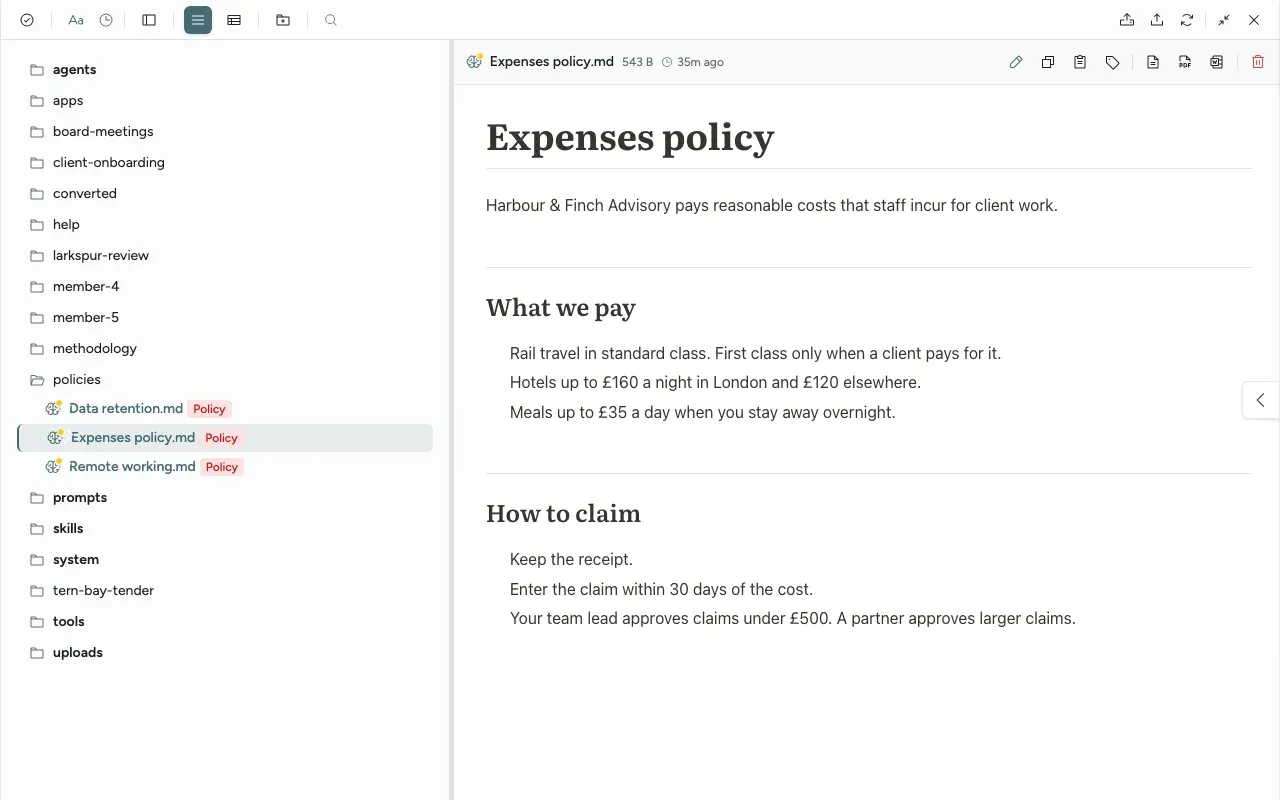
Click a file to open the preview beside the list.
| File | Preview |
|---|---|
| Markdown, text, code | Shown as formatted text. |
| Images, PDF, video, audio, web pages | Shown in the panel. |
| Word, Excel | Click Convert to HTML & Preview. |
| PowerPoint | Click Convert to PDF & Preview. |
| HEIC and TIFF images | Click Convert to PNG & Preview. |
The buttons above a document preview are Edit, Copy content, Copy path, Edit tags, Download MD, Download PDF, Download DOCX and Delete. Some hide when the panel is narrow.
Edit opens a Markdown document as text that you can change. Click Save (or press Ctrl+S) to keep your changes, or Cancel (or press Esc) to drop them. Edit is not available on a read-only file.
Delete files and folders
- Delete asks "Are you sure you want to delete" the file, and warns that the action cannot be undone.
- When you delete a Markdown document, Sasha also deletes a web page of the same name next to it, if there is one.
- The original of an uploaded file stays in
uploads. Delete it there if you need to. - Sasha refuses to delete its own files, its top-level System folders and the root folder of a member's home. The delete button is hidden on System files and folders. It still shows on the root folder of a member's home, and the delete then fails with "A member home folder cannot be deleted or moved."
Why member-home files open isolated
A member writes the files in their home from Claude. Admin and staff accounts open the same files in the web interface. A file can contain a script, and a script in a page runs as the person who opens it. So Sasha opens every file from a member's home in an isolated frame:
- a web page from a home can run its own scripts, but it cannot read your session or act in the web interface;
- a converted Word or Excel preview from a home runs no scripts at all;
- raw HTML inside a Markdown document from a home is not shown as HTML.
Files in ordinary shared projects open normally, because their reports can need scripts. For where your files live, see Where your data lives in Sasha.
Limits to know
- Today, a JSON upload gets no Markdown copy and does not appear in the folder you chose. Sasha keeps only the original, in the
uploadsfolder. The upload message still counts it as converted. - Allowed File Types in Settings → General only lists types. It does not limit what the server accepts.
- The Files panel shows folder names, not project labels. A renamed project keeps its first folder name here.
- Deleting a project with Also delete all files in this project leaves the project's folder here. Delete it yourself (see Organise the projects in the side menu, and understand what rename, archive, delete and member homes really do).
- The original of a file uploaded into a member's home goes to the shared
uploadsfolder, outside the home. - A PDF from a member's home opens in the browser's PDF viewer, without the isolated frame.
Questions
What happens when I upload a Word file?
Sasha keeps the original in the uploads folder and writes a Markdown copy where you dropped the file. The copy starts with a short header that names the original file, the date and who uploaded it. Sasha and Claude search and read the Markdown copy.
What is the size limit?
By default, 100 MB for an upload and 50 MB for conversion. A larger file uploads, but Sasha writes a short note in place of the Markdown copy. An admin changes both limits in Settings → General, under File Management. You can upload up to 20 files at a time.
Can I upload a zip file?
Yes, one zip at a time. Sasha refuses the whole zip if it holds more than 5,000 files. If some files exist already, you choose Skip Existing, Keep Both or Overwrite. Sasha does not make Markdown copies of the files in a zip.
Why can I not delete some files and folders?
Sasha protects its own files. Files whose names start with CLAUDE, documents marked as system documents, the top-level System folders and the root folder of each member's home cannot be deleted. You see "System file cannot be deleted" or "System folder cannot be deleted". For the root folder of a home, you see "A member home folder cannot be deleted or moved."
Does deleting the Markdown copy delete my original?
No. The original stays in the uploads folder. Delete it there if you need to.
Why does a Word, Excel or PowerPoint preview ask me to convert first?
A browser cannot show these files. Click the convert button and Sasha makes a copy for the preview (a web page for Word and Excel, a PDF for PowerPoint). Your file does not change.
Can I get a PDF or Word copy of a Markdown document?
Yes. Download PDF and Download DOCX, in the preview or in the file list, make a copy of the Markdown document in that format. Your Markdown file does not change.
Why do files from a member's home open in a restricted way?
A member writes the files in their home, and admin and staff accounts open them in the web interface. Sasha opens these files isolated, so a script in a member's file cannot act as the person who opens it.
Why does the Files panel show different names from the side menu?
The Files panel shows each project's folder name. The side menu shows the project's label, which a rename changes. A rename never changes the folder name.
Can I drag files into a folder?
Yes. Drop files on a folder row to upload them into that folder. Drop a whole folder to keep its structure. You can also drag a file or folder onto another folder to move it.