Understand how Sasha reports its own gaps, what happens to each suggestion, and how to follow it
How Sasha files improvement suggestions from chats and from Claude, what the team that improves Sasha receives, what each status means, and how Report Issue differs.
- Where
- There is no screen. Sasha files suggestions from chats by itself, and Claude files them through your Sasha connection. Report Issue is in the account menu.
- Who
- Every chat and every Claude connection can file a suggestion. Admin and staff connections can read the status of every suggestion; a member's connection sees only its own.
- Needs
- Nothing to set up for filing. To read a status, you need Claude connected to your Sasha.
What it is
Sasha reports its own gaps. When a tool is missing, an error is confusing or a help text is wrong, Sasha files an improvement suggestion. The Context is Everything team reviews the suggestions, fixes what it can, and records a status on each one. There is no screen for this in the Sasha web interface: it happens in the background.
How a suggestion is filed
| Source | What happens |
|---|---|
| A chat or skill run in the Sasha web interface | Sasha is told, in every chat, to file a suggestion when it meets a gap in Sasha, or when you report a problem with Sasha or ask for an improvement. It does not tell you unless you ask. Filing never stops your task |
| Claude, through your Sasha connection | Claude files a suggestion with a kind, a summary, an optional detail and severity, and gets back an id and a result |
| The session scan | Every 6 hours, Sasha scans chat transcripts for fixed patterns, such as a tool that fails again and again, a chat that ends on an error, or a person who corrects Sasha many times. If your Sasha uses AWS Bedrock, a small model writes a short description of each pattern |
A suggestion is about Sasha itself, not about your own documents.
Kinds: feature, bug, friction (something that works but gets in the way) or docs. Severity is optional: blocking, major or minor.
Results when Claude files: received, duplicate (the same suggestion in the last hour), rate-limited (more than 20 in an hour) or not recorded.
What the team receives
The Context is Everything team collects suggestions from your Sasha through a connection that holds an admin-only permission for improvements. For each suggestion it receives:
- the kind, severity, summary and detail (detail up to 2 KB);
- the project name and the tool name, if given;
- one-way codes in place of the person, the connection and the chat.
Sasha replaces email addresses and file paths in the text with "[redacted]". Context is Everything does not receive your chat transcripts or documents. A suggestion's summary can describe what you were doing. For everything that leaves your Sasha, see Know where your organisation's data is kept, who can reach it, what leaves your Sasha and how secrets are protected.
Statuses
| Status | Meaning |
|---|---|
| received | Filed |
| watch | One report so far. The team waits for more |
| in-progress | Someone is working on it |
| shipped-canary | Fixed and running on the test instance of Context is Everything |
| shipped-fleet | Running in your Sasha |
| already-covered | A tool already does this. The note names it |
| refuted | The report was wrong. The note says what is true |
| held | Waiting for a decision |
A fix reaches your Sasha with an update. So a suggestion can stay at shipped-canary for days, until your Sasha is updated. See See which version of Sasha you run, how updates arrive, and refresh shared skills and documentation.
Follow a suggestion
- Connect Claude to your Sasha. See Connect Claude to your Sasha.
- Ask Claude for the status of a suggestion by its id, or ask Claude to show your Sasha's suggestions from the last 30 days.
- Read the status and the note. When it is shipped, the result can show the version that has the fix.
Who sees what:
- Admin and staff connections see every suggestion in your Sasha.
- A member's connection sees only the suggestions it filed. After the member connects Claude again, the earlier suggestions are no longer visible to them.
Report Issue: a separate channel
Report Issue in the account menu sends a bug report to a GitHub issue list that the Context is Everything team reads. It does not go into the suggestion list.
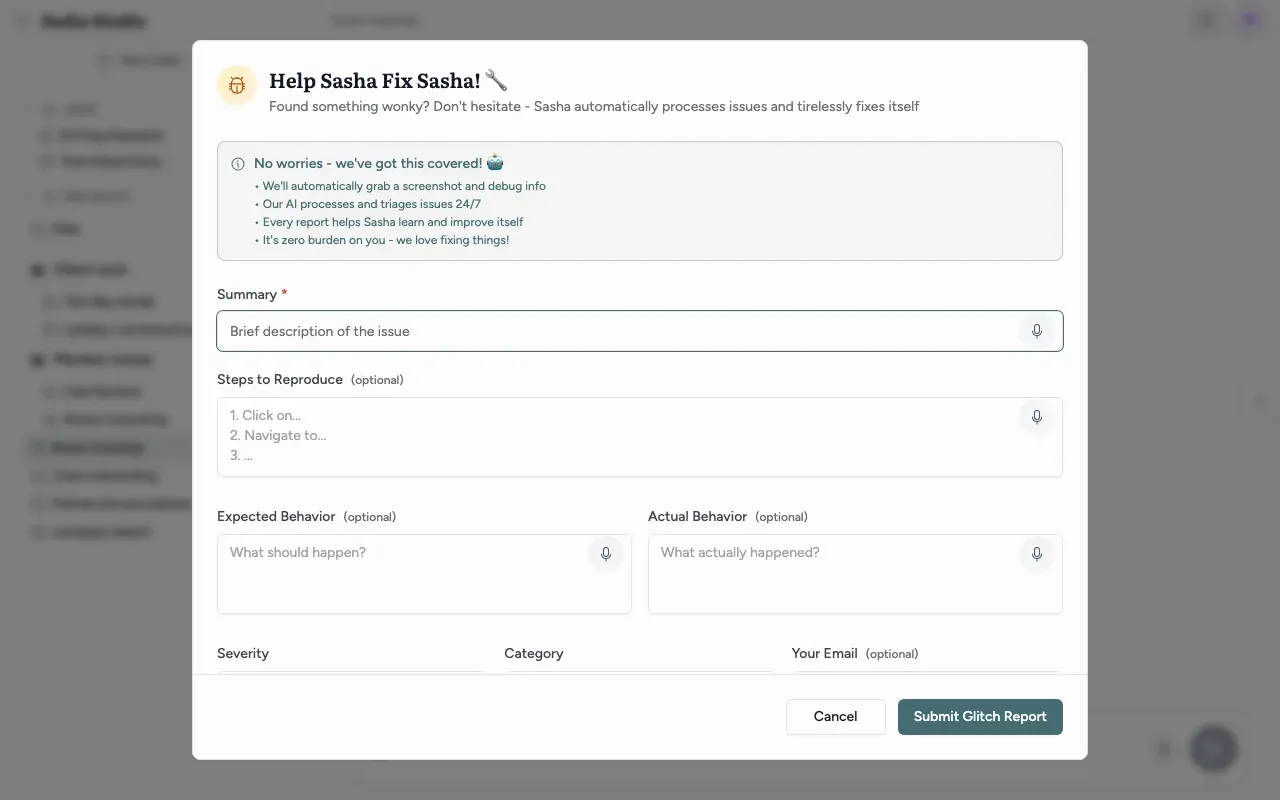
- Open the account menu and choose Report Issue.
- Type a Summary (required). Optionally fill in Steps to Reproduce and the expected and actual results.
- Choose a Severity and a Category. Type your email address if you want the team to know it is yours; it becomes a label on the issue.
- Click Submit Glitch Report.
The form sends your text, the page address, browser details and recent log messages to a GitHub issue. The log messages go into a separate unlisted GitHub page that anyone with its link can read. Sasha saves the screenshot on your own Sasha and copies it to your clipboard. It reaches GitHub only if you paste it in. If the server cannot file the issue, Sasha opens a pre-filled GitHub page in your browser instead.
The dialog says that Sasha "automatically processes issues and tirelessly fixes itself". This overstates what happens. The report becomes a GitHub issue for the team to review. Nothing is fixed at once.
Limits to know
- The Sasha web interface shows no suggestions and gives no id. You can follow a suggestion only from Claude.
- Suggestions from skill runs and scheduled runs, which have no person, are recorded as filed by an admin account.
- Admin and staff connections can read the summaries of other people's suggestions.
- A member loses sight of their earlier suggestions after connecting Claude again.
- The help text that Claude reads says safe fixes ship "without a human step". That is true for the test instance only. Your Sasha gets a fix with an update.
- There is no screen to stop the export or the session scan. Both are server settings.
Questions
How do I suggest an improvement?
Tell Sasha in a chat, for example "Sasha cannot open this file type; please report it". Or ask Claude, through your Sasha connection, to file a suggestion. Be specific about what you tried and what went wrong.
Why did Sasha not tell me that it filed a suggestion?
Sasha is told to file without mentioning it, so that the report does not interrupt your work. If you want to know, ask Sasha in the same chat whether it filed anything.
How do I find out what happened to a suggestion?
Ask Claude, through your Sasha connection, for the status of the suggestion by its id, or for the list of recent suggestions. The Sasha web interface does not show suggestions, and a chat in it does not give you an id.
What do the statuses mean?
Received means filed. Watch means one report so far. In progress means someone is working on it. Shipped canary means fixed and running on the test instance of Context is Everything. Shipped fleet means running in your Sasha. Already covered means a tool already does this, and the note names it. Refuted means the report was wrong, and the note says what is true. Held means it waits for a decision.
Is my conversation sent to Context is Everything?
Context is Everything does not receive your chat transcripts or documents. Only the suggestion is sent (a short summary and an optional detail), with email addresses and file paths removed and identifiers replaced by one-way codes. A suggestion's summary can describe what you were doing. The project name and the tool name are sent as they are.
Can other people see my suggestions?
Admin and staff connections can read every suggestion in your Sasha, including other people's summaries. A member's connection sees only the suggestions it filed itself.
How many suggestions can I file?
Up to 20 an hour per person. Sasha drops a suggestion that repeats one from the last hour.
Is Report Issue the same thing?
No. Report Issue in the account menu files a bug report on GitHub for the Context is Everything team. Sasha saves the screenshot on your own Sasha and copies it to your clipboard; it reaches GitHub only if you paste it in. Suggestions go to a separate list that the team collects from your Sasha.
Does every suggestion get fixed?
No. Each one ends as shipped, already covered, refuted or held, or stays on watch until more reports arrive.
Can we switch the export off?
Yes, with a server setting. There is no screen for it. Ask your technical operator or Context is Everything.