Connect Claude to your Sasha, manage the tokens that connect other AI tools, and see how those connections are used
Settings → Connections adds your Sasha to Claude, creates and revokes access tokens for Claude Desktop and other MCP tools, and shows 7 or 30 days of usage.
- Where
- Settings → Connections (the avatar menu, then Settings)
- Who
- Each person manages only their own connections and tokens. Admin and staff accounts see Usage for the whole Sasha. The server always checks both.
- Needs
- Your Sasha must be reachable from the internet over https for claude.ai to connect. Skills appear in Claude only if their settings allow API runs, or they are in the showcase category.
What this screen is for
Connections is where you link AI tools outside Sasha to your Sasha. Claude can then search your knowledge, run skills and use apps from claude.ai or Claude Desktop, with your permissions. The tab has three parts: Connect Claude, Active connections and Usage. If your Sasha offers a service such as HireBest, a Services Sasha can use section shows at the top (see Let Sasha use your HireBest projects and research in your chats).
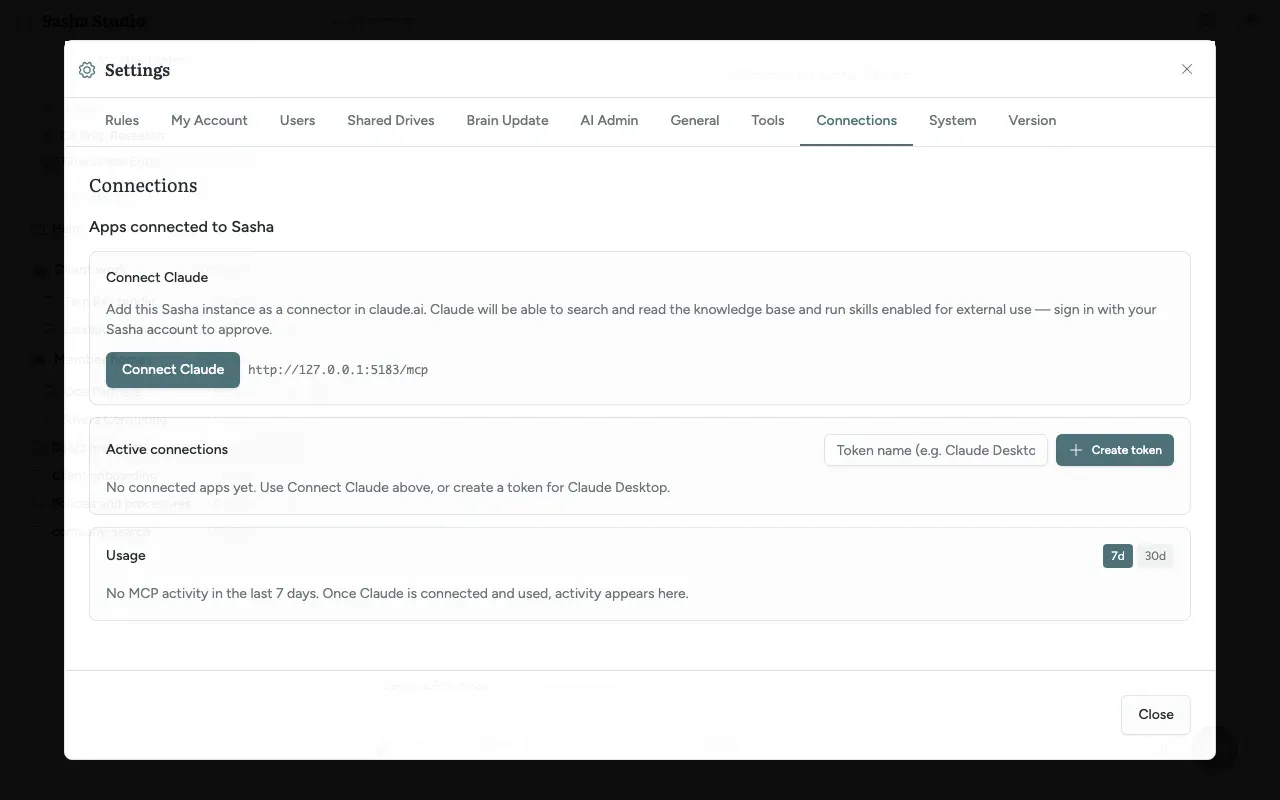
Connect Claude
The Connect Claude card shows your Sasha's connection address, which ends in /mcp.
- Click Connect Claude. claude.ai opens its dialog to add a custom connector, named Sasha, with the address filled in.
- Add the connector in claude.ai. Claude opens a Sasha sign-in page, titled with the name of the tool and "to Sasha", that lists what the connection will be allowed to do.
- Type your Sasha username and password, and your two-factor code if you use two-factor authentication.
- Click Allow. (Deny stops the connection.)
The connection appears in Active connections. For more on what Claude can do, see What Claude can do with Sasha and Connect Claude to your Sasha. Which skills Claude can run depends on each skill's settings (Find a skill, run it now, put it on a schedule, or let another system run it).
Messages you can see on the Sasha page:
| Message | Meaning |
|---|---|
| "Username or password is incorrect." | Try again |
| "That two-factor verification code is not valid." | Use a new code from your authenticator app |
| "Too many failed attempts. Try again in" a number of minutes | Sasha paused sign-ins after repeated failures |
| "Your account cannot connect apps. Ask an administrator." | Your account does not have the permission to connect tools |
Tokens for other tools
- Type a name in the box Token name (e.g. Claude Desktop).
- Click Create token.
- Sasha shows the token once, with a Copy button. Copy it now: Sasha cannot show it again.
- In the other tool, use the server address shown and the header
Authorization: Bearer <token>.
A new token gets your role's normal permissions. Do not share a token: anyone who holds it acts as you.
Active connections
Each row shows the name, "Added" with the date, and "last used" with the date and time or "never used". A badge lists what the connection may do, for example knowledge:read, skills:run. A badge such as "2 of 5 currently effective" means your permissions have been reduced since the connection was made.
The bin icon (Revoke access) ends the connection at once. With no connections, the card says "No connected apps yet. Use Connect Claude above, or create a token for Claude Desktop."
Usage
Usage reports on the connections to your whole Sasha. Choose 7d or 30d.
| Part | What it shows |
|---|---|
| Calls, Errors, Users, Connections | Totals for the period |
| Bar chart | Calls per day |
| By tool | Calls, error rate and response time for each tool |
| Searches that found nothing | Searches with no match: gaps in your knowledge |
| Top searches, Most-read documents, Skills run | What Claude used most |
| Recent connections | Connections used, added or revoked, with the person's name |
With no activity, the card says "No MCP activity in the last 7 days. Once Claude is connected and used, activity appears here." Sasha keeps usage records for 90 days.
How it is kept safe
- Sasha keeps only a fingerprint of each token, never the token itself.
- Each request is checked against what the owner can do now. A token or connection never has more permissions than its owner, and stops working when the owner's account is deactivated.
- Password and two-factor attempts on the sign-in page are limited.
- Usage records shorten and hide the details Claude sent with each call.
Limits to know
- Revoke access has no confirmation.
- Admins cannot see or revoke other people's tokens on this screen.
- A member cannot open this screen, so cannot revoke a connection in Sasha. The member removes the connector in Claude. To stop a member's access for certain, an admin changes the member's grants or deletes the account.
- Tokens never expire by themselves. Review Active connections from time to time and revoke what you no longer use.
- Every admin and staff account sees the Usage of the whole Sasha, including other people's names, their searches and the documents they read.
- Recent connections can also list Sasha's own internal connections, such as "Studio chat session" or "Services proxy". The totals may also include activity from chats in the Sasha web interface, not only from Claude outside it.
- The badges show permission codes such as
knowledge:read. The plain-English descriptions appear only on the sign-in page. - The Sasha sign-in page says you can disconnect "from Settings → MCP Connections". The tab is Connections.
- The token name box has a placeholder but no label.
Questions
How do I connect Claude?
Click Connect Claude. claude.ai opens its dialog to add a custom connector, with your Sasha's address filled in. Add it, then sign in on the Sasha page that opens with your Sasha username, password and two-factor code, and click Allow.
What can Claude do once it is connected?
It can search and read your knowledge, read meetings, run the skills whose settings allow API runs, and use Sasha apps, depending on your role. The sign-in page lists exactly what the connection will get before you click Allow.
When do I need a token instead?
For a tool that cannot use the Connect Claude sign-in, such as Claude Desktop with a manual setup or another MCP client. Create a token, then give the tool the server address shown and the header Authorization with the value Bearer followed by the token.
Do tokens expire?
No. A token works until you revoke it. Connections made with Connect Claude also stay until you revoke them.
I lost a token. Can I see it again?
No. Sasha shows a token once, when you create it, and keeps only a fingerprint of it. Revoke the old one and create a new one.
What does "2 of 5 currently effective" mean?
Your permissions are smaller now than when the token was made, for example after a role change. A token can never do more than its owner can do today.
How do I disconnect Claude?
Click the bin icon (Revoke access) on its row in Active connections. It acts at once, with no confirmation.
Can an admin revoke another person's token?
Not on this screen. Each person sees only their own connections, so ask an admin or staff person to revoke their own. A member cannot open this screen, so cannot revoke a connection in Sasha. The member removes the connector in Claude. To stop a member's access for certain, an admin changes the member's grants or deletes the account. A token stops working when its owner's account is removed, and it can never do more than the owner's current role allows.
Can members connect Claude?
Yes, but not from this screen, because members cannot sign in to the Sasha web interface. They use the link in their connect email and approve on the Sasha sign-in page. A member cannot open this screen, so cannot revoke a connection in Sasha. The member removes the connector in Claude. To stop a member's access for certain, an admin changes the member's grants or deletes the account.
What is "Searches that found nothing"?
Searches that Claude ran in the chosen 7 or 30 days that found no document. They show gaps in your knowledge that are worth filling.