Add people to Sasha, give each person a role, and control what members can reach
Settings → Users is where an admin adds people, sets roles (admin, staff, member), grants members shared projects, resets passwords and 2FA, and removes people.
- Where
- Settings → Users (the avatar menu, then Settings)
- Who
- Admins only. The tab is hidden from staff, and the server refuses user changes without the users:manage capability, which only admins hold.
- Needs
- Email delivery (Postmark) for the automatic welcome and connect emails. Without it, people are still created, but no email arrives.
What this screen is for
Settings → Users is the one place where an admin manages the people in your Sasha. At the top, Roles and access explains the three roles. Below it, User Management has a form to add a person and a list of Existing users.
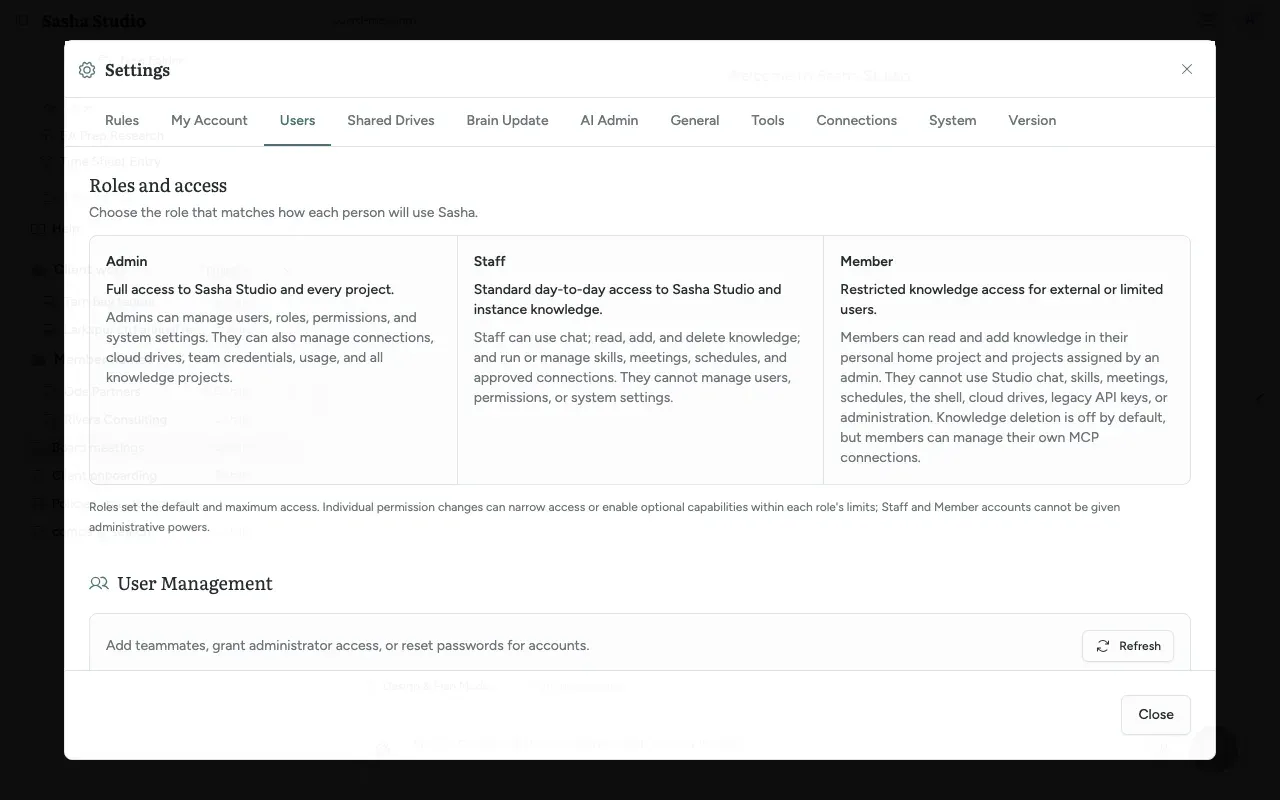
The three roles
| Admin | Staff | Member | |
|---|---|---|---|
| Uses the Sasha web interface | Yes | Yes | No. Claude only |
| Sees projects | Every project, members' homes included | Every project, members' homes included | Their own home, and the shared projects you grant |
| Chats, runs and builds skills, meetings, schedules | Yes | Yes | No |
| Manages people, the AI provider and system settings | Yes | No | No |
| Can be given admin rights | Not applicable | No | No |
A role sets the most a person can do. Staff and member accounts can never receive admin powers.
Add a person
- In Add a new user, type the Username. Use the person's email address: Sasha sends the first email there.
- Type an Initial password of at least 8 characters, or click Generate.
- Choose the Role: Admin, Staff or Member.
- Click Add User.
What Sasha does next:
- Admin or staff. Sasha creates the account, copies your organisation's company profile to it, and sends a welcome email with the sign-in link.
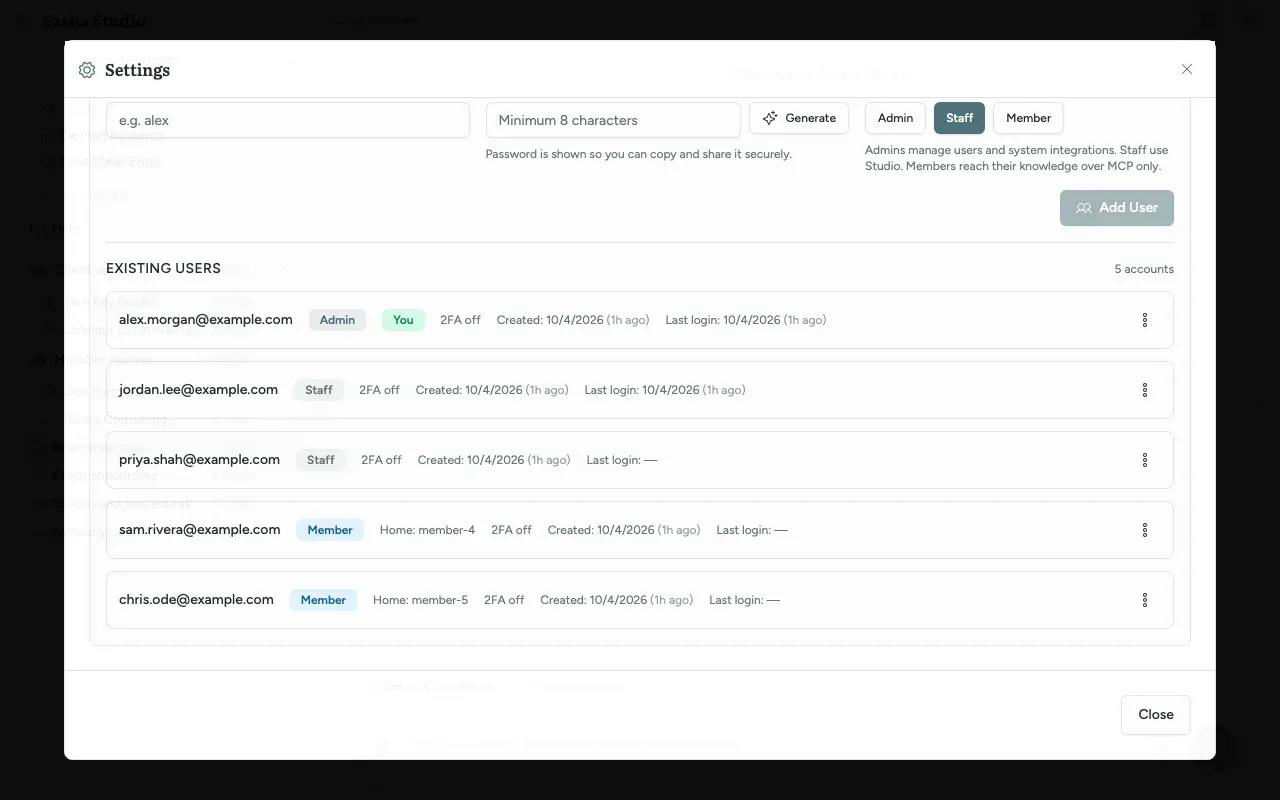
- Member. Sasha creates the account and the member's home: a project for that member (private from other members), named
member-<number>. The home also appears in the side menu, in the Member homes folder, labelled with the username. Sasha sends a connect email with a link that adds Sasha to the member's Claude. A member gets no company profile.
The email never contains the password. If email delivery is not set up, the account is still created and no email is sent.
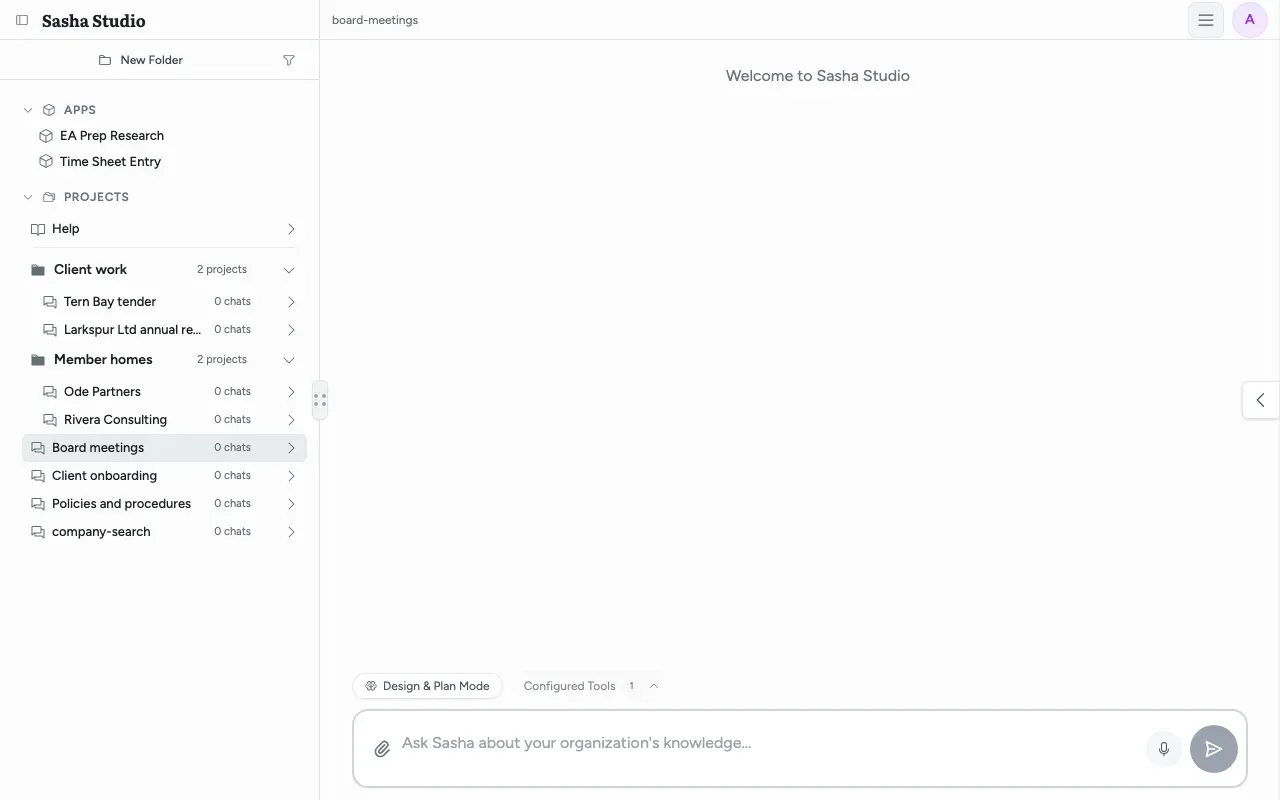
The Existing users list
Each row shows the username, a role badge (Admin, Staff or Member), 2FA on or 2FA off, Created and Last login. A member row also shows Home: with the name of their home. You marks your own row.
The three-dot menu on a row has:
| Menu item | What it does |
|---|---|
| Set Password | Sets a temporary password (8 characters or more). Open sessions stay signed in. |
| Welcome Email | Sends the welcome email again (staff and admin) or the connect email (member). |
| Make admin / Make staff / Make member | Changes the role. See "Changing a role" below. |
| Knowledge Grants | Members only. Chooses the member's access to each shared project. |
| Provision Home | Members only. Makes or repairs a missing home. |
| Retire Home | Archives the home permanently. Shown whenever the account has a home. |
| Reset 2FA | Shown only when the person uses 2FA. |
| Delete | Removes the account. Not available on your own row. |
Give a member access to shared projects
Choose Knowledge Grants on the member's row. For each shared project, choose No access, Read or Read & write. All projects sets every project at once. Click Save grants.
- Read: the member finds and reads the project's documents from Claude.
- Read & write: the member can also create and edit documents from Claude, if member writes are switched on for your Sasha. A member can never delete in a shared project.
- A member's own home is always theirs. You cannot grant one member's home to another member.
A change applies to the member's existing Claude connection at once.
Changing a role
Sasha asks you to confirm, because a role change removes access:
- To member: every API key the person holds is revoked permanently, their grants are reset, and Sasha gives them a home (or reuses the home they had before).
- From member to staff or admin: their grants are removed. Their home is kept and the row shows Stranded home. Use Retire Home if you no longer need it.
- From admin: refused if this is the last administrator. If the person looks after service principals, Sasha first asks you to choose a new custodian (another admin).
Sasha reads the role again on every request, from the web interface and from Claude. So a demotion makes the person's existing Claude connection smaller at once. A promotion does not make the connection larger: ask the person to connect Claude again.
Remove a person
Delete asks "Delete user ? This cannot be undone." For a member, Sasha retires the home first: the folder moves to an archive and the name is never reused. The member's chats in the side menu are archived and kept. You cannot delete your own account from this screen, or the last administrator.
Retire Home on its own archives a home without deleting the account. It is permanent: a later home for the same person gets a new name.
Passwords, 2FA and lock-outs
- 2FA is optional. Each person turns it on in Settings → My Account → Security with an authenticator app.
- 5 wrong 2FA codes in 15 minutes lock the account's 2FA for 15 minutes. 10 wrong passwords lock that username for 15 minutes. A server restart clears both lock-outs.
- Reset 2FA needs your own password (and your own code if you use 2FA). Sasha records the reset and emails the person.
Limits to know
- There is no display-name field in the form. A member's label in the Member homes folder starts as their username; rename it from the folder's project menu (the rename changes only the label).
- There is no screen for per-person permission changes. The note under Roles and access mentions them, but today each person gets exactly their role's permissions.
- Usage of Claude connections is in Settings → Connections, not on this screen.
Questions
Which role do I give a new person?
Admin for someone who manages people, the AI provider and system settings. Staff for a colleague who works in the Sasha web interface every day. Member for an external or limited person, such as a client, who uses Sasha only from Claude and reaches only their own home and the shared projects you choose. The default in the form is Staff.
Does the new person get their password by email?
No. The email has a link to sign in (admin and staff) or to connect Claude (member), but never the password. Give the password to the person yourself, by a safe channel. The form shows the password in clear text so you can copy it, and the Generate button makes a strong one.
Must the username be an email address?
In practice, yes. Sasha sends the welcome or connect email to the username. Sasha does not check that the username is an email address, so a name such as "alex" creates the account but no email arrives.
Can a member sign in to the Sasha web interface?
No. A member who signs in gets "This account uses Sasha through Claude only. Ask an administrator for Studio access." Members connect Claude to Sasha and work from there. To give a person the web interface, make them staff.
Can I see a member's documents?
Yes. Admin and staff accounts see every member's home. In the side menu each home is a project in the Member homes folder, labelled with the member's account name, and you can open, change and chat in it. A home is private from other members, but not from admin and staff. An organisation that needs homes that no admin can see needs its own Sasha.
What does Read & write give a member?
In Knowledge Grants, Read & write lets the member create and edit documents in that shared project from Claude, if member writes are switched on for your Sasha. It never lets a member delete documents in a shared project. Read lets them find and read documents only.
What happens to API keys and access when I change a role?
Changing a person to member revokes every API key they hold, permanently; making them staff again does not bring the keys back. Moving a person into or out of member removes all their Knowledge Grants. A member's home is kept when they leave the member role; their row then shows "Stranded home" until you retire it.
Why can I not demote or delete an admin?
Two reasons. Sasha never lets you remove the last administrator, so you get "Cannot remove the last administrator" or "Cannot delete the last administrator". And an admin who looks after service principals (system accounts used by integrations) must hand them to another admin first; Sasha shows a "Transfer service principal custody" dialog for that.
A person lost their 2FA device. What do I do?
Open the three-dot menu on their row and choose Reset 2FA. You confirm with your own password, and your own 6-digit code if you use 2FA. The person can then sign in with their password alone until they set up 2FA again, and Sasha emails them that 2FA was reset. If no admin can sign in, a technical operator can run npm run reset-2fa inside the server.
Is 2FA required?
No. Each person turns it on for their own account in Settings → My Account → Security. The Users list shows "2FA on" or "2FA off" for each person, so you can see who has not set it up.
Does Set Password sign the person out or make them change it?
No. Set Password only replaces the password. Sasha does not end the person's open sessions and does not ask them to choose a new password at the next sign-in. Ask them to change it in Settings → My Account → Security.
Can I undo a delete?
No. Delete removes the account permanently. For a member, Sasha first retires their home. The folder moves to an archive, and the name is never used again. The member's chats in the side menu are archived and kept.