Organise the projects in the side menu, and understand what rename, archive, delete and member homes really do
The Projects list in the side menu holds your projects, folders and the Member homes folder. See what create, rename, archive and delete change, and who sees which project.
- Where
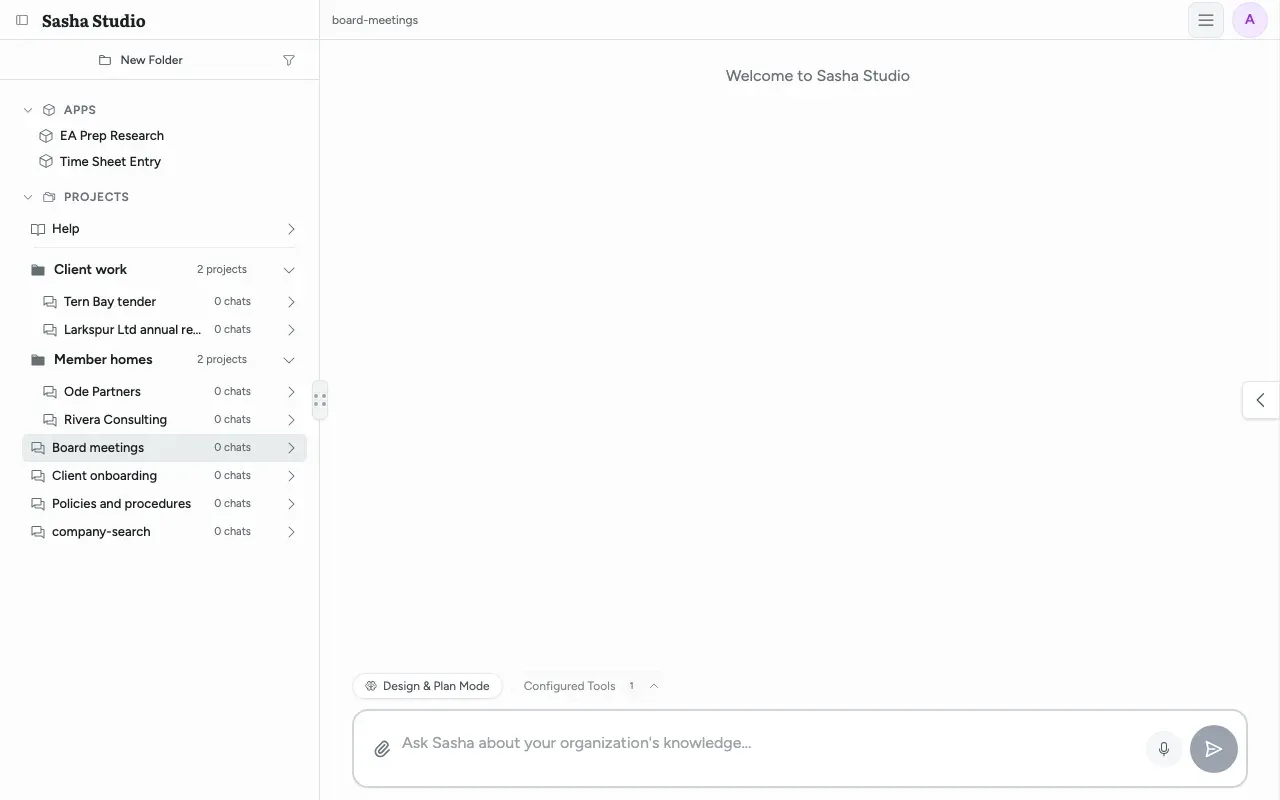
- The Projects list in the side menu of the Sasha web interface. Each project and folder has a three-dot menu.
- Who
- Admin and staff accounts. Members cannot sign in to the web interface; they reach their home and granted projects from Claude only.
- Needs
- An admin or staff account. To give a member a home, an admin adds the person as a member in Settings → Users.
What this screen is for
A project is a named collection of documents and the chats about them. The Projects list in the side menu shows every project you can open. You use it to start chats, group projects into folders, and rename, archive or delete projects. For the basic idea of projects and homes, see How Sasha organises your knowledge into projects and documents.
The list has four kinds of item:
| Item | What it is |
|---|---|
| Help | A fixed project at the top with Sasha's help articles. You cannot rename it. |
| Folder (for example Client work) | A label that groups projects. Nothing moves on disk when you file a project in a folder. |
| Member homes | A folder that Sasha keeps. It holds one project for each member's home, labelled with the member's account name. |
| Project | Your knowledge and chats. A project outside any folder shows below the folders. |
Each row shows the number of chats. Click a row to open the project and its chats.
Sort, filter and archived projects
Sort projects (the funnel button at the top of the side menu) opens a menu with:
- Filter by name...: type to show only the projects whose name matches.
- Recent, Alphabetical, Starred: the order of the list.
- Archived: shows archived projects too. Turn it off to hide them again.
Make a folder or a project
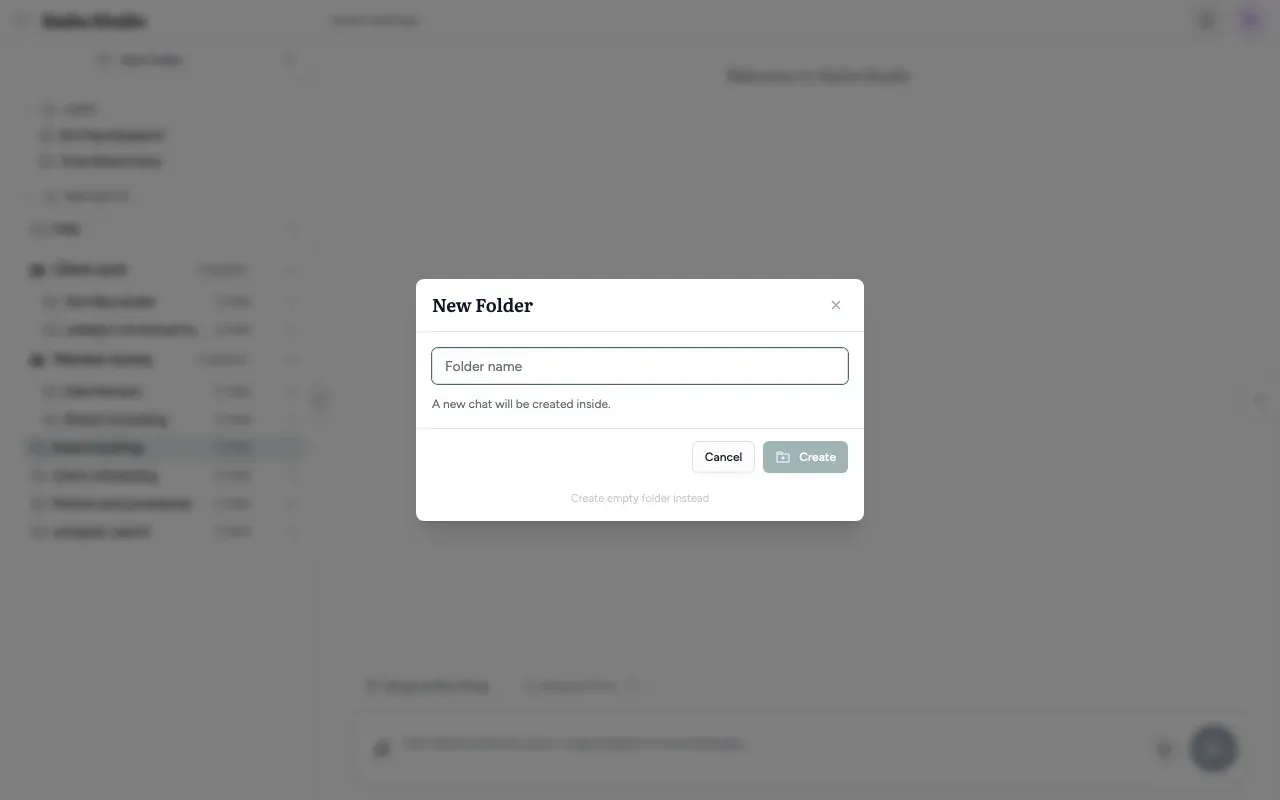
- Click New Folder at the top of the side menu.
- Type the Folder name.
- Click Create to make the folder and one new project in it, labelled "chat 1". Or click Create empty folder instead to make only the folder.
To add a project to a folder that exists, open the folder's three-dot menu and choose Start new project. Sasha asks for the name in a small browser box.
Sasha cleans the name before it makes the project's folder:
- capital letters become lower case;
- every character that is not a letter, a digit,
-or_becomes-; - the name is cut to 50 characters.
Sasha refuses a name that is in use, the name of a retired member home, and names it keeps for itself (names that start with a dot, and names in the form member- followed by a number).
The project menu
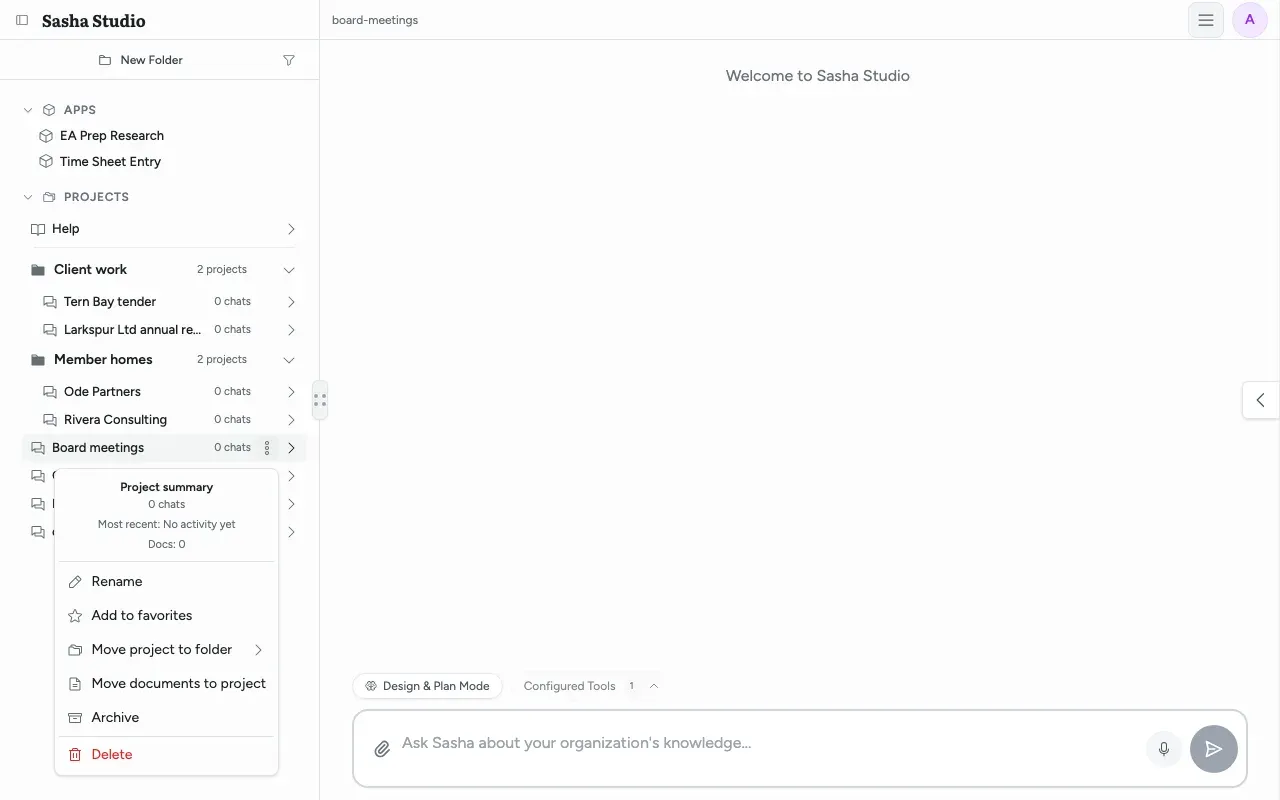
Open a project's three-dot menu. At the top, Project summary shows the number of chats, the most recent activity, and Docs (the files that the project's chats made). Below are the actions:
| Menu item | What it does |
|---|---|
| Rename | Changes the label in the side menu. 1–100 characters. The project's folder keeps its first name. |
Add to favorites / Remove from favorites |
Stars the project, for the Starred order. |
| Move project to folder | Files the project under a folder, or under Ungrouped. |
| Move documents to project | Moves documents to another project in two steps: Select Documents, then Choose Destination. |
| Archive / Unarchive | Hides or shows the project in the side menu. Nothing is deleted. |
| Delete | Deletes the project's chats permanently. See below. |
A folder's three-dot menu has Rename folder, Start new project, and Delete folder (only when the folder is empty).
Rename changes the label only
A rename never moves a file. Sasha keeps the project's folder name, and other places show that name:
| Place | Shows |
|---|---|
| The side menu | The new label, for example "Policies and procedures" |
| The top bar of a chat | The folder name, for example "policies" |
| The Files panel | The folder name |
| Claude, through the connector | The folder name |
So choose a clear name when you make a project. A rename that fails shows only "Failed to rename project". The usual cause is an empty label or a label longer than 100 characters. While a chat is still answering, Sasha does not rename and shows "Please wait for the current response to finish".
Delete a project
- Open the project's three-dot menu and choose Delete.
- Read the Delete Project dialog. It says "This action cannot be undone".
- Optional: tick Also delete all files in this project.
- Type
DELETEin the box. Delete Project stays disabled until you do. - Click Delete Project.
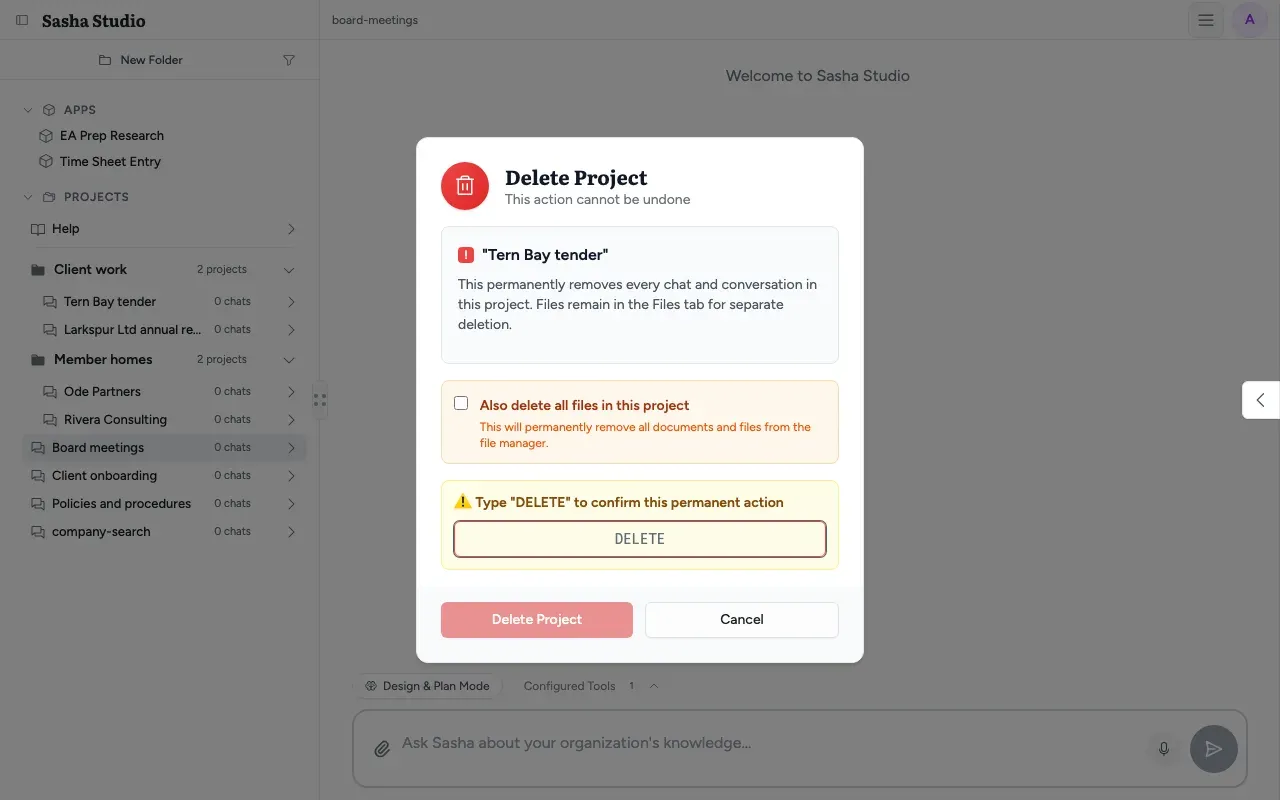
Sasha removes the project's chats and their records, then the project's entry in the side menu. Without the tick, the dialog says "Files remain in the Files tab for separate deletion". With the tick, Sasha also removes the project's working files. Today the project's folder in the Files panel stays, with its documents, even with the tick. Delete that folder in the Files panel if you need to (see Add, find, preview, download and remove the documents in your Sasha, and know what Sasha does to each file you upload).
Member homes
When an admin adds a member, Sasha makes the member's home: a project for that member (private from other members), with a name such as member-4. In the side menu, the home appears in Member homes, labelled with the member's account name. The label is set once; you can change it with Rename.
- Admin and staff accounts see every home. They can open its documents, add and change them, and chat in it. Sasha tells such a chat to save its documents in the home, so the member can read them from Claude.
- The menu of a home has no Move project to folder, Move documents to project, Archive or Delete. Sasha also refuses these actions on the server: "A member home folder cannot be deleted or moved. An admin can remove the member in Settings → Users."
- When an admin deletes the member's account, Sasha archives the home's project and keeps its chats.
- Retire Home in Settings → Users is permanent. The home's folder goes to an archive and the name is never used again.
Members never see this list. A member reaches their own home, and the shared projects that an admin granted them, from Claude. Grants are on the Add people to Sasha, give each person a role, and control what members can reach page. For what each role can do, see Who can do what in Sasha.
Who can do what here
| Action | Admin | Staff | Member |
|---|---|---|---|
| See the Projects list | Yes | Yes | No (Claude only) |
| See every project, homes included | Yes | Yes | Own home and granted projects, from Claude |
| Make, rename, archive, move projects and folders | Yes | Yes | No |
| Delete a project | Yes | Yes | No |
| Give a member grants, provision or retire a home | Yes | No | No |
Sasha answers a request for a project you cannot reach as if the project does not exist. Nobody can find a hidden project by its name.
Limits to know
- Today, Create in the New Folder dialog always makes a project labelled "chat 1". The dialog calls it "a new chat". Use Create empty folder instead, then Start new project in the folder's menu.
- Today, Also delete all files in this project does not remove the project's folder in the Files panel. Delete it there.
- A rename changes the label only. The Files panel, the chat top bar and Claude keep the first name.
- Docs in the Project summary counts only files that the project's chats made, not the project's documents.
- An archived project is still searched by Sasha and Claude.
- Today, after Retire Home, the home's project can stay in Member homes, and its menu offers no Archive or Delete. Deleting the member's account archives it.
- Start new project is also offered in the Member homes folder. It makes an ordinary shared project there, not a home.
- An empty list can show text from older software, such as "Run Claude CLI in a project directory to get started". Ignore it.
Questions
Does renaming a project move its files?
No. Rename changes only the label in the side menu. The project's folder keeps its first name. So the Files panel, the top bar of a chat and Claude still show the first name, for example "policies" for a project labelled "Policies and procedures".
What does Archive do?
Archive hides the project in the side menu. Nothing is deleted. The project's documents stay in the Files panel, and Sasha and Claude still search them. To see archived projects, open Sort projects (the funnel button) and turn on Archived.
Why does a new folder already contain a project called "chat 1"?
In the New Folder dialog, Create makes a folder and one new project in it, labelled "chat 1". The dialog says "A new chat will be created inside", but it is a project. To make a folder with nothing in it, use Create empty folder instead.
Why can I not delete a folder?
Delete folder appears only when the folder is empty. Move its projects to another folder or to Ungrouped first, or delete them. Sasha refuses to delete a folder that still holds projects.
Does "Also delete all files in this project" remove the documents?
Not all of them. Today the box removes the project's working files, but the project's folder in the Files panel stays, with its documents. After the delete, open the Files panel and delete that folder if you no longer need it.
Can I undo a delete?
No. You must type DELETE to confirm, and Sasha removes every chat in the project permanently. Archive is the safe choice when you only want the project out of sight.
Why can I not archive or delete a member's home?
A home belongs to the member's account. The menu of a home has only Rename, Project summary and the favourites item. To remove a home, an admin removes the member, or uses Retire Home, in Settings → Users.
Who sees the Member homes folder?
Every admin and staff account sees every home, and can open, change and chat in it. A member sees only their own home, and only from Claude. A home is private from other members, not from your admin and staff accounts.
What do Read and Read & write give a member?
These are the member's Knowledge Grants, set by an admin in Settings → Users. Read lets the member find and read a shared project from Claude. Read & write also lets them create and edit documents there, but never delete. See the Users and roles page.
Why does "Docs" in the Project summary show 0 when the project has documents?
Docs counts the files that the project's chats made. It does not count the documents in the project's folder. To see those, open the Knowledge list under the project, or the Files panel.