Run a job on a schedule, without asking each time
Why this exists
A regular job is useful only when it happens on time. A cost report that someone must remember to ask for arrives late, or not at all, in a busy month. A schedule removes the reminder. The job runs at the time you chose, in your time zone, and the result waits for you.
An example
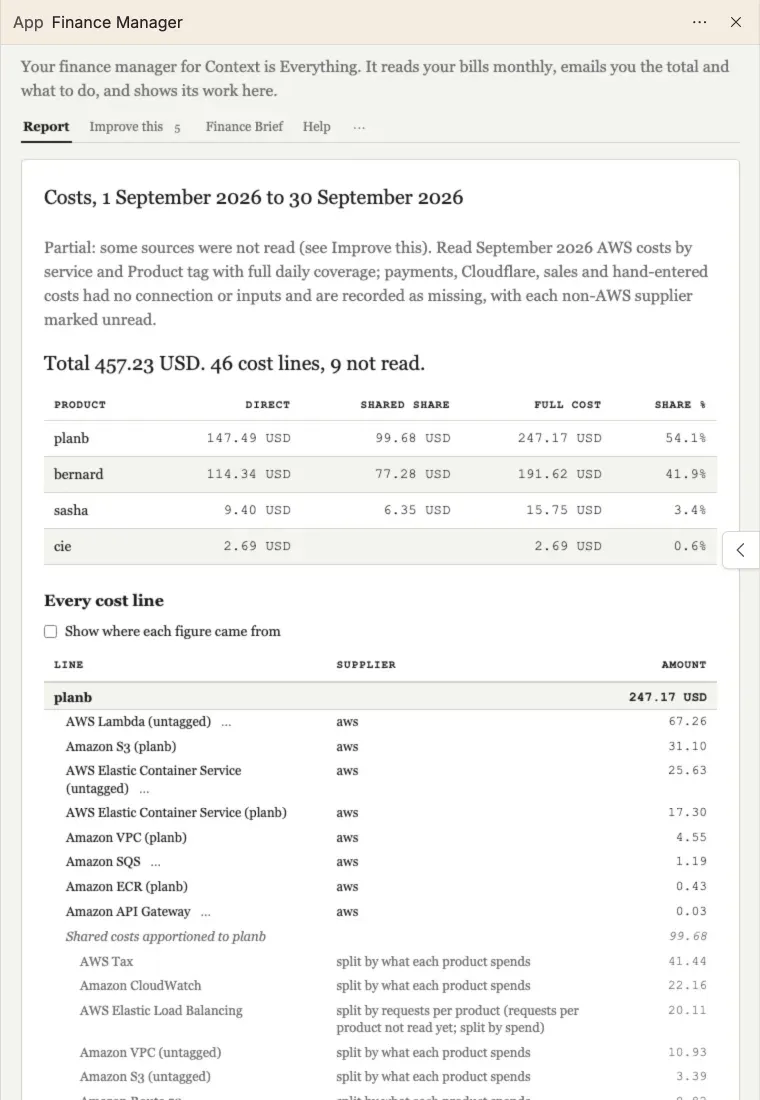
Context is Everything checks its cloud costs once a month with the Finance Manager agent. Its report for September 2026 reads the AWS bill by service and by product: a total of 457.23 USD, split between the products, with every cost line and where it came from. It also says plainly what it could not read, such as payments and Cloudflare, which are not connected yet.
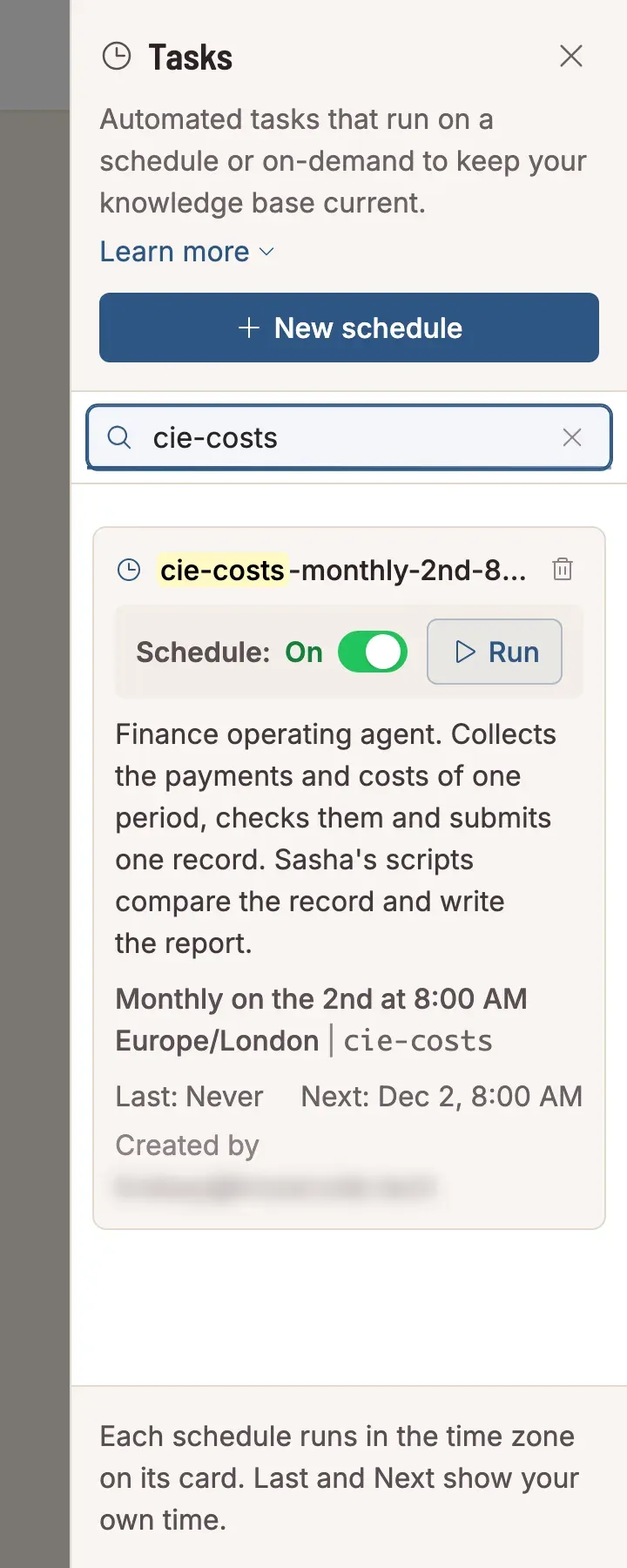
The bill for a month is complete a day after the month ends, so the new schedule runs the agent on the 2nd of each month at 08:00 London time. The card in Tasks shows the schedule in words, when it last ran (it is new, so Never) and when it runs next.
How to do it
- Open a project, then Menu, then Tasks (your schedules).
- Click New schedule.
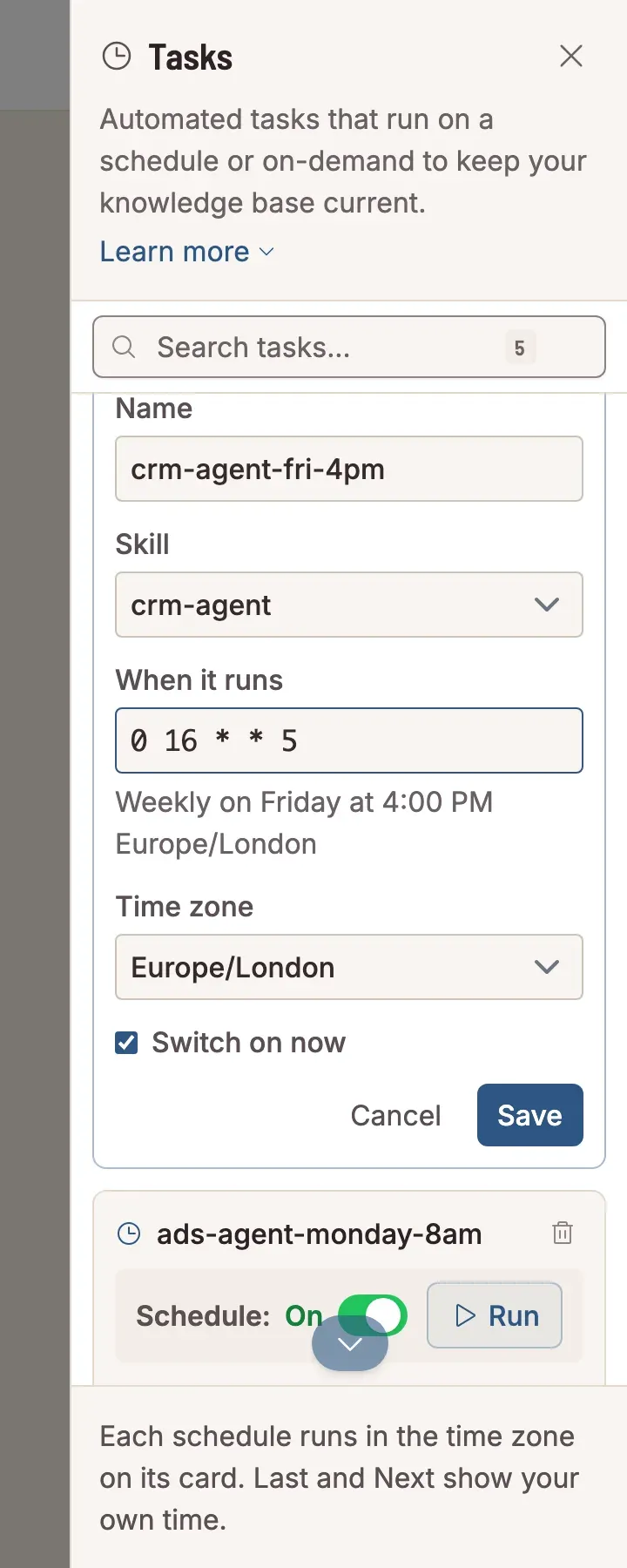
- Type a Name in lowercase with hyphens, for example
crm-agent-fri-4pm. - Choose the Skill. An agent is listed by its name, for example
crm-agent. - Type When it runs: the minute, the hour, the day of the month, the month and the day of the week, with spaces between them.
0 16 * * 5is every Friday at 16:00. Under the box, Sasha says the time in words, so you can check it before you save. - Choose the Time zone, then click Save.
Some examples for When it runs:
| You want | Type |
|---|---|
| Every weekday at 09:00 | 0 9 * * 1-5 |
| Every Monday at 08:00 | 0 8 * * 1 |
| The 2nd of each month at 08:00 | 0 8 2 * * |
If you do not want to type it, ask Sasha in a chat. See the questions below.
Who can do this
- Admin and staff: add, change, switch off, run and delete schedules, in Tasks or by asking Sasha in a chat.
- Member: cannot sign in to the Sasha web interface, so cannot add a schedule.
Schedules are shared by the whole organisation. For everything each role can do, see Who can do what in Sasha.
Limits today
- The menu still calls schedules Tasks.
- When it runs needs the five-part pattern above. The words under the box help you check it.
- Run on a card keeps spinning until the whole run ends, which can take 5 to 15 minutes. If the run fails, look at the card's Last and Error lines.
More detail
- Every field in Tasks, and runs started by another system: the product guide page on skills and schedules.
- What an agent does on each run: Let an agent do a regular job for you.
Questions
Can I ask Sasha in a chat to add a schedule?
Yes, if you are an admin or a staff user. Say it in plain words, for example "run the cost report on the 2nd of each month at 8am London time". Sasha says the schedule back to you and adds it when you agree.
Does a schedule follow summer time?
Yes. Choose the time zone in the form. The schedule follows summer time in that zone.
Can one job run at several times?
Yes. Add one schedule for each time, each with its own name. For example, Monday at 2pm and Wednesday at 7pm need two schedules.
How do I know if a scheduled run failed?
Open Menu, Tasks. The card's Last line gets a red mark, and a red Error line says what went wrong. Sasha sends no email about a failed run, unless the job sends one itself.
Why did a job run right after Sasha restarted?
When Sasha starts, it checks for a scheduled run that it missed while it was stopped, and runs it once.
How do I stop a schedule for a while?
Switch off Schedule on its card in Tasks. Switch it on again when you want it back. The bin icon on the card deletes the schedule.