Give Sasha standing instructions that apply to every chat, and a starting set for new projects
Settings → Rules holds the instructions Sasha follows in every chat (Global rules), the instructions copied into each new project (Project rules), and, for admins, response Styles.
- Where
- Settings → Rules (the first tab Settings opens on)
- Who
- Admin and staff accounts can read and change Global rules and Project rules. The Styles sub-tab is for admins only.
- Needs
- Nothing to set up. Sasha ships with a starting set of rules.
What this screen is for
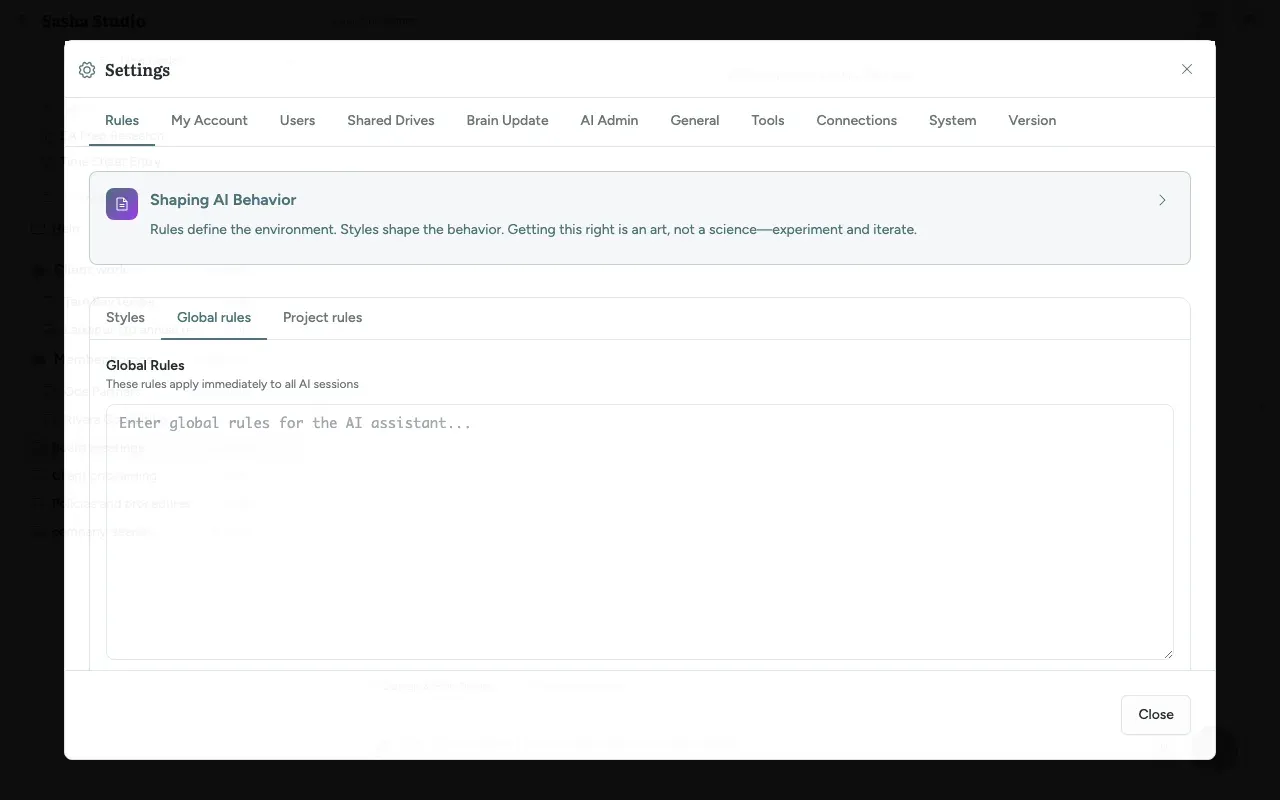
Rules are the standing instructions Sasha follows. Settings → Rules has three sub-tabs:
| Sub-tab | What it holds | Who sees it | Applies to |
|---|---|---|---|
| Styles | How answers are written (tone, format) | Admins | Every chat that uses the style |
| Global rules | Instructions for the whole Sasha | Admin and staff | All chats, in every project |
| Project rules | A template for new projects | Admin and staff | Projects made after you save |
The panel opens with a box titled Shaping AI Behavior: rules define the environment, styles shape the behaviour, and tuning them takes some trial.
Change the rules
- Open Global rules or Project rules. A Modified badge marks a tab with unsaved changes.
- Edit the text.
- Click Save Rules. Reset Changes puts back the saved text.
Save Rules and Reset Changes act on both tabs together. If one of the two saves fails, the screen can still show "Rules saved successfully!", so check the text after a save that matters.
Global rules: history
Under Global rules, Recent CLAUDE.md changes shows the latest versions (4 at first; Show more for up to 10):
- each version's number, its author, its source (
uifor this screen,watcherfor a change made elsewhere) and the time; - Active on the version in use;
- a click shows the changed lines, compared with Current or Previous.
Sasha records a new version only when the text really changed.
Project rules: what to expect
- Project rules are copied into a project once, when the project is made. Editing them later does not change existing projects.
- Your edits to Project rules are kept when Sasha restarts or is updated. If nobody has edited them, an update brings in the new set that ships with Sasha.
- Settings → Brain Update can also replace Project rules, when it brings in updates from your organisation's knowledge repository.
Writing good rules
- Write instructions, not background: "Cite the document for every fact" works better than a description of your company.
- Keep them short. Every chat carries the Global rules.
- Change one thing at a time and try a few chats before the next change.
- Put facts about your organisation in documents in a project, not in rules. Sasha finds documents when it needs them.
Questions
What is the difference between Global rules and Project rules?
Global rules are one set of instructions for your whole Sasha. They apply to every chat, in every project, for every person. Project rules are a template. Sasha copies them into a project when the project is made. Changing Project rules does not change projects that already exist.
When does a change to Global rules take effect?
The screen says Global rules "apply immediately to all AI sessions". Sasha keeps them in one file on the server. To see a change in a chat you already have open, start a new chat.
Can I see who changed the rules?
Yes, for Global rules. Recent CLAUDE.md changes, under the Global rules tab, lists each saved version with its author, its source and the time. Click a version to see what changed, compared with the current or the previous version. Sasha also records changes made outside this screen, for example by a chat, within about two minutes. Project rules have no history.
Can I roll back to an earlier version?
Not with a button. Open the version, copy the text you want, paste it into Global rules and save. Sasha records that save as a new version.
Can staff change the rules?
Yes. Admin and staff accounts can both change Global rules and Project rules. Only Styles is limited to admins. A change affects every chat in your Sasha, so agree with your team who edits the rules.
Can a member see the rules?
No. Members cannot open the Sasha web interface, so they never see this screen.
Is there a size limit?
Sasha sets none. Long rules take space in every chat, so keep them short and specific.