Ask Sasha about your knowledge, attach files, plan before acting, and stop or steer a reply
The chat screen is where staff ask Sasha questions in a project. It covers Design & Plan Mode, attachments, stopping a run, question cards, saved files and Quick Settings.
- Where
- Open a project in the side menu. The chat fills the main area, and Quick Settings opens from the tab on the right edge.
- Who
- Admin and staff accounts. Members cannot sign in to the web interface. In Quick Settings, only admins see the provider and model details.
- Needs
- An AI provider set up by an admin in Settings → AI Admin. Without one, a "No AI provider is configured" notice appears and no answer comes back. The notice names Settings → AI Provider, but the tab is called AI Admin.
What this screen is for
The chat screen is where you ask Sasha about your organisation's knowledge. Each chat belongs to one project. Sasha starts from that project's documents, but Claude is not limited to that project: it can also use the rest of the knowledge you can reach and the tools your admin has set up. It can make new documents in the project.
To start, open a project in the side menu. The message box shows Ask Sasha about your organization's knowledge.... Type your question and press Enter, or click the send button.
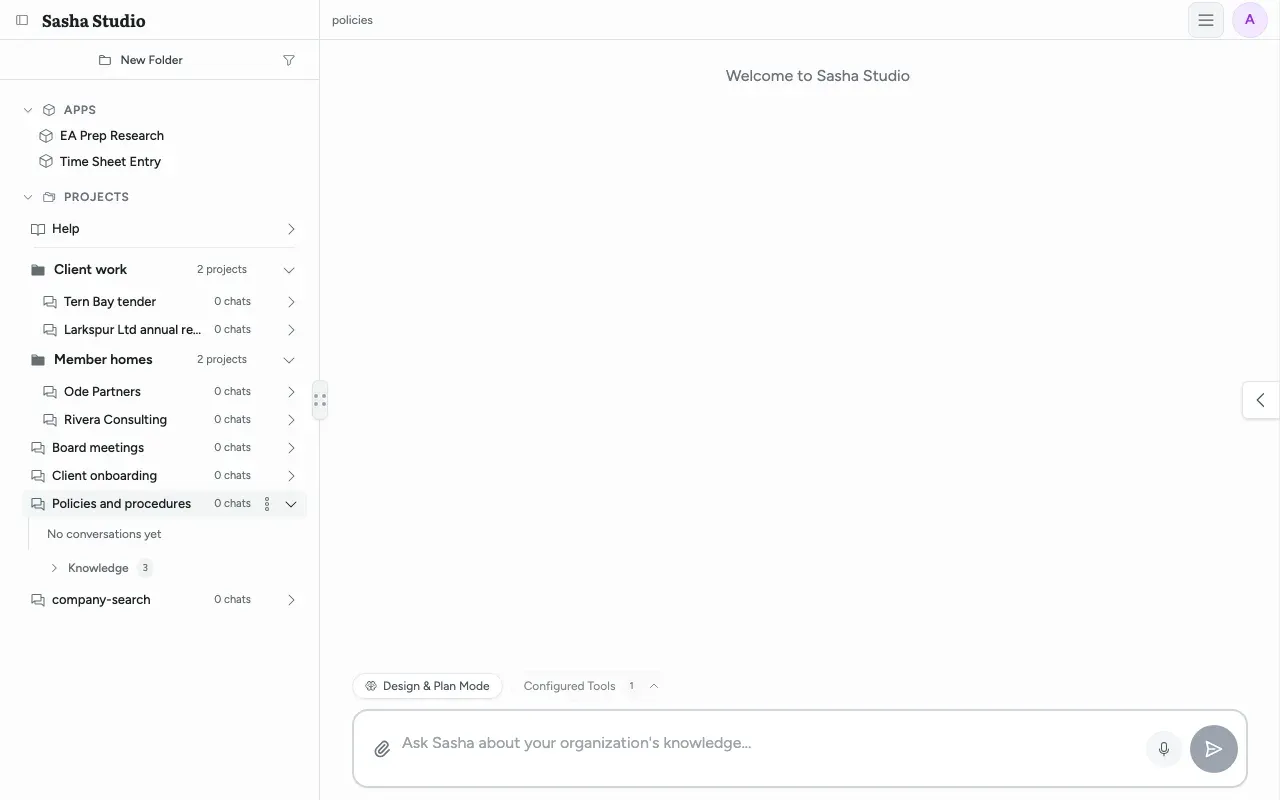
The controls around the message box
| Control | What it does |
|---|---|
| Design & Plan Mode | Switches Claude to read-only planning. See below. |
| Configured Tools | Shows how many tools the chat can use. An admin adds more in Settings → Tools (Give Sasha's AI more tools, such as web research, analytics or your own MCP servers, and control which tools it may use). |
| Stuck? | Reloads the conversation history when the chat looks frozen. Your summary and attachments stay. |
| Paper clip (Attach files (images, PDFs, documents)) | Adds files. You can also drop files on the chat ("Drop files or images"). |
| Microphone (Speak to type) | Dictation for the message box. |
| Send | Sends the message. While files upload, it waits and shows "Send (waiting for uploads)". |
Stuck? shows while Sasha works on a reply and for a short time after. A/B Context Testing appears only when your Sasha has that feature switched on.
Design & Plan Mode
By default, Claude works in editing mode: it can read, write files and use the web without asking you first. Design & Plan Mode changes this for the current chat:
- Click Design & Plan Mode. A message confirms that you are in a conversation mode, not a task mode.
- Ask for what you want. Claude reads and searches, and writes a plan. It cannot change files.
- A Plan Review card asks "Ready to proceed with this plan?". Choose Yes, proceed and send. Sasha shows "Plan approved" and switches back to editing mode. Choose No, revise plan to keep planning.
Design & Plan Mode is the only control in a chat that limits what Claude can do. Use it when a request could change many documents.
Attachments
| Documents | Images | |
|---|---|---|
| Types | PDF, Word, Excel, PowerPoint (and their templates), text, Markdown, CSV, JSON | JPEG, PNG, GIF, WebP, SVG |
| How many | Up to 5 per message | Up to 5 per message |
| Size | Up to the upload limit your admin set (100 MB if none is set) | 5 MB on the server |
| Where they go | Saved permanently in the project's knowledge folder | Not saved in the project |
- Uploads start when you drop a file. Send waits until they finish ("Files are still uploading").
- You can drop up to 10 files at a time. Files over the limit of 5 documents or 5 images are left out without a message.
- A file that cannot attach shows "Can't attach" with the reason: too large, wrong type, or too many files.
An attached document becomes part of the project. Everyone who can open the project can read it, and Sasha can find it in later chats. Do not attach a document that the project's other users must not see. For how Sasha stores files, see Where your data lives in Sasha.
Where files go
Claude works in a hidden folder for each conversation. When it makes a file for you (a report, a summary, a draft), Sasha tells it to save the file in the project's knowledge folder. You find the file under Knowledge for the project in the side menu, and so does everyone with access to the project. See How Sasha organises your knowledge into projects and documents.
Stopping, queueing and reconnecting
- Stop a run. Click Cancel in the status bar, then confirm "Stop this run? Claude will halt the current response." Sasha shows "Stopping run…", then "Session interrupted by user." Only the person who started the run can stop it.
- Send while Sasha works. The message waits in a queue ("Message queued - sending when current response completes"). Click Cancel next to it to take it back.
- Connection lost. Sasha shows "Reconnecting… your message will send once connected" and sends the message when the connection comes back.
Question cards
Sometimes Claude needs a choice from you. It shows a card with options instead of a plain question. A Recommended badge marks the option Claude suggests. Some cards ask you to "Select all that apply".
- Click an option. The text of the option goes into the message box.
- Press Enter to send it, or change the text first.
- To answer in your own words, choose "Other" and type your answer.
The card shows Answered after you reply. Your answer is an ordinary message in the chat.
Commands you can type
| Type | What happens |
|---|---|
/model <name> |
Uses that model for this conversation |
/status |
Shows the state of this conversation |
/context |
Shows the conversation's model, its summary and its last session |
/compact |
Replaces the older history with a summary, so the chat can continue. Add a focus after it if you want |
Quick Settings
The tab on the right edge of the chat opens Quick Settings.
- The badge at the top shows the active model and provider to an admin; a click opens Settings → AI Admin. On a Sasha with no provider, it shows "Not configured". Other accounts see "Set by your admin".
- AI Configuration and Context Management show the region, token limits, the context window and the "% context used" for the current chat, when a provider is set up.
- Display Options are your own preferences for this browser: Dark mode, Auto-expand tools, Show raw parameters, Show todo list, Show thinking, Show tool status, Show work in progress and Auto-scroll to bottom.
Today, the page behind the panel turns black while the panel is open.
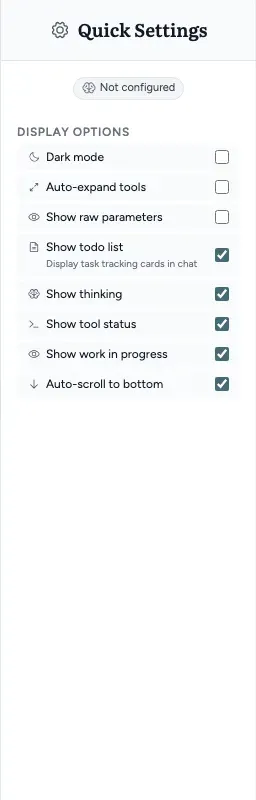
What Sasha adds to every chat
Sasha adds some instructions to every chat that you do not see on screen. They tell Claude to ask questions with question cards, to save files in the project's knowledge folder, and to report problems with Sasha to the team that improves it. Your organisation's Global rules also apply to every chat (Give Sasha standing instructions that apply to every chat, and a starting set for new projects).
Limits to know
- In Quick Settings, only admins see the provider, model and token details.
- The "No AI provider is configured" notice names Settings → AI Provider. The tab is called AI Admin.
- The chat does not show which model answers. Ask an admin, or look at Context Management in Quick Settings (admins only).
- In editing mode, Claude does not ask before it uses a tool. Today, the Disallowed Tools list in Settings → Tools does not stop tools in a normal chat. Only Design & Plan Mode limits what Claude does.
- Pressing Tab in the message box changes the permission mode without a visible sign, except when it reaches plan mode. Avoid Tab in the message box.
- Cancel can show "Process stopped." even when the server did not stop the run, for example when the run belongs to someone else.
- A queued message may go to the project's latest conversation instead of the one you were in, and it does not carry your tool settings.
- Images between 5 MB and the upload limit fail with only a red mark and no message.
- The numbers on question-card options look like keyboard shortcuts, but they do nothing.
- Choosing a specialist does not change the chat. See Understand what specialists and guides are, and what they do in a chat today.
Questions
Which model am I using?
The admin chooses the model in Settings → AI Admin. The chat status bar does not show it. An admin sees the active model and provider on the badge at the top of Quick Settings. After a reply starts, Context Management in Quick Settings also shows the provider and model.
Can I change the model for one chat?
Yes. Type /model followed by the model name as a message. Sasha keeps that choice for this conversation only.
What does Design & Plan Mode do?
Claude can read and search, but cannot change files, until you approve its plan. When the plan is ready, a Plan Review card asks "Ready to proceed with this plan?". Choose "Yes, proceed" and send, and Sasha switches back to editing mode.
Where do the files that Claude makes go?
Into the project's knowledge folder, where everyone with access to the project can see them. Claude's working notes stay in a hidden folder for that conversation.
Is a document that I attach private to this chat?
No. Sasha saves an attached document permanently in the project's knowledge folder. Everyone with access to the project can open it. Images are different. They are not saved in the project.
Why did my image not attach?
The server accepts images of 5 MB or less. The message box accepts larger images, up to the upload limit your admin set, and then shows only a red mark when the server refuses. Make the image smaller and attach it again.
What happens if I send a message while Sasha is still working?
Sasha puts the message in a queue and shows "Message queued - sending when current response completes". The message is sent when the reply ends, but only if you stay in that chat.
How do I stop a run?
Click Cancel in the status bar and confirm "Stop this run?". Only the person who started the run can stop it.
How do I answer a question card?
Click an option. The option text goes into the message box, and you press Enter to send it. To give your own answer, choose "Other" and type it.
The chat seems stuck. What do I do?
Click Stuck? above the message box. It reloads the conversation history. It does not remove your summary or your attachments.
Why does Quick Settings say "Set by your admin"?
An admin chooses the AI provider and model for the whole Sasha, so only admins see those details in Quick Settings. A staff account sees "Set by your admin" and can still change its own Display Options.