Use the apps in your Sasha, understand who can reach them, and know what each bundled app does today
Apps are small applications inside Sasha that keep their own records. Open them from Apps in the side menu, use them from Claude, and know their limits.
- Where
- The Apps section at the top of the side menu, above the projects. Click an app name to open it in a panel on the right.
- Who
- Admin and staff accounts that existed when an app was first added get manage access to it. Everyone else needs a grant, and today no screen gives one.
- Needs
- A separate sandbox web address for apps, set by whoever runs your Sasha. Without a valid one, Sasha does not start.
What it is
An app is a small application inside Sasha, for work that needs a form or a table instead of a chat. An app can keep its own records in its own database, apart from your documents. Some records are shared by everyone who uses the app. Others belong to the person who made them.
This page goes deeper than the help article Use and manage apps built on your knowledge. It covers the two apps that ship with Sasha, how access works, how apps are kept safe, and what does not work yet.
The Apps section of the side menu
The side menu shows Apps above Projects. Click Apps to open or close the list. The apps are in name order. Hover over an app to see its description.
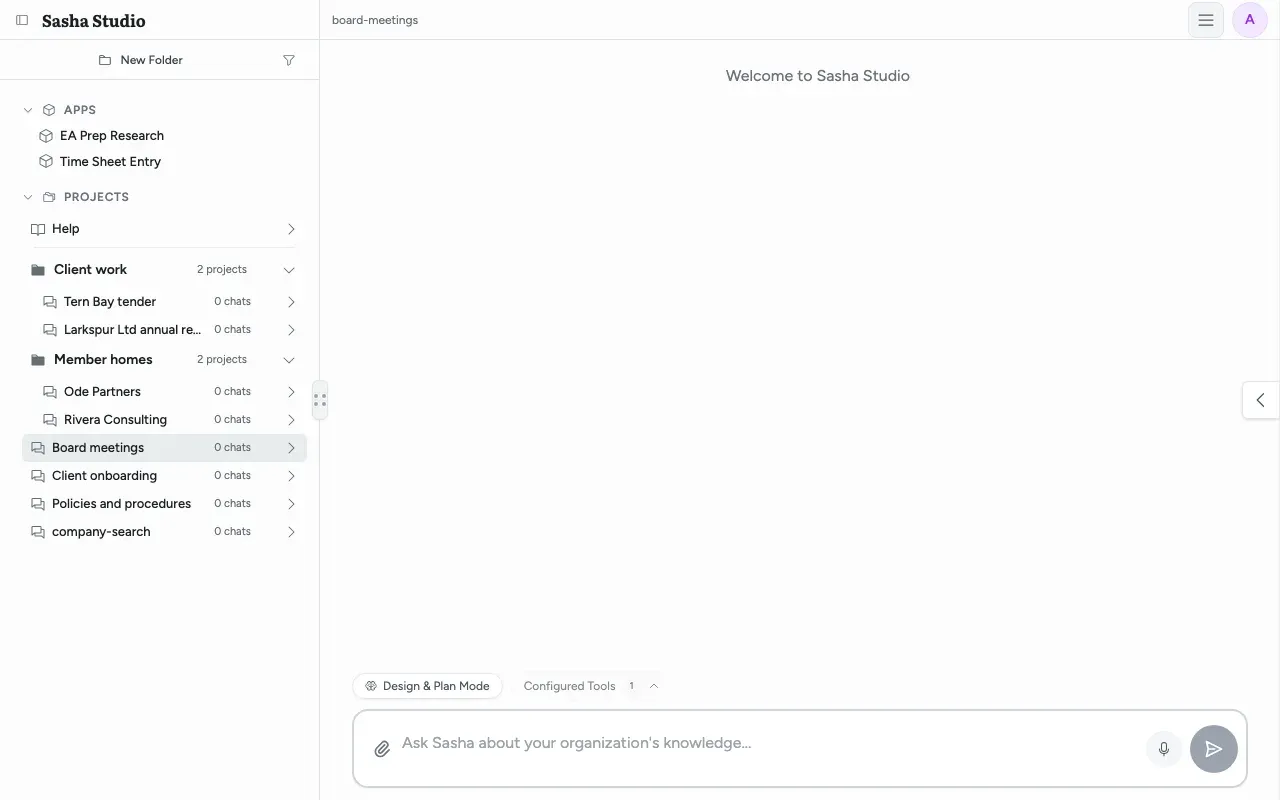
The whole section is hidden when you have no access to any app. It is also hidden when Sasha cannot load the list.
Open an app
- Click the app name under Apps.
- Sasha switches to the chat tab and opens a panel on the right. On a phone, the panel fills the screen.
- The panel header shows App, the app name and an X to close it.
Messages you can see in the panel:
| Message | What it means |
|---|---|
| "Loading app…" | Sasha is fetching the app. |
| "This app is unavailable. Try opening it again." | Sasha could not load the app. Try again. If it persists, the sandbox address of your Sasha can be wrong. |
| "An app is already open. Close it before opening another." | Only one app can be open at a time. |
Recovery
A person with manage access to an app that keeps records sees Recover records in the panel header. Recovery also opens by itself when the app page fails to start.
- Click a table name to see its records. Choose a table to recover. shows until you choose one.
- New, Edit, Save and Cancel change a record. Load more shows more rows. Reload reads them again.
- If someone else changed the record after you loaded it, Recovery says "This record changed since you loaded it."
- Back to app returns to the app.
Recovery cannot delete a record.
The two bundled apps
Sasha ships with two apps. Sasha copies them in when it starts. If someone changes a bundled app, your Sasha keeps that version, and later updates do not replace it.
Time Sheet Entry
Records hours against projects, one week at a time.
| Part of the screen | What it does |
|---|---|
| New time entry | Date, Project, Hours and Description, then Add Entry. |
| Add a project | Project code and Project name, then Add Project. Shown only while the app has no project. |
| Week heading | Shows "Week of" and the first and last dates of the week. |
| Entries table | Date, Project, Description, Hours and Action. Change the hours in a row and click Save. |
| Total hours | The week's total, and a total for each project. |
- Your entries are yours. Other people cannot see them. Projects are shared.
- Description is optional.
EA Prep Research
A front end for a research skill that prepares a candidate pack. It keeps one shared table of runs.
| Part of the screen | What it does |
|---|---|
| 1. Project | The project name, as shown in the side menu. |
| 2. Candidate | Candidate, Client, Role and Source documents (résumé, LinkedIn export, cipher). Start research run begins the run. |
| 3. Progress | Shows the AI's reply as it arrives. |
| Recent runs | Started, Candidate, Client, Role, Project, Status and Files, with the count of Runs recorded. |
What a run does:
- It uploads the source documents.
- It adds a row to Recent runs.
- It starts a new chat that asks Sasha to run the EA Prep research skill.
- It shows the reply in 3. Progress.
A run needs a project selected in the side menu, a chat that is not busy, a working AI provider (Choose where Sasha's AI runs, which model it uses, and how much it can read at once) and the research skill installed on your Sasha. Everyone who can use the app sees every run, with the candidate and client names.
Who can use an app
Each person has one of two levels for each app:
| Level | What the person can do |
|---|---|
| use | Open the app and work with its records. |
| manage | Also use Recovery, and (admin or staff only) change the app itself. |
- When Sasha first finds an app, it gives manage to every admin and staff account that exists at that moment. This happens once for each app.
- A person added later, and every member, gets no access until an admin or staff user grants use or manage.
- Today there is no screen for granting access. To grant access, ask whoever runs your Sasha.
- Members cannot sign in to the Sasha web interface, so a member can never use an app's own screen. A member with access works with the app's records only from Claude (Add people to Sasha, give each person a role, and control what members can reach, Who can do what in Sasha).
- Sasha reads access on every request. A removed grant stops working at once.
How apps are kept safe
- A separate web address. An app runs in a frame on a different host name from the Sasha web interface. It cannot read your Studio cookies, your session or the Studio page.
- No network. The sandbox blocks all network calls, and camera, microphone and clipboard access. An app reaches Sasha only through a fixed set of operations: read and change its own records, run its declared actions, ask the chat, and upload files.
- Checks on the server. Sasha checks your access to the app on each operation. Records that belong to one person are kept to that person by the server, not by the app.
- A record of every change. Sasha records each change to an app's records, with the values before and after. A repeated click does not save a record twice.
- No leaks in errors. A missing app, an app you cannot use and a bad request all get the same answer, so the server does not show which apps exist. Error messages come from a fixed list.
The sandbox address is set by whoever runs your Sasha. In production it must be a different host name from the Sasha web interface, or Sasha does not start.
Using apps from Claude
After you connect Claude to Sasha (What Claude can do with Sasha), Claude sees only the apps you can use. Claude can:
- open an app's page;
- list, read and total an app's records;
- create, change and delete records, for an app that allows changes;
- run the actions an app offers, such as the total of your own hours for a week in Time Sheet Entry.
Before Claude changes a record, Sasha asks you to accept the change in Claude. If your Claude cannot show that request, Sasha refuses the change.
An app page opened from Claude shows, but its own buttons cannot reach its records, the chat or uploads. Time Sheet Entry then tells you to use it in the Sasha web interface. Ask Claude to read or change the records instead.
Changing an app with Sasha
Admin and staff users with manage access can ask Sasha, in a chat in the Sasha web interface, to change an app. Sasha follows its app-builder skill: it reads the app's files, makes the change, and checks the app after each step. They can also ask Claude to change an app's files, when Claude is connected to Sasha.
- A change goes live as soon as the app passes its checks. There is no draft, no preview and no undo.
- Apps are plain text files: at most 64 files, 1 MiB (about 1 MB) each.
- If you change a bundled app, updates of Sasha stop replacing it.
- The editing tools change apps that already exist. To add a new app, ask whoever runs your Sasha.
Limits to know
- No screen grants access. Admin or staff accounts added after an app was first found see no Apps section until someone grants access. The side menu gives no hint why. Ask whoever runs your Sasha.
- Members never see an app's screen. A member with access works with the records only from Claude.
- Studio chat does not hold changes for you. In a Sasha web interface chat, the AI is told to ask you before it changes app records. Studio does not enforce this with its own confirmation step.
- One app at a time. Opening an app always switches to the chat tab.
- Recovery cannot delete. It can view, add and change records only.
- Time Sheet Entry. After the first project, the app has no form to add another one; ask Claude to add it. You cannot delete an entry in the app. The week is worked out in UTC, so near midnight in other time zones the wrong week can show.
- EA Prep Research.
- The chat call stops after 120 seconds, so a long run is marked failed with "app_timeout".
- "Completed" means the first phase is done, even when the skill stops to ask you a question.
- Runs recorded shows at most 50.
- The app checks only the format of the project name, not that the project exists.
- Uploaded files go to the shared uploads folder, not to the selected project.
- Uploads from any app are limited to 10 files and 25 MiB (about 26 MB) in total.
Questions
Why is there no Apps section in my side menu?
The section appears only when you have access to at least one app. Admin and staff accounts that existed when an app was first added get access automatically. A person added later gets nothing until someone grants access. Today there is no screen for this, and the side menu shows no hint. Ask whoever runs your Sasha.
Can I have two apps open at once?
No. If an app is already open, Sasha shows "An app is already open. Close it before opening another." Close the first app with the X in the panel header.
Can an app read my sign-in or my other documents?
An app cannot read your sign-in or the Studio page, and cannot open your documents itself. It runs on a separate web address, in a sandbox with no network access, and the server checks your access on each operation. But an app that uses the chat, such as EA Prep Research, can ask Sasha a question for you, and Sasha answers from the documents you can reach.
Who sees my time entries?
Only you. In Time Sheet Entry, each entry belongs to the person who made it. Projects are shared by everyone who can use the app.
What happens if two people change the same record?
The first save wins. The second save is refused because the record changed after it was loaded, and the app loads the current values again.
Does Claude change app records without asking me?
From Claude, Sasha asks you to accept each change first, and makes no change if Claude cannot show you the request. In a chat in the Sasha web interface, Sasha tells the AI to ask you first, but Studio itself does not hold the change for a click.
The app will not load. Are my records lost?
No. Records are kept apart from the app's page. If the app page fails to start, a person with manage access sees a Recovery view where they can view and edit the records.
Can I change an app or build a new one?
Admin and staff users with manage access can ask Sasha, in a chat, to change an existing app. They can also ask Claude to change it, when Claude is connected to Sasha. Changes go live as soon as the app passes its checks, with no draft and no undo. To add a new app, ask whoever runs your Sasha.
How much can I upload from an app?
Up to 10 files, 25 MiB (about 26 MB) in total, in one upload. The files go to the shared uploads folder, not to the project that is selected.
Why does an app say that it needs the Studio window?
The app was opened from another place, such as Claude. There, the app's own buttons cannot reach its records. Use the app in the Sasha web interface, or ask Claude to read or change the records directly.