Understand what specialists and guides are, and what they do in a chat today
Menu → Agents lists Sasha's specialists and lets you read and edit them. Today no control makes a specialist active in chat, and guides are not applied.
- Where
- Open a project, then Menu → Agents. The panel is called Agent Specialists.
- Who
- Admin and staff accounts can open the panel and read specialists. Members cannot sign in to the web interface.
- Needs
- Nothing to set up. Sasha ships with a set of specialists.
What it is
A specialist is a short Markdown document that describes a role for Sasha: an analyst, a compliance adviser, a technical writer. It gives the role's expertise, tone and focus areas. The plan for specialists is that you pick one, and Sasha adds its text to your chat so Claude answers in that role.
A guide is a similar document with instructions for one kind of task.
Today, neither changes your chats. No control makes a specialist active, and no screen applies a guide. The Agents panel lets you read and edit specialist files, and that is all it does.
Open the Agent Specialists panel
- Open a project in the side menu.
- Click Menu in the top bar, then Agents.
The panel heading is Agent Specialists, with the line Specialized AI personas with distinct expertise, tone, and focus areas. Learn more shows example requests, such as "Create a specialist focused on financial analysis".
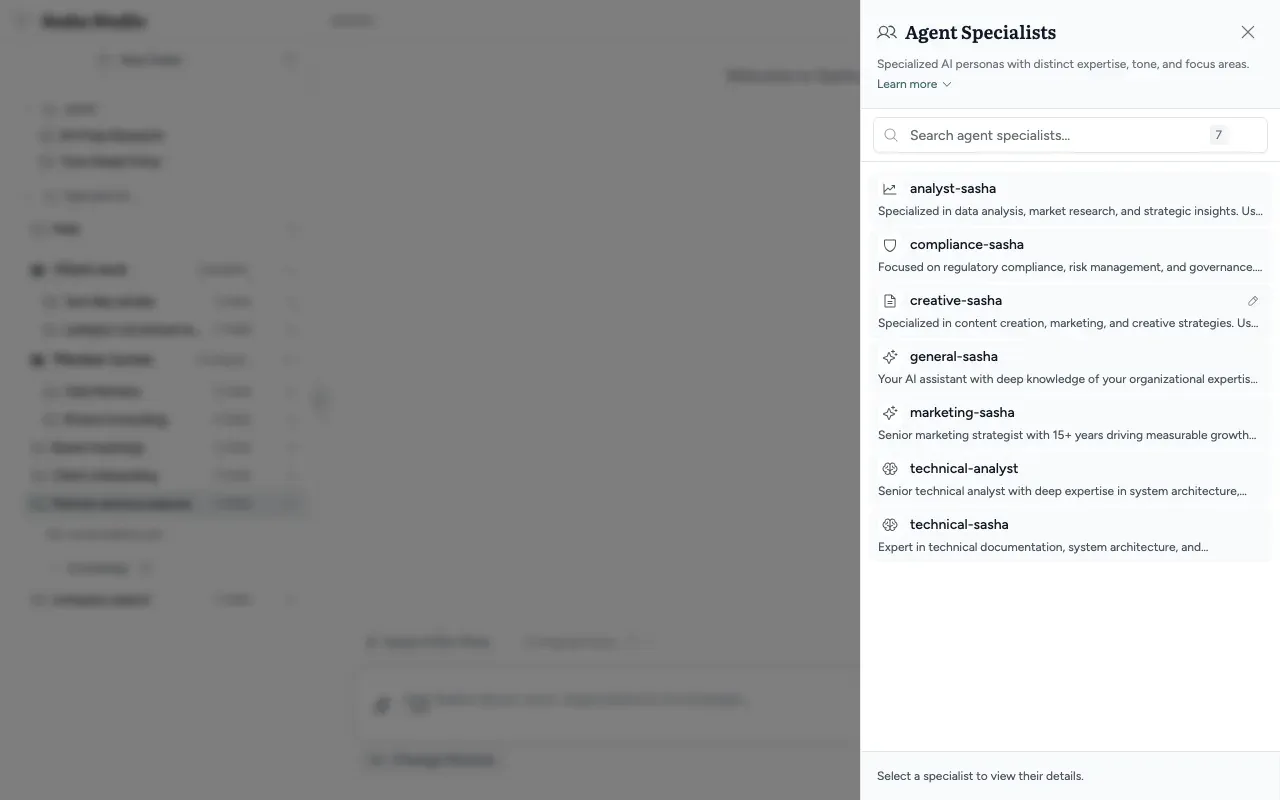
What you can do in the panel
| Control | What it does |
|---|---|
Search box (Search agent specialists...) |
Filters the list by name and description |
| Click a specialist | Marks it with a tick in the panel and opens its file in the document viewer |
| View/Edit specialist content (pencil) | Opens the file so you can read or change it |
| System badge | The specialist is in Sasha's private system folder |
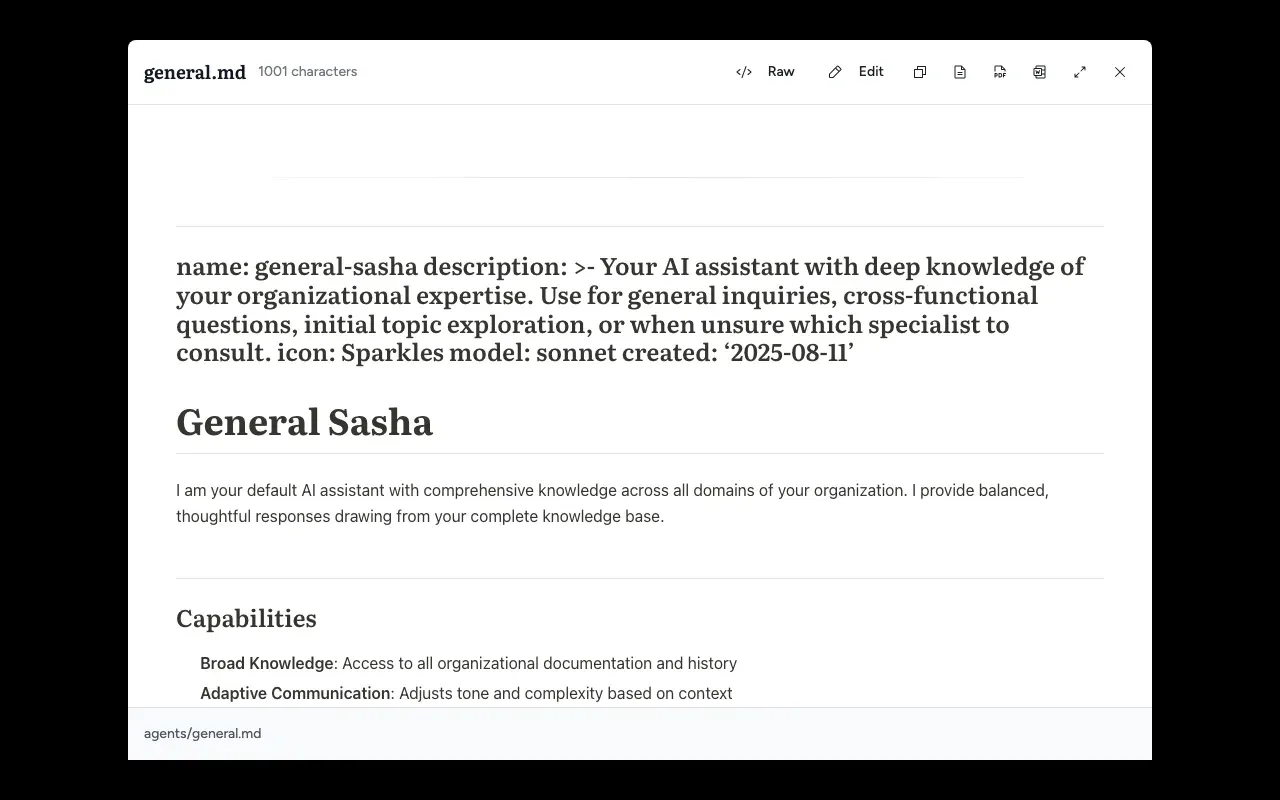
In the document viewer, Edit lets you change the text, and Raw shows the file as plain text.
Where specialists come from
Sasha reads specialists from two places:
- Your organisation's agents folder in the knowledge. Sasha ships with a starting set, such as analyst-sasha, compliance-sasha and general-sasha. Settings → Brain Update can bring new ones (Bring the latest shared prompts, guides, skills and specialists into your Sasha).
- Sasha's private system folder. These show the System badge, and the list shows them first.
To add a specialist, add a Markdown document to the agents folder, or ask Sasha in a chat to make one.
What happens in a chat today
- No specialist is active (in a browser with no specialist saved from an older version). Studio tries to load General Sasha as the default, but it looks for a name that the shipped file does not use. So it finds nothing, and no specialist text goes into the chat.
- The Change Persona button does nothing. It appears below the chat while the Agents panel is open. A second persona icon can appear in the message box. Both only write a note to the browser's developer console.
- Guides never reach a chat. The server can list guides, but Studio has no screen that applies them.
- Skills that run on their own never use a specialist. This covers scheduled runs, the Run button and runs started by another system (Find a skill, run it now, put it on a schedule, or let another system run it).
To change how Sasha answers in every chat today, use Global rules (Give Sasha standing instructions that apply to every chat, and a starting set for new projects). To give Sasha a role for one chat, say so in your message: "Answer as a compliance adviser. Focus on GDPR."
Specialists inside workflows
In the workflow editor, a step has a Specialist field. This is not a specialist from the Agents panel. It names an agent that the workflow defines in its own file. See Read and change a skill or workflow in the editor, and make a new workflow with the wizard.
Limits to know
- Today, no control makes a specialist active. Clicking one only opens its file.
- Today, no specialist text goes into a chat, not even General Sasha's, except in the case below.
- Change Persona and the persona icon in the message box do nothing.
- Guides are not applied to chats from any screen.
- When you open a specialist, the viewer can show the file's settings block (name, description, icon) as a large heading at the top instead of hiding it.
- The same thing has four names on screen: Agents, Agent Specialists, persona and specialist.
- A browser that saved a specialist in an older version of Sasha keeps using it, as long as a specialist with the same name still exists. Sasha then sends the text it saved at that time, which can be out of date. Clearing the site data for Sasha in the browser removes it.
Questions
How do I make Sasha answer as Analyst Sasha or another specialist?
Today you cannot. Clicking a specialist opens its file. No control makes it the active specialist for your chat. The Change Persona button below the chat does nothing.
Which specialist does my chat use now?
Normally none. Studio looks for a default specialist under a name that the shipped General Sasha file does not use, so it finds none and adds no specialist text to the chat. Your chat follows your organisation's Global rules and Sasha's own instructions. The one exception is a browser that saved a specialist in an older version of Sasha (see Limits to know).
What is a specialist?
A specialist is a Markdown document that describes a role, such as an analyst or a compliance adviser, with its tone and focus areas. The idea is that Sasha adds this text to a chat so Claude answers in that role.
How do I make a new specialist?
Ask Sasha in a chat, for example "Create a specialist focused on financial analysis", or add a Markdown document to the agents folder in your knowledge. It appears in the panel. It does not change your chats today.
What does the System badge mean?
The specialist is stored in Sasha's private system folder, not in your organisation's own agents folder.
Are guides applied to my chat?
No. Sasha has a place for guides on the server, but no screen in Studio applies them, so no guide reaches a chat.
Do scheduled skills use a specialist?
No. A skill that runs on a schedule, from a Run button or from another system never gets a specialist or a guide.
What is the Specialist field in the workflow editor?
Something different. In a workflow, Specialist names an agent that the workflow itself defines. It has no link to the Agent Specialists panel. See the workflow editor page.