Send Sasha into a Teams or Google Meet call for a live transcript and coaching, and find the transcript afterwards
The Meeting Room sends a bot into a Teams or Google Meet call. It shows live captions and advisor tips, and saves the transcript in the project.
- Where
- Menu, then Meeting Room (under Communication). The panel opens on the right of the chat. Admins set the timings in Settings → General → Transcription Settings.
- Who
- Admin and staff accounts. Members cannot sign in to the Sasha web interface and cannot start meetings.
- Needs
- A project selected in the side menu and a Teams or Google Meet link. A Meeting Advisor also needs AWS Bedrock or an Anthropic API key as the AI provider.
What this screen is for
The Meeting Room sends a bot, "Sasha Meeting Bot", into a Microsoft Teams or Google Meet call. The bot joins as a guest and reads the meeting's captions. Sasha shows the captions live, can add coaching tips from a Meeting Advisor, and saves the transcript as a document in your project.
Open it from the Menu button in the top bar, then Meeting Room under Communication. The same item closes the panel. The header shows Meeting Room and the status: Ready, Joining..., Waiting in lobby, Sasha is listening, Leaving call..., Sasha has stopped listening or Error.
Join a meeting
- Select the project in the side menu. The transcript goes into this project. Without a project, Sasha shows "No project selected".
- Open Menu, then Meeting Room.
- Check Meeting Title. It starts with the project's folder name. Change it to the meeting's name: the title becomes part of the transcript's file name.
- Paste the link into Meeting URL or use Quick Links below, or click a quick link.
- Choose a Meeting Advisor, or keep No advisor (transcribe only).
- Click Join Meeting (or Join with and the advisor's name).
- In the meeting, admit "Sasha Meeting Bot" from the lobby.
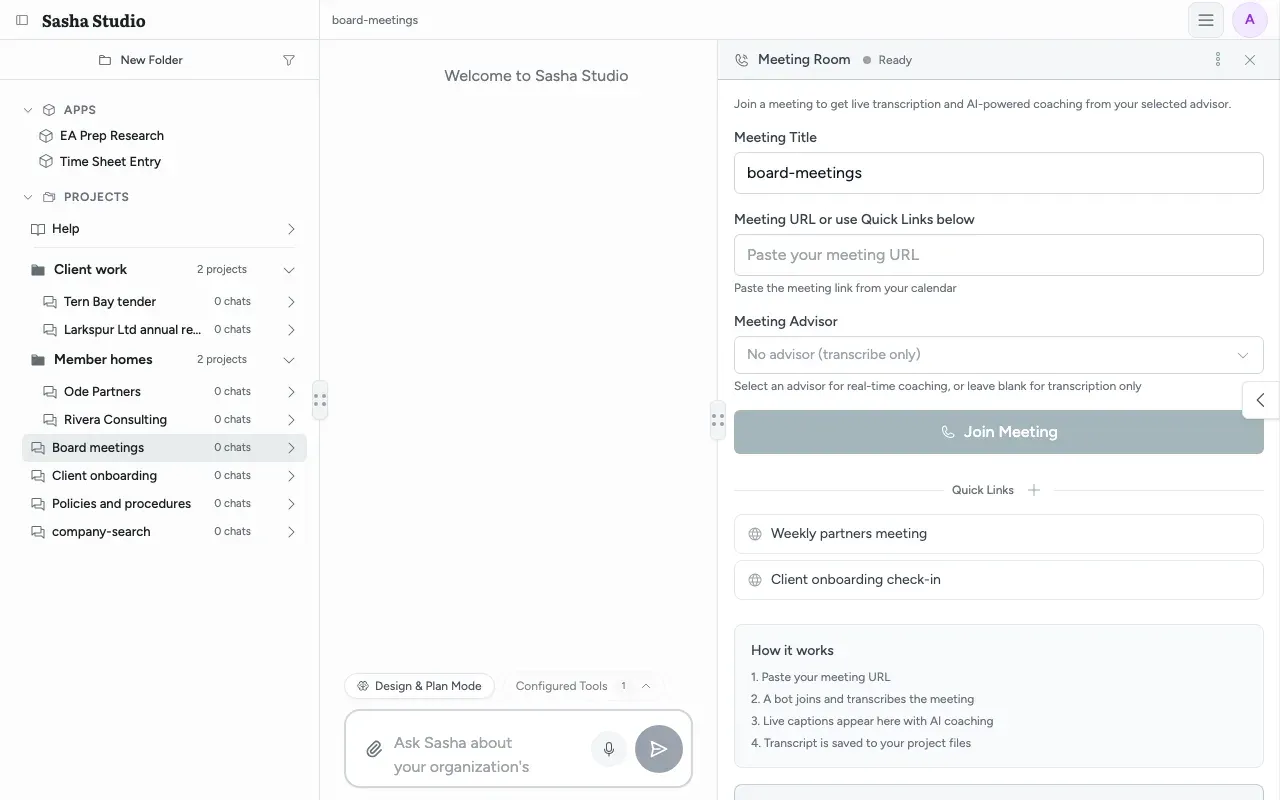
If the same link is already being transcribed, Sasha joins you to that meeting instead of sending a second bot.
Quick links
Quick Links keep the links of meetings you join often. Click + to add one: a name and a meeting link. Each link has edit and delete controls; delete asks "Delete?". Click a link to fill in the meeting link and title.
Quick links are shared by everyone on your Sasha. There can be at most 10, and each name must be different (1–50 characters).
The lobby
After Join Meeting, the panel shows Joining Meeting, then Waiting in Lobby with a timer. It reminds you to admit "Sasha Meeting Bot". Cancel stops the join.
The bot waits for the Lobby Timeout (2 minutes by default) and then gives up. The lobby screen says "Sasha will wait up to 5 minutes to be admitted", but the setting decides.
Live captions
When the bot is in, the panel shows Listening, the advisor's name if you chose one, and the number of captions.
- Captions appear in a timeline as people speak. Before anyone speaks, the panel shows "Connected! Waiting for speech...".
- If you scroll up, Resume auto-scroll returns to the latest caption.
- Leave Call removes the bot and finishes the transcript. The panel then shows how long the call lasted. New Meeting returns to the form.
Live captions and coaching cards go only to the person who started the meeting, in each browser where that person is signed in.
The three-dot menu in the header has Meeting Info (title, start time, number of captions), Copy meeting URL, Quiet mode (fewer insights) or Show all insights, and Leave call.
Meeting Advisors
A Meeting Advisor is a skill that coaches you during the call. Sasha ships with two:
| Advisor | For |
|---|---|
| HR Advisor | Managers in meetings with employees: compliance, risk and good practice. |
| Sales Coach | Client calls: objections, discovery questions and moving the deal on. |
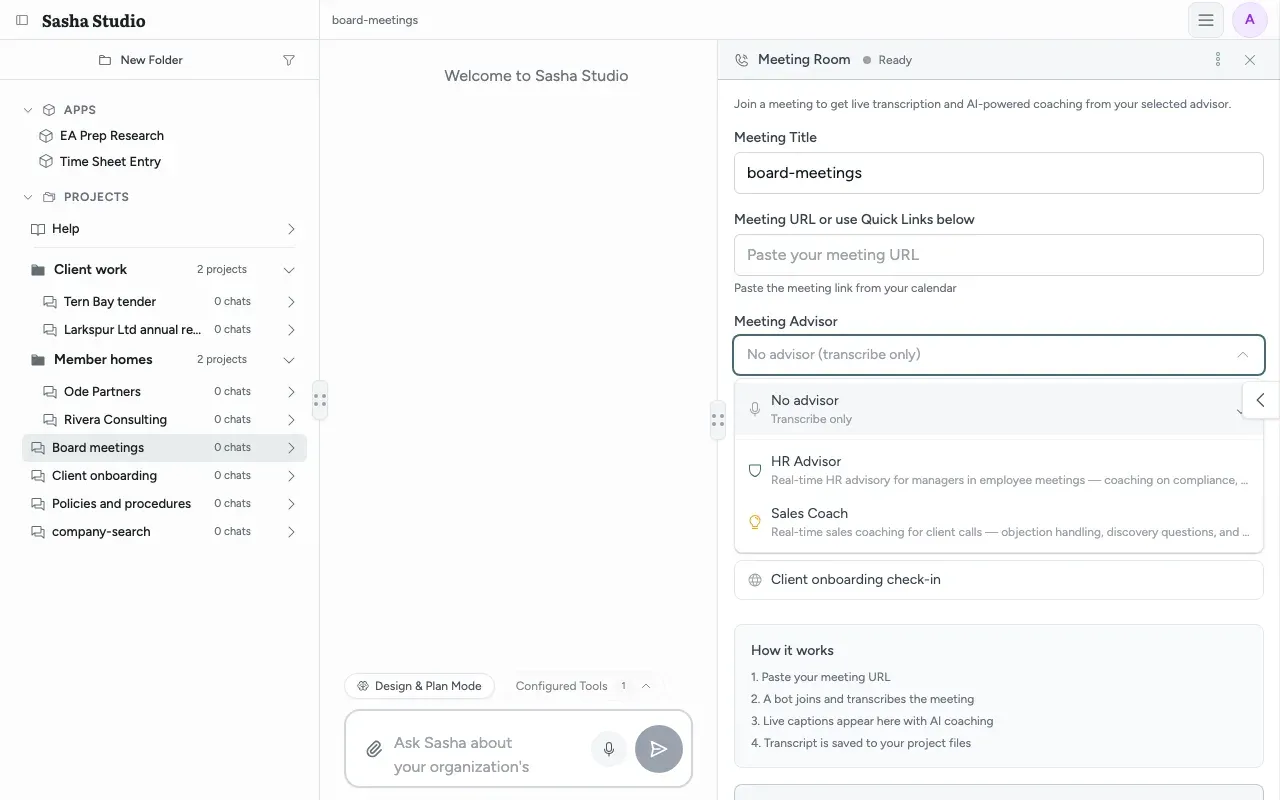
- The advisor reads the latest captions after about every 100 spoken words (80 for HR Advisor) and posts a Coach Insight card.
- Advise Me asks the advisor now. It shows Thinking... for about 3 seconds, whether or not a tip arrives. It does nothing before anyone has spoken.
- When an advisor is on, Sasha sends the recent captions to your AI provider.
- The advisor needs AWS Bedrock as the AI provider, or an Anthropic API key (Choose where Sasha's AI runs, which model it uses, and how much it can read at once). With a Claude subscription only, the advisor stays silent.
- Quiet mode (fewer insights) shows only decision prompts and contradictions.
Voice commands
Say these in the meeting. Sasha matches the words in the captions:
| Say | What happens |
|---|---|
| "Sasha, can you …" (or could, will, would) | Sasha sends the request to the chat. |
| "Sasha, what do you think" | Sasha gives its view on the discussion. |
| "Sasha cancel" | Sasha stops the reply that is running. |
Where transcripts are saved
When the bot joins, Sasha makes a document in the meetings folder of the selected project. The name is the date, up to three first names, and the meeting title, for example "October 4th - Alex, Jordan - Weekly partners meeting". Sasha adds to it during the call and finishes it when the call ends.
- Find it in the project's files, in the meetings folder.
- The document is ordinary knowledge: everyone who can see the project can read it, and Claude finds it in searches.
- A member with access to the project can read the saved transcript from Claude.
- Sasha refuses to save a transcript in a member's home.
Transcription Settings (admins)
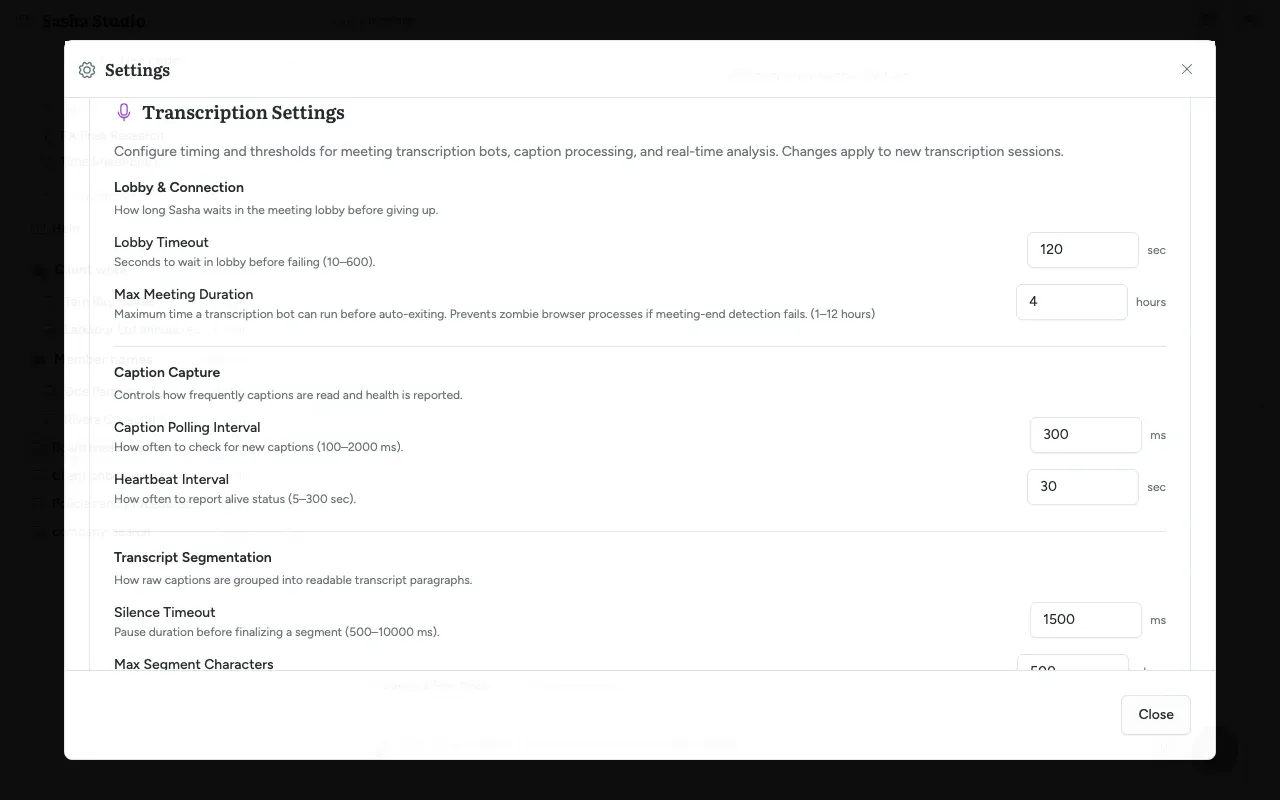
Admins set the bot's timings in Settings → General → Transcription Settings. A change applies to the next meeting, not to one that is running. Each field saves when you change it.
| Group | Settings |
|---|---|
| Lobby & Connection | Lobby Timeout (10–600 seconds, default 120). Max Meeting Duration (1–12 hours, default 4). |
| Caption Capture | Caption Polling Interval, Heartbeat Interval. |
| Transcript Segmentation | Silence Timeout, Max Segment Characters, Segment Gap Threshold, Max Active Duration. |
| Transcript Storage | Auto-Flush Interval, Flush After Segments. |
| Meeting Analysis | Analysis Interval, Min Utterances for Analysis, Silence Trigger, Analysis Batch Size, Max Caption History. |
Below, Google Meet Profile lets an admin click Upload Profile to add a signed-in Chrome profile (a .tar.gz file). The Google Meet bot then joins as that user instead of as a guest. The profile holds a Google sign-in, and Sasha stores it on your server.
Briefs and summaries
The Meeting Room does not write a brief or a summary. Ask Claude instead:
- Before a meeting: Prepare a brief before a client or prospect meeting.
- After a meeting: Summarise a meeting and record the decisions and actions, once the transcript is saved.
Both only read saved documents in the projects you can reach.
Limits to know
- Any admin or staff user can stop or read a running meeting if they know its id. The panel does not show the id, and the live captions themselves reach only the person who started the meeting.
- Claude sees only recent captions of a live meeting: at most the last 50 parts. After the call, the saved document is the full record.
- The lobby screen says 5 minutes, but the bot gives up after the Lobby Timeout (2 minutes by default).
- The "Transcript Settings" in the three-dot menu are fixed values. They do not show what an admin set in Settings → General.
- Quiet mode only filters your screen. It does not change what the advisor does.
- The advisor fails without a message when it has no AWS Bedrock provider and no Anthropic API key.
- No link to the saved transcript. The panel has no button to open the saved transcript and no "analyse" button. Find the document in the project's meetings folder.
- The "Powered by your knowledge" box lists fact-checking, coverage tracking and action capture. These happen only if the advisor you chose does them. Sasha does not do them on its own.
- The error for an empty link says "Please enter a Teams meeting URL", although Google Meet links also work.
Questions
Which meeting services work?
Microsoft Teams (teams.microsoft.com and teams.live.com links) and Google Meet (meet.google.com links). Sasha refuses any other link with "Unsupported meeting URL".
Where is the transcript saved?
As a document in the meetings folder of the project that was selected when you joined. The name starts with the date, then up to three first names of the people in the meeting, then the meeting title.
Why did the bot not come in?
Someone in the meeting must admit "Sasha Meeting Bot" from the lobby. The bot waits for the Lobby Timeout, 2 minutes by default, and then gives up. The lobby screen says "up to 5 minutes", but the setting decides.
How long can the bot stay in a meeting?
Up to the Max Meeting Duration, 4 hours by default. An admin can set 1–12 hours in Settings → General → Transcription Settings.
What is a Meeting Advisor?
A skill that gives coaching tips during the call. Sasha ships with HR Advisor and Sales Coach. The advisor reads the recent captions after about every 80–100 spoken words, or when you click Advise Me, and posts a Coach Insight card.
Why do I get no coaching cards?
You chose No advisor, too few words have been spoken, or your Sasha has no AWS Bedrock provider and no Anthropic API key. A Claude subscription does not give the advisor a key. Today the advisor fails without a message.
Can I talk to Sasha during the call?
Yes. Say "Sasha, can you …" to send a request to the chat, "Sasha, what do you think" to ask for an opinion, or "Sasha cancel" to stop the running reply. Sasha matches the words in the captions, so the captions must catch them.
What does quiet mode do?
Quiet mode (fewer insights) hides every coaching card except decision prompts and contradictions. It changes only what your browser shows. The advisor keeps working.
Who can see my live captions?
You, in every browser where you are signed in to the Sasha web interface. Other people's browsers do not receive them. After the call, the saved transcript is a document in the project, so everyone who can open that project can read it.
Can Claude read a meeting?
Yes, after the call. Claude reads the saved transcript like any other document. A member with access to the project can also read it from Claude. Claude can read the recent captions of a running meeting only with the meeting's id, and the panel does not show that id.
How do I get a brief before a meeting or a summary after it?
From Claude. Use the steps in Prepare a meeting brief and Summarise a meeting. Both only read saved documents. The Meeting Room itself does not make a brief or a summary.