Sign in safely, protect your account with 2FA, and get back in when you are locked out
How sign-in works in Sasha, what locks an account and for how long, how to reset a password, how to set up and reset 2FA, and how long a sign-in lasts.
- Where
- The sign-in page, Settings → My Account → Security for your own password and 2FA, and Settings → General → Session & Auth for how long a sign-in lasts.
- Who
- Admin and staff accounts sign in to the Sasha web interface and manage their own password and 2FA. Admins reset other people's passwords and 2FA and set the sign-in length.
- Needs
- An authenticator app for 2FA. Email delivery (Postmark) for password reset emails and 2FA reset notices.
What this screen is for
Admin and staff accounts sign in to the Sasha web interface with a username and a password. 2FA (two-factor authentication) adds a second step: a 6-digit code from an authenticator app on your phone. Members never sign in here; they use Sasha from Claude.
This page covers the sign-in page, your own security settings, and the admin settings for sign-in. To manage other people, see Add people to Sasha, give each person a role, and control what members can reach.
Sign in
The sign-in page has Username, Password, Forgot password? and Sign In.
- Type your username (usually your email address) and your password.
- Click Sign In.
- If you use 2FA, Sasha shows Two-factor authentication. Type the 6-digit code from your app in Authentication Code and click Verify. You have 5 minutes for this step. Back returns to the password step.
A member who signs in sees a message that the account uses Sasha through Claude only.
Lock-outs
| What happens | Result |
|---|---|
| 10 wrong passwords for one username | That username is locked for 15 minutes |
| 5 wrong 2FA codes in 15 minutes | 2FA for that account is locked for 15 minutes |
| More than 10 sign-in attempts in one minute from one network address | Further attempts are refused until the minute passes |
- A code that was already used is refused, also when it is still valid.
- Sasha allows the code before and after the current one, to cover a phone clock that is a little wrong.
- A restart of the server clears all lock-outs.
Forgot password
- On the sign-in page, click Forgot password?.
- On Reset Your Password, type your email address and send the request.
- Open the link in the email within 24 hours and choose a new password.
Sasha gives the same answer whether the account exists or not, so the page does not tell anyone which accounts exist. If email delivery is not set up for your Sasha, no email arrives. An admin can then use Set Password on your row in Settings → Users.
Your password and 2FA (My Account → Security)
Open the account menu, then Settings, then My Account. The Security tab opens first.
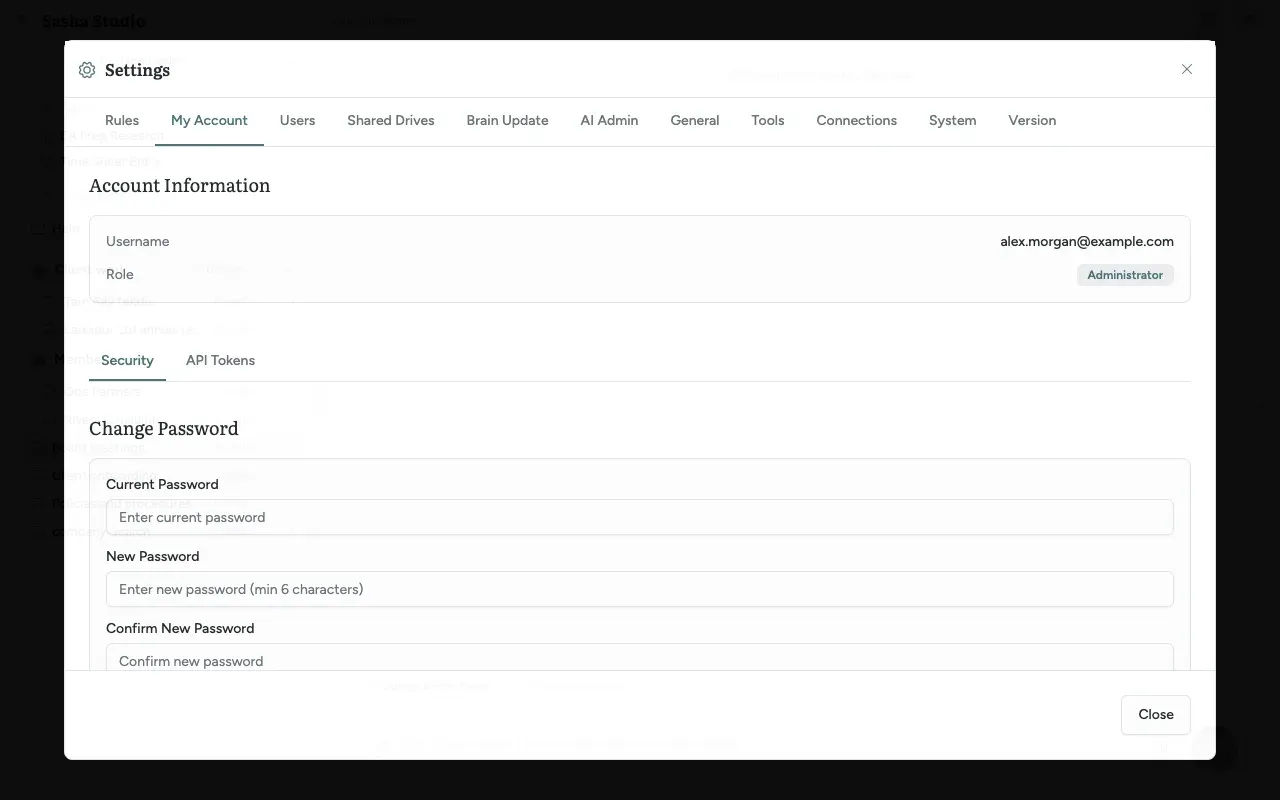
Change Password
- Type your Current Password.
- Type a New Password (6 characters or more) and type it again in Confirm New Password.
- Click Change Password.
Turn on 2FA
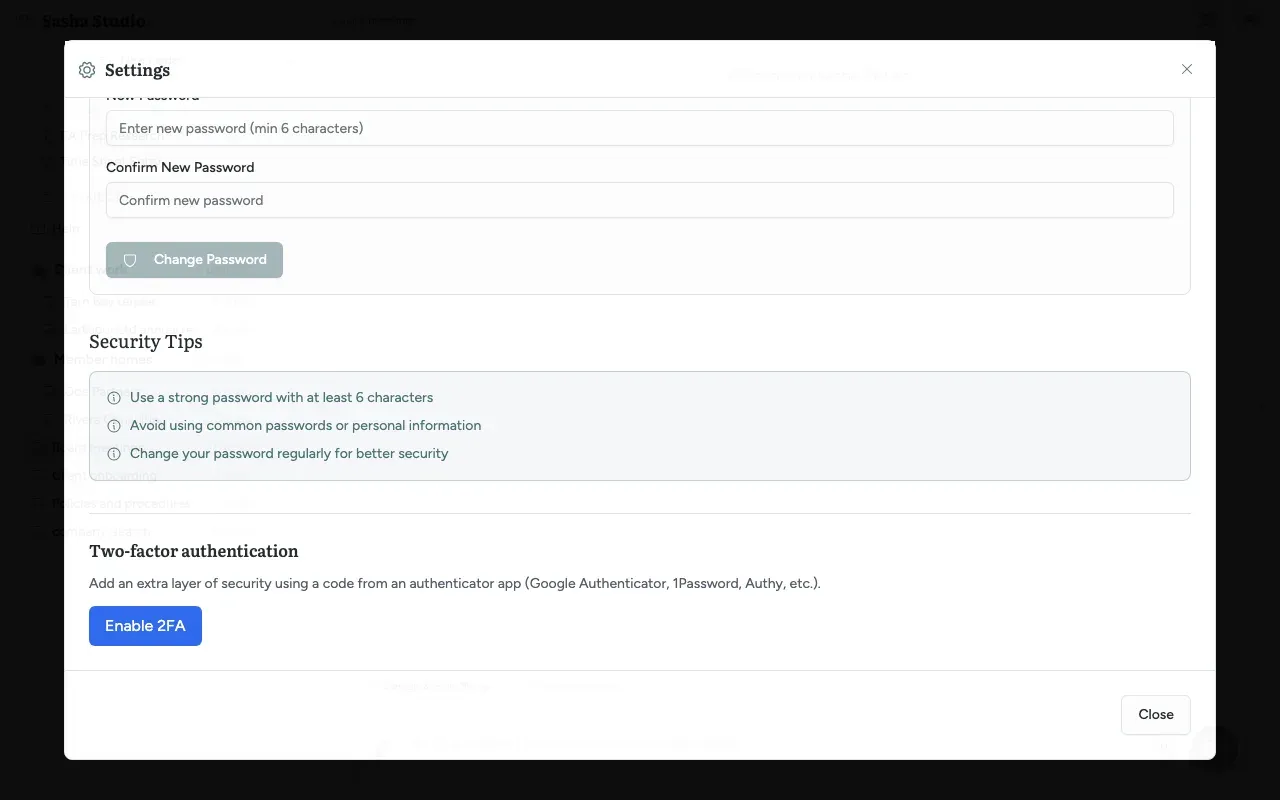
- Under Two-factor authentication, click Enable 2FA.
- Scan the QR code with your authenticator app. If you cannot scan it, type the key that Sasha shows into the app.
- Type the 6-digit code from the app and click Verify & enable. You have 5 minutes. Cancel stops the setup.
The block then shows that 2FA is enabled and when you enrolled.
Turn off 2FA
Type your password and a current code, then click Disable 2FA. If you lost your device, you cannot do this yourself: ask an admin.
Admin: reset another person's 2FA
- In Settings → Users, open the three-dot menu on the person's row and choose Reset 2FA. The item shows only when the person uses 2FA.
- Type your own password, and your own 6-digit code if you use 2FA.
- Click Reset 2FA.
Sasha removes the person's 2FA, records the reset, and emails the person if email delivery is set up. The person signs in with their password alone until they set up 2FA again.
Admin: how long a sign-in lasts (General → Session & Auth)
In Settings → General, the Session & Auth box has Auth token expiry: 1 hour, 12 hours, 1 day, 7 days, 30 days (the default), 60 days or 90 days.
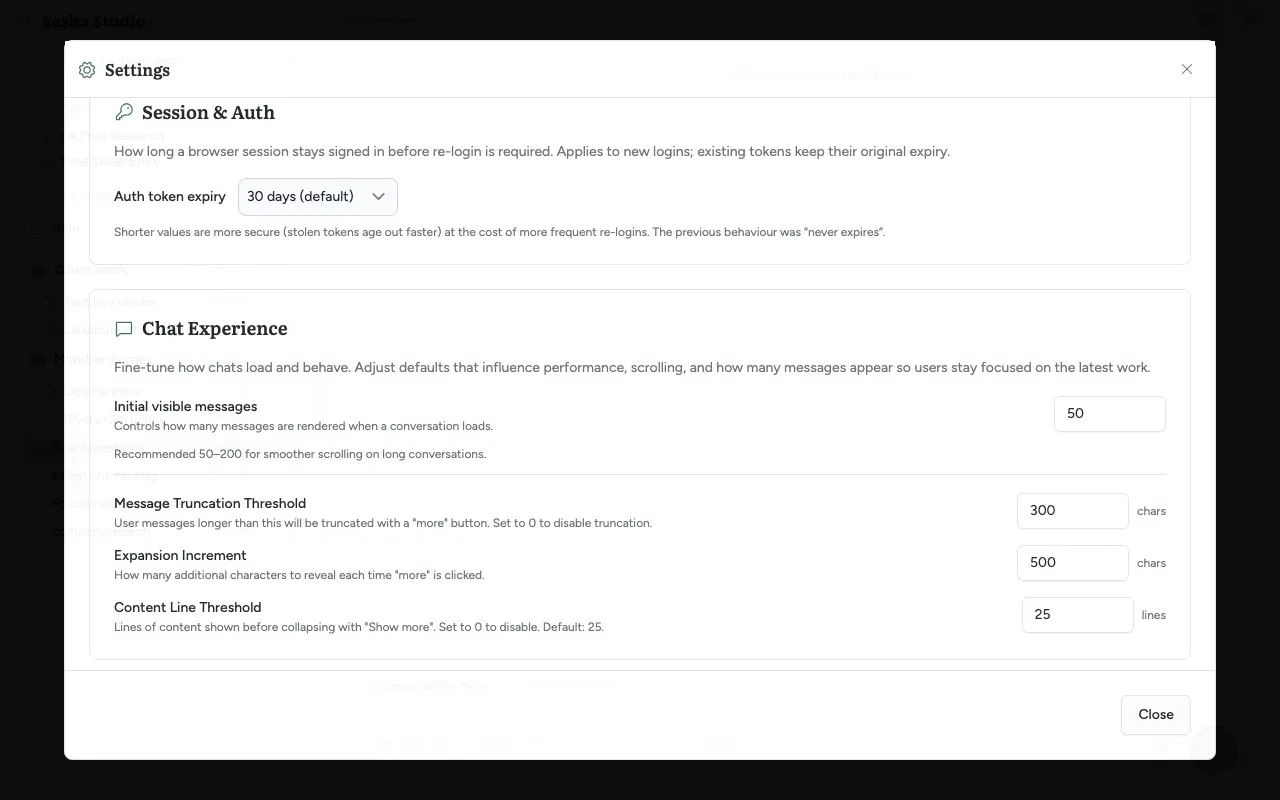
- The setting applies to new sign-ins. Sessions that already exist keep their old expiry.
- A shorter value means a stolen session stops working sooner. People sign in more often.
Limits to know
- There are no backup codes for 2FA. A lost device always needs an admin or a technical operator.
- Today, these actions do not end sessions that already exist: changing your password, an email password reset, an admin Set Password, turning on 2FA, and Sign Out on one device. Each session stays valid until it expires.
- There is no list of your active sessions and no "sign out everywhere".
- Anyone who knows a username can lock it for 15 minutes with 10 wrong passwords.
- Wrong passwords on Disable 2FA do not count towards a lock-out. Only wrong codes do.
- Changing your own password sends no email, and Sasha keeps no audit record of it.
- The Reset 2FA dialog says the person will be notified. Without email delivery, no email goes.
- Members cannot set up 2FA.
- The password rules differ: 6 characters for your own password, 8 for an initial password that an admin gives.
Questions
Is 2FA required?
No. Each person turns it on for their own account. An admin can see who uses it in Settings → Users, where each row shows 2FA on or 2FA off.
Which authenticator apps work?
Any app that makes standard 6-digit codes that change every 30 seconds. The screen names Google Authenticator, 1Password and Authy as examples.
Are there backup codes?
No. Sasha does not give backup or recovery codes. If you lose your device, ask an admin to reset your 2FA. If no admin can sign in, a technical operator can reset it on the server.
I am locked out. How long must I wait?
15 minutes. Sasha locks a username for 15 minutes after 10 wrong passwords, and locks 2FA for 15 minutes after 5 wrong codes in 15 minutes. A restart of the server also clears the lock.
Does changing my password sign me out on other devices?
No. Today, a password change does not end your other sessions. Each session stays valid until it expires. The same is true when an admin sets your password, when you turn on 2FA, and when you sign out.
How long do I stay signed in?
30 days by default. An admin can choose from 1 hour to 90 days in Settings → General → Session & Auth. A change applies to new sign-ins only.
I forgot my password. What do I do?
Click Forgot password? on the sign-in page and type your email address. Sasha always says to check your email, whether the account exists or not. The link in the email is valid for 24 hours. If your Sasha has no email delivery, no email arrives; ask an admin to set a new password for you.
Can members use 2FA?
Not today. Members cannot sign in to the Sasha web interface, and 2FA is set up only there. A member's Claude connection is protected by their password alone.
What happens when an admin resets my 2FA?
Sasha removes your 2FA. You then sign in with your password alone until you set up 2FA again. Sasha sends you an email about the reset if email delivery is set up.
Why does the password screen say 6 characters when the admin form says 8?
The two rules are different today. You can choose a password of 6 characters or more for yourself. An admin who adds a person must give an initial password of at least 8 characters. Use a longer password in both places.